V4.1.0R
15
5.3.Connect the LoRaWAN Gateway to a router
If you want to use TTN or an independent LoRa Server which may be
deployed in a local area network or in a remote one, you need to connect
your LoRaWAN Gateway to a router.
There are 2 ways to connect your Gateway to a router:
5.3.1. Connect to a Router via Wi-Fi
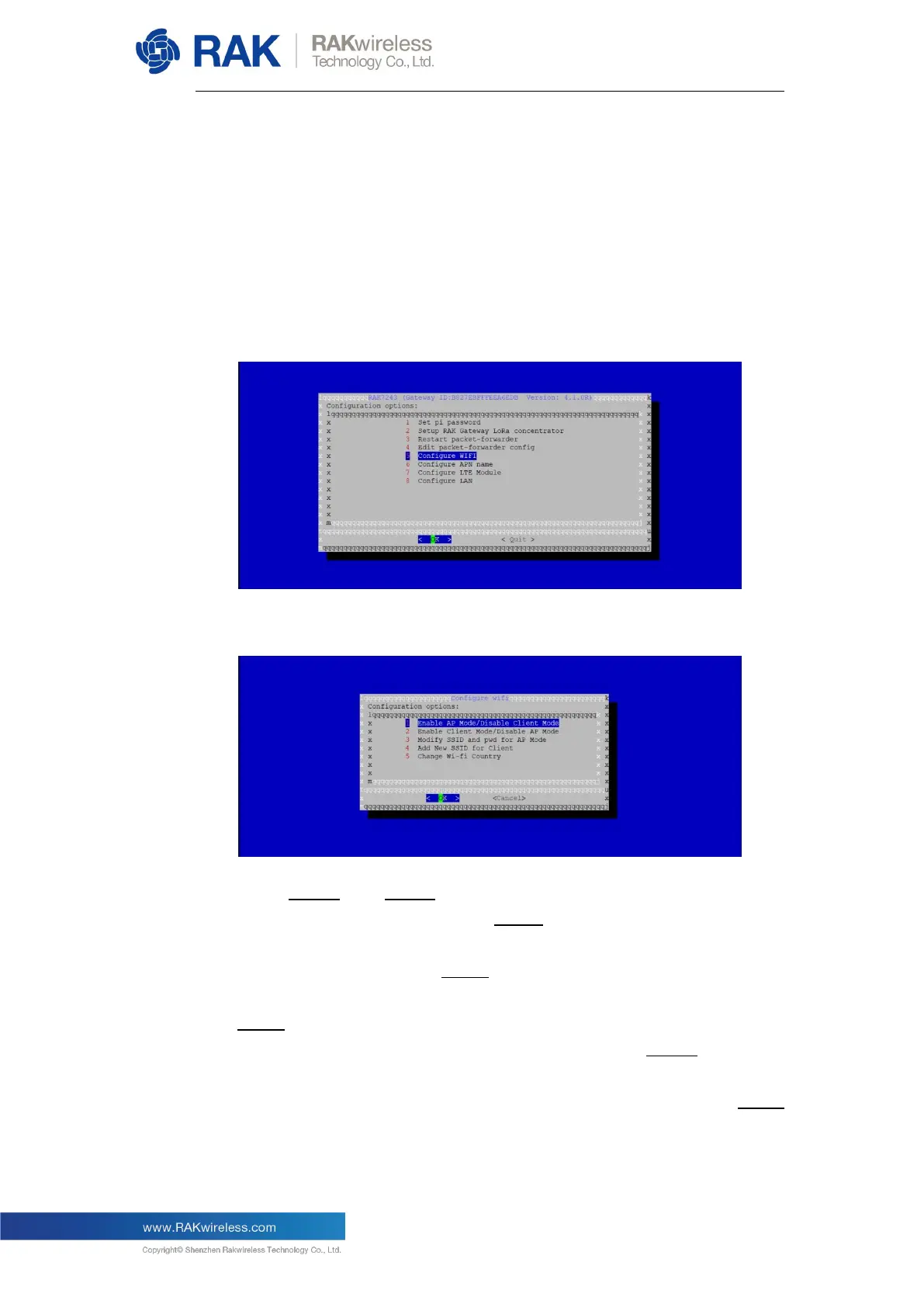
In the main configuration menu choose “5 Configure WIFI”:
You will see the following page:
Note: Item 1 and Item 2 are used to set the Wi-Fi mode, which the
Gateway works in. If you choose Item 1, it means that the Gateway will
work in Wi-Fi AP Mode after rebooting, while the Wi-Fi Client Mode will
be disabled. If you choose Item 2, it means that the Gateway will work in
Wi-Fi Client Mode after rebooting, while Wi-Fi AP Mode will be disabled.
Item 3 is used to modify the SSID and password of the Wi-Fi AP, and it is
valid when the Gateway works in Wi-Fi AP mode. Item 4 is used to
configure the Wi-Fi SSID and password, which the Gateway will connect
using after rebooting, if the Gateway works in Wi-Fi Client Mode. Item 5
is used to change the Resident Country to match with Wi-Fi standards.


 To Next Page