26
6.2.10 Restoring default values
Click Default Value to load default values into all parameters on all tabs in the EcoCool configuration software. Popup windows indicate which parameters
are being changed.
You can download the default values to a controller by following the steps in section 6.2.6.
6.3 Copy card
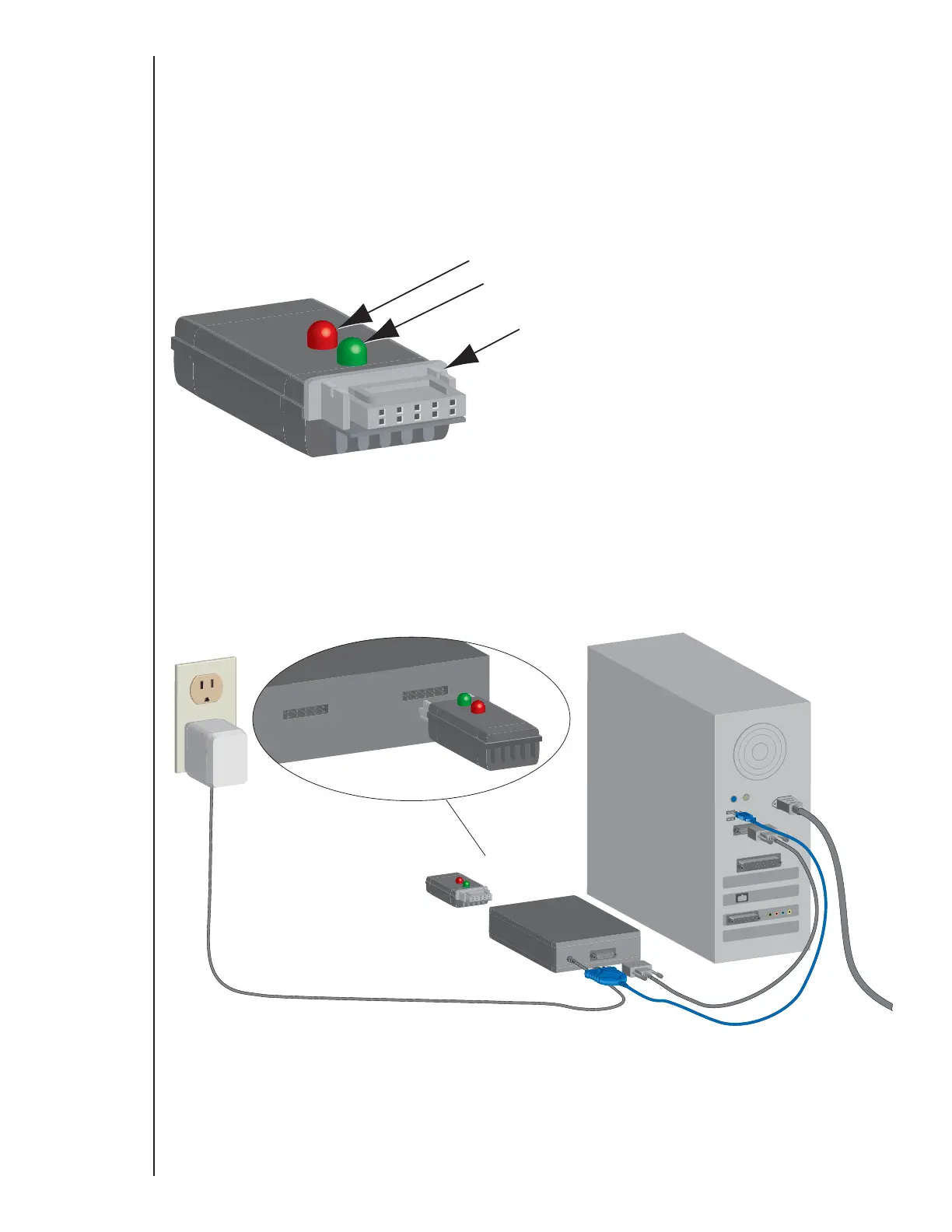
You can use a copy card to transfer firmware and configuration files into a controller or EcoCool configuration software. A firmware or configuration transfer
into a controller using a copy card is fast, automatic, and does not require removal of the controller from the case. Configuration files and firmware cannot
be uploaded from a controller into a copy card. During a data transfer, both LEDs flash. When the data transfer completes successfully, the green LED
remains illuminated and the red LED is extinguished. If the red LED remains illuminated and the green LED is extinguished, the transfer failed.
6.3.1 Transferring firmware between a copy card and EcoCool configuration software
A bidirectional transfer between the copy card and the interface box places the newer firmware in both devices. If the newer firmware is in the copy card, it
is copied into EcoCool configuration software. If the newer firmware is in EcoCool configuration software, it is copied into the copy card.
Connect the power adapter to the interface box and plug in the adapter.
Connect the interface box to the computer using the included RS232 db9 serial cable OR USB to RS232 db9 converter cable.
Connect the copy card to the interface box. The copy card fits only one of the interface box connectors.
Click Update Controller Firmware.
During the file transfer, both LEDs on the copy card are illuminated.
When the data transfer is completed, the green LED remains illuminated and the red LED is extinguished.
If the red LED remains illuminated and the green LED is extinguished, the transfer failed.
Disconnect the copy card from the interfaced box.
Type E7 EcoCool™ Electronic Temperature and Defrost Controllers
©2008 Invensys Controls All rights reserved.
DRAFT VERSION



 To Next Page