Scanning with Raven Desktop
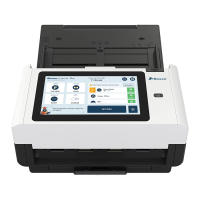
Ensure that the scanner shows as Connected in the bottom left corner of Raven
Desktop
● If the scanner is not connected, click “Connect Scanner” to reconnect or reinstall drivers
Configure Workflows and Scan Settings
2.1 A default workflow is available and can be customized by adjusting the scan settings and
destination selections on the right and then clicking “Save Default Settings”.
2.2 Additional custom workflows can be created by clicking the icon next to Workflows,
then naming your workflow and saving with your custom settings. Workflows can be dragged to
be reorganized and reordered on the left view.
2.3 To choose local folders on your computer or desktop, click and then
to choose a folder and then save to your destination list.
Scanning
3.1 Select your desired workflow, then press the SCAN button on the bottom right.
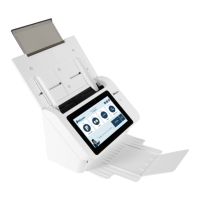
Workflows can also be selected on the scanner screen and started using the scan
button on the scanner when Raven Desktop is open and connected.
3.2 Make any desired changes by double clicking the preview pages, or using the
buttons on the preview page.
3.3 Click SEND to send the document to the chosen destinations.
3.4 A final status for each cloud destination will be displayed, but can be viewed for 30
days by clicking “HISTORY” on the top navigation.
15 support@raven.com | 1-800-713-9009 | raven.com/support


 To Next Page
 Loading...