EasyManua.ls Logo

Raymarine e95 - User Manual

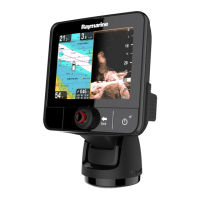
Raymarine e95
388 pages
Print Icon
To Next Page IconTo Next Page
Loading...
LightHouse™
OPERATION
INSTRUCTIONS
Release 15
English
© 2015 Raymarine UK Limited
Date: 09-2015
Document number: 81360-2-EN

Table of Contents

Other manuals for Raymarine e95

Questions and Answers

  • P
    pcowanAug 29, 2025
    Why isn't the touchscreen working on my Raymarine Marine Equipment?
    • A
      Anita AdamsAug 29, 2025
      If the touchscreen on your Raymarine Marine Equipment does not operate as expected, ensure that the touch lock is disabled. The touch lock can be turned off on the home screen using the Joystick. Also, make sure you are operating the screen with bare fingers, as gloves may prevent correct operation. Calibrate the touchscreen using the setup menus. If there are saltwater deposits on the screen, carefully clean and dry the screen according to the provided instructions.
  • K
    Kathleen GalvanAug 28, 2025
    What causes Raymarine Marine Equipment radar to not initialize?
    • K
      Kevin AndersonAug 28, 2025
      If the radar on your Raymarine Marine Equipment will not initialize and the Voltage Control Module (VCM) is stuck in “sleep mode”, check the power connection at the VCM. Ensure the voltage at the input is 12/24V and the voltage at the output is 40V. The issue could be due to an intermittent or poor power connection.
  • S
    Shelby GarciaAug 28, 2025
    Why is instrument data missing from all Raymarine Marine Equipment displays?
    • K
      kjonesAug 28, 2025
      If instrument, engine, or other system data is unavailable at all displays on your Raymarine Marine Equipment, check the data bus (e.g., SeaTalkng) wiring and connections to ensure data is being received at the display. Verify the overall integrity of the data bus (e.g., SeaTalkng) wiring. Check the source of the missing data (e.g., ST70 instrument or engine interface) to ensure it is operating. Also, check the power to the SeaTalk bus. If a software mismatch between equipment is suspected, contact Raymarine technical support.
  • J
    Jessica DavisSep 1, 2025
    How to fix weak Wi-Fi signal on Raymarine Marine Equipment?
    • M
      Marco FosterSep 1, 2025
      If you are experiencing a weak or intermittent Wi-Fi signal with your Raymarine Marine Equipment, temporarily disable each wireless device in turn until you have identified the device causing the interference.
  • K
    Kelsey HayesAug 27, 2025
    Why does my Raymarine Marine Equipment show a “No Fix” GPS status?
    • R
      Randy RobinsonAug 27, 2025
      If the Raymarine Marine Equipment displays a “No Fix” GPS status icon, it could be due to several reasons. The geographic location or current conditions might be preventing a satellite fix; in this case, check periodically to see if a fix is obtained in better conditions or another geographic location. Alternatively, there may be a GPS connection fault, so ensure that external GPS connections and cabling are correct and fault free. Finally, the external GPS antenna might be poorly positioned, so ensure the GPS antenna has a clear view of the sky.
  • V
    vcainAug 27, 2025
    How to fix a Raymarine Monitor radar that will not initialize (Voltage control module (VCM) stuck in “sleep mode”)?
    • D
      Dana HughesAug 27, 2025
      If your Raymarine Monitor radar will not initialize because the Voltage Control Module (VCM) is stuck in 'sleep mode', check the power connection at the VCM. Ensure the voltage at the input is 12/24V and the voltage at the output is 40V.
  • T
    Tanya JonesAug 27, 2025
    What does it mean if my Raymarine Monitor displays 'No Data' or 'No scanner message'?
    • C
      Catherine CabreraAug 27, 2025
      If your Raymarine Monitor displays 'No Data' or 'No scanner message', check the scanner power supply cable to ensure it's sound and connections are tight and free from corrosion. Also, check that the scanner is correctly connected to a Raymarine network switch or SeaTalkhs crossover coupler, as applicable. Ensure the scanner pedestal switch is in the ON position.
  • A
    Andrea LoganAug 27, 2025
    What to do if my Raymarine Monitor will not boot up (re-boot loop)?
    • S
      Steven JacobsAug 27, 2025
      If your Raymarine Monitor will not boot up, it could be due to the power supply and connection issues. Also, in the unlikely event that the product's software has become corrupted, please try re-flashing the latest software from the Raymarine website. On display products, as a last resort, you can try to perform a ‘Power on Reset’; however, this will delete all settings/presets and user data and revert the unit back to factory defaults.
  • T
    Tyler MullinsAug 27, 2025
    What to do if my Raymarine Monitor displays a “No Fix” GPS status icon?
    • C
      Courtney BlankenshipAug 27, 2025
      If your Raymarine Monitor displays a 'No Fix' GPS status icon, it could be due to your geographic location or prevailing conditions preventing a satellite fix (check periodically in better conditions or another location), a GPS connection fault (ensure external GPS connections and cabling are correct), or an external GPS antenna in a poor position (ensure the GPS antenna has a clear view of the sky).
  • E
    emartinezAug 26, 2025
    Why does my Raymarine Monitor not turn on or keep turning off?
    • V
      Victor BlackAug 26, 2025
      Your Raymarine Monitor might not be turning on or keeps turning off due to several reasons: a blown fuse or tripped breaker (check and replace if necessary, and inspect for cable damage if fuses repeatedly blow), a poor or damaged power supply cable or connections (ensure the cable is fully inserted and locked, check for damage or corrosion, and flex the cable to check for reboots), incorrect power connection (ensure the installation instructions have been followed), or an insufficient power source (check the power supply voltage under load).

Raymarine e95 Specifications

General IconGeneral
Display Size9 inches
Display Resolution800 x 480 pixels
TouchscreenYes
ChartplotterYes
Sonar SupportYes
Radar CompatibleYes
Wi-FiYes
BluetoothYes
NetworkingNMEA 2000, Ethernet
Video InputYes
Waterproof RatingIPX6
Display TypeColor LCD
CartographyNavionics
Operating Voltage12 V DC / 24 V DC
Weight3.2 lbs
GPS ReceiverBuilt-in 50 channel

Related product manuals