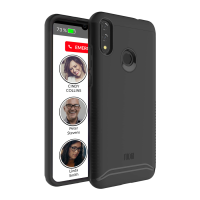
photo”. You can add a picture from your
gallery, or by taking a photo through the app,
or you can add an avatar. To save the new
photo, remember to press Save in both the
photo tool and the “Edit Contact” page.
If desired, you can save a contact with a
picture only, without adding a name.
Phone location
To obtain the phone’s location, go to the
“More” section in your app and tap on GPS
Location
. You will see a map with
up to three pins identifying the phone’s
location. The location is updated every 15
minutes. If the phone has not moved in
approximately the last 45 minutes, you will
see one pin. If the phone is moving, you
will see two or three pins, with each pin
representing a location of the phone. If you
click on a pin, you will see the address and
a time stamp indicating the time that the
phone was at that location.
In the portal, the GPS location button is in
the top right-hand corner of the screen, close
to the battery power and signal strength
indicators. In the app, to find the GPS
location button, press the More menu, and it
is at the top of the screen.
22


 To Next Page