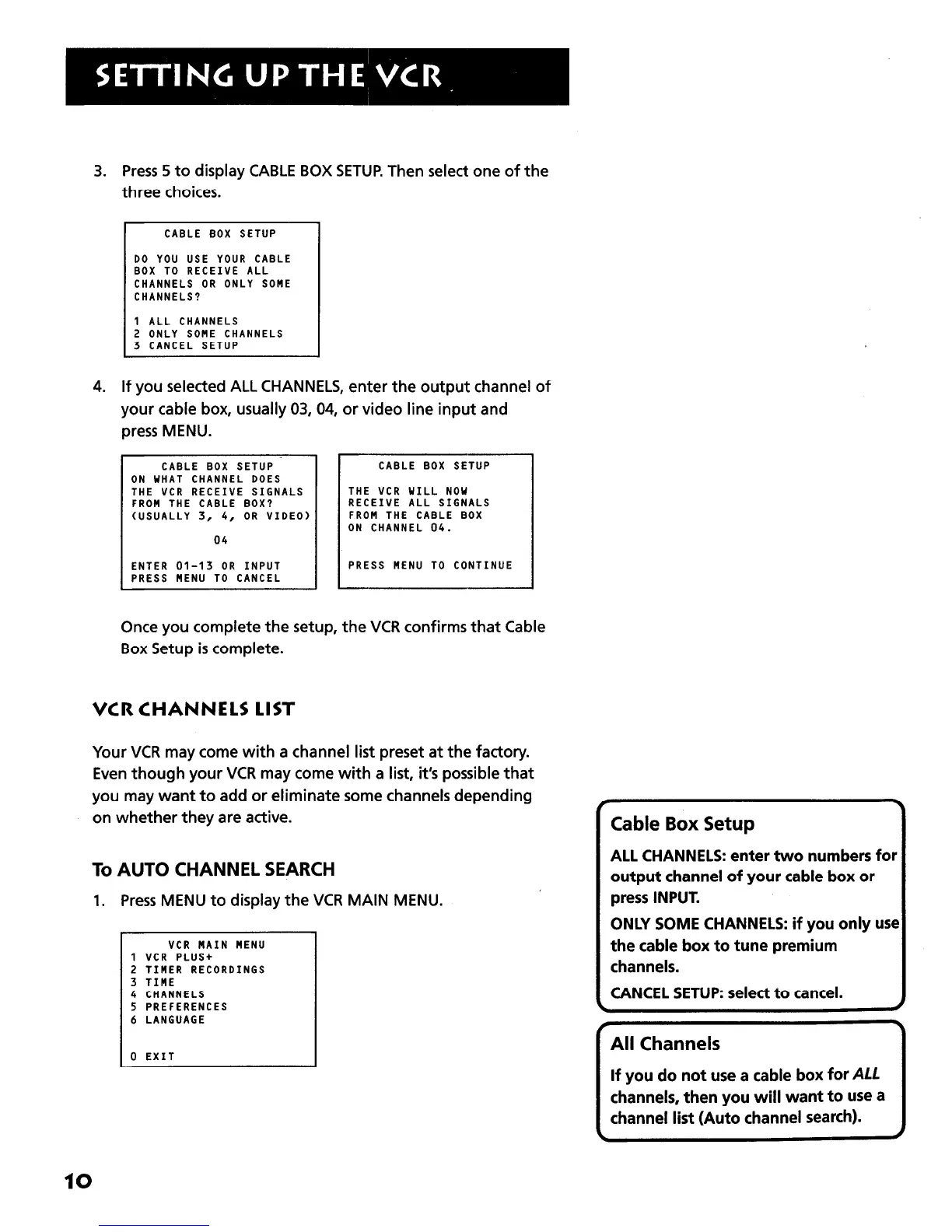
3. Press 5 to display CABLE BOX SETUP Then select one of the
three choices.
CABLE BOX SETUP
DO YOU USE YOUR CABLE
BOX TO RECEIVE ALL
CHANNELS OR ONLY SOME
CHANNELS?
1 ALL CHANNELS
2 ONLY SOME CHANNELS
3 CANCEL SETUP
4. If you selected ALL CHANNELS, enter the output channel of
your cable box, usually 03,04, or video line input and
press MENU.
CABLE BOX SETUP.
ON WHAT CHANNEL DOES
THE VCR RECEIVE SIGNALS
FROM THE CABLE BOX?
(USUALLY 3, 4, OR VIDEO)
04
ENTER 01-13 OR INPUT
PRESS MENU TO CANCEL
CABLE BOX SETUP
THE VCR WILL NOW
RECEIVE ALL SIGNALS
FROM THE CABLE BOX
ON CHANNEL 04.
PRESS MENU TO CONTINUE
Once you complete the setup, the VCR confirms that Cable
Box Setup is complete.
VCR CHANNELS LIST
Your VCR may come with a channel list preset at the factory.
Even though your VCR may come with a list, it’s possible that
you may want to add or eliminate some channels depending
on whether they are active.
To AUTO CHANNEL SEARCH
1. Press MENU to display the VCR MAIN MENU.
VCR MAIN MENU
1 VCR PLUS+
2 TIMER RECORDINGS
3 TIME
4 CHANNELS
5 PREFERENCES
6 LANGUAGE
0 EXIT
.
Cable Box Setup
ALL CHANNELS: enter two numbers for
output channel of your cable box or
press INPUT.
ONLY SOME CHANNELS: if you only use
the cable box to tune premium
channels.
CANCEL SETUP: select to cancel.
d
All Channels
If you do not use a cable box for
ALL
channels, then you will want to use a
channel list (Auto channel search).
10



 To Next Page