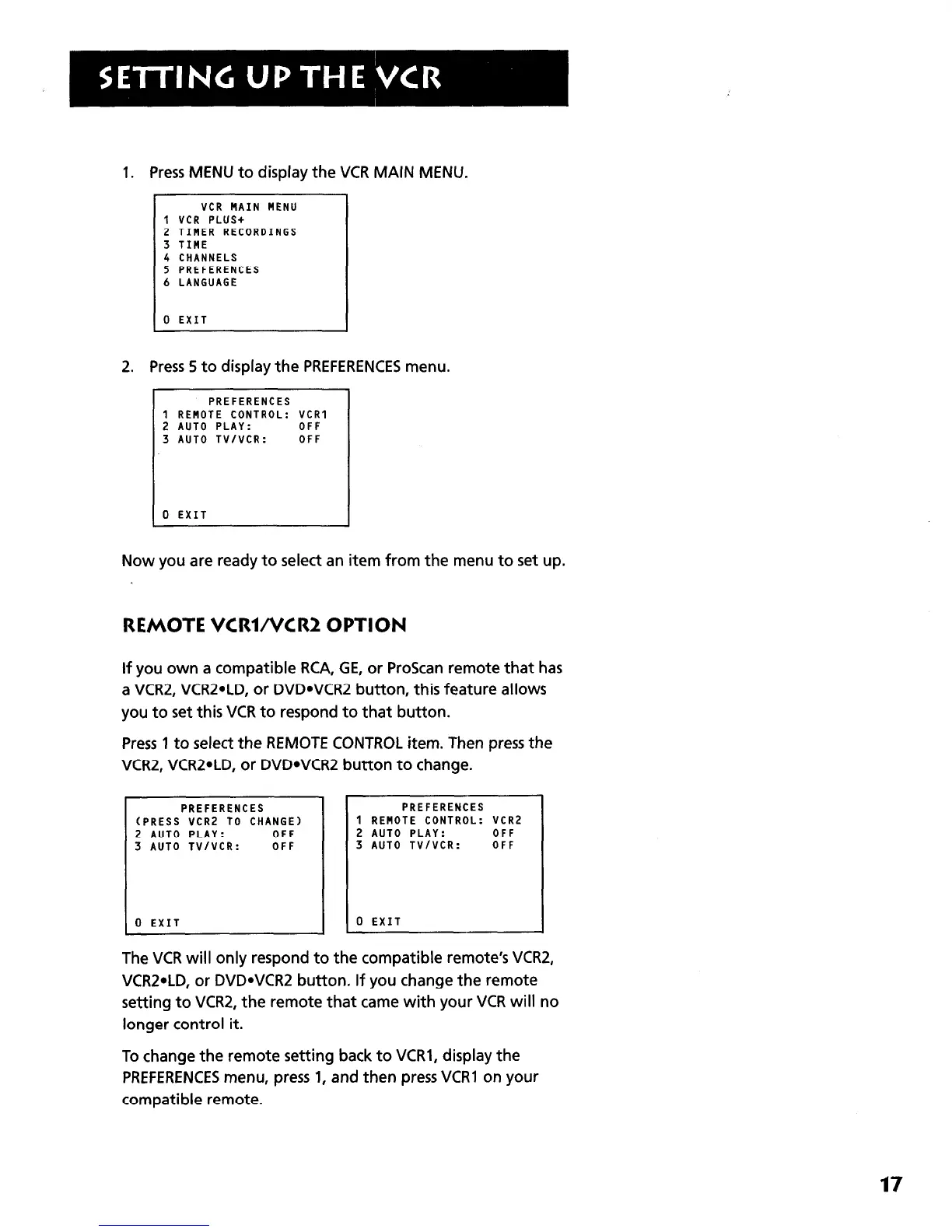
1. Press MENU to display the VCR MAIN MENU.
VCR MAIN MENU
1 VCR PLUS+
2 TIMER RECORDINGS
3 TIME
4 CHANNELS
5 PREFERENCES
6 LANGUAGE
0 EXIT
2. Press 5 to display the PREFERENCES menu.
Now you are ready to select an item from the menu to set up.
REMOTE VCRWVCR2 OPTION
If you own a compatible RCA, GE, or ProScan remote that has
a VCR2, VCRZ*LD, or DVDWCRZ button, this feature allows
you to set this VCR to respond to that button.
Press 1 to select the REMOTE CONTROL item. Then press the
VCRZ, VCRZ*LD, or DVDWCRZ button to change.
PREFERENCES
(PRESS VCR2 TO CHANGE)
2 AUTO PLAY: OFF
3 AUTO TV/VCR:
OFF
0 EXIT
PREFERENCES
1 REMOTE CONTROL: VCR2
2 AUTO PLAY: OFF
3 AUTO TV/VCR: OFF
0 EXIT
The VCR will only respond to the compatible remote’s VCRZ,
VCRZ*LD, or DVDWCRZ button. If you change the remote
setting to VCRZ, the remote that came with your VCR will no
longer control it.
To change the remote setting back to VCRl, display the
PREFERENCES menu, press 1, and then press VCR1 on your
compatible remote.
17



 To Next Page