16
Pause for Stop Action
This feature stops a tape in action and lets you examine the details
of the scene on the screen. Stop action works best for tapes
recorded in the SP or SLP speed.
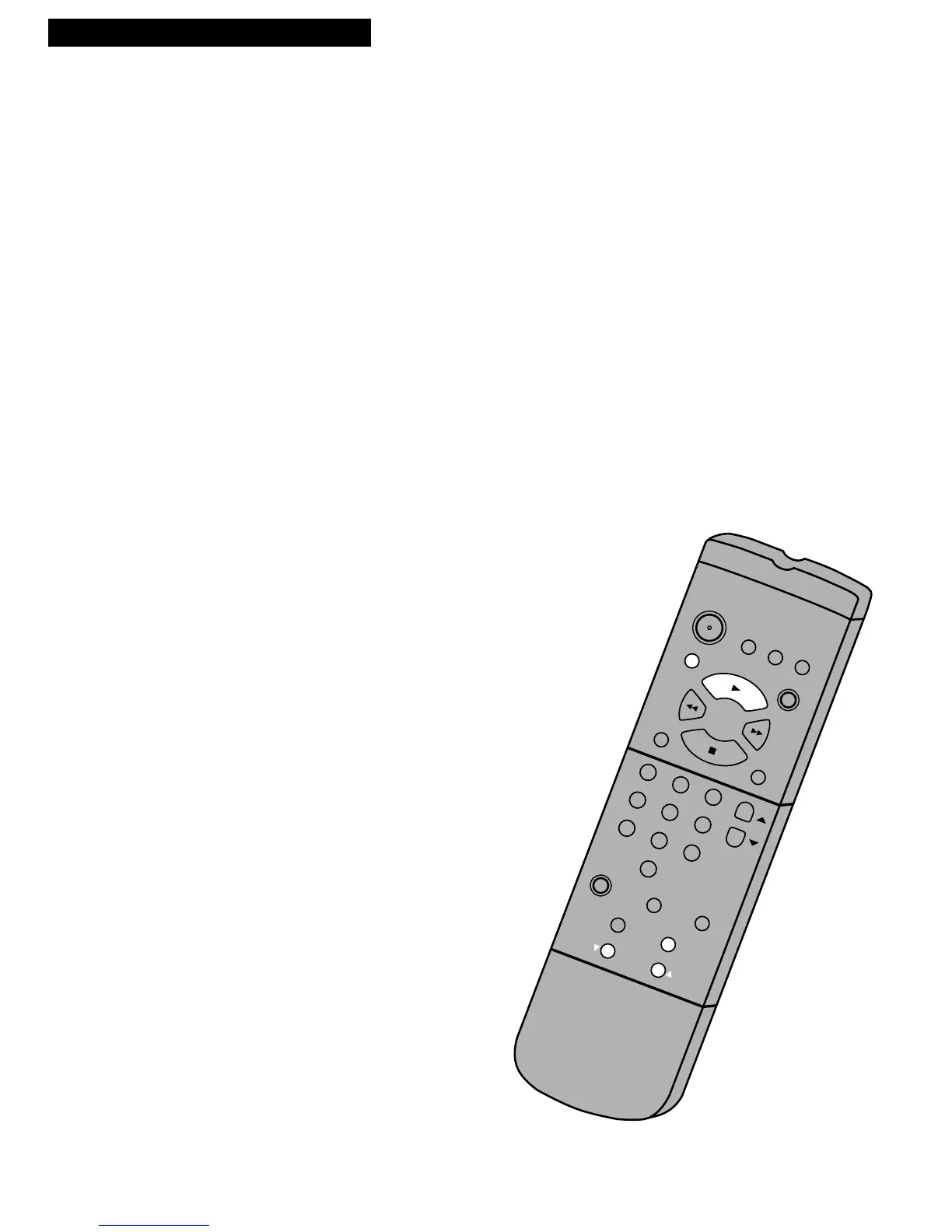
1. Press PAUSE during playback to stop the action.
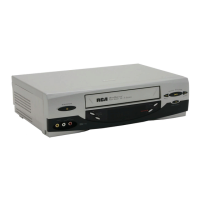
2. Press TRACKING up or down on the remote or the
VCR to reduce any jittering of the picture.
3. Press PAUSE or PLAY to return to playback.
The VCR automatically switches from stop-action
playback to stop after a few minutes.
Frame Advance (F. ADV Button)
Frame advance lets you view one stop-action frame after another.
Frame advance works best for tapes recorded in the SP or SLP
speed.
1. Press PAUSE to stop the action.
2. Press F. ADV each time you want to view a frame of
the scene.
3. Press PAUSE or PLAY to resume normal playback.
Automatic Tracking
The VCR has automatic tracking which adjusts the picture when
you view a tape recorded on another VCR. Automatic tracking is
turned on when a tape is inserted or the VCR’s power is turned on.
Manual Tracking
Occasionally, you may need to manually adjust tracking on a tape
recorded on a different VCR or camcorder. Tracking is used when
playing a tape. It has no effect during recording.
When streaks or snow appear, press TRACKING up or down on
the remote or the VCR to adjust for the best possible picture.
During stop action pause, press TRACKING up or down on the
remote or the VCR to reduce any jittering of the picture.



 To Next Page