19
Recording a Program
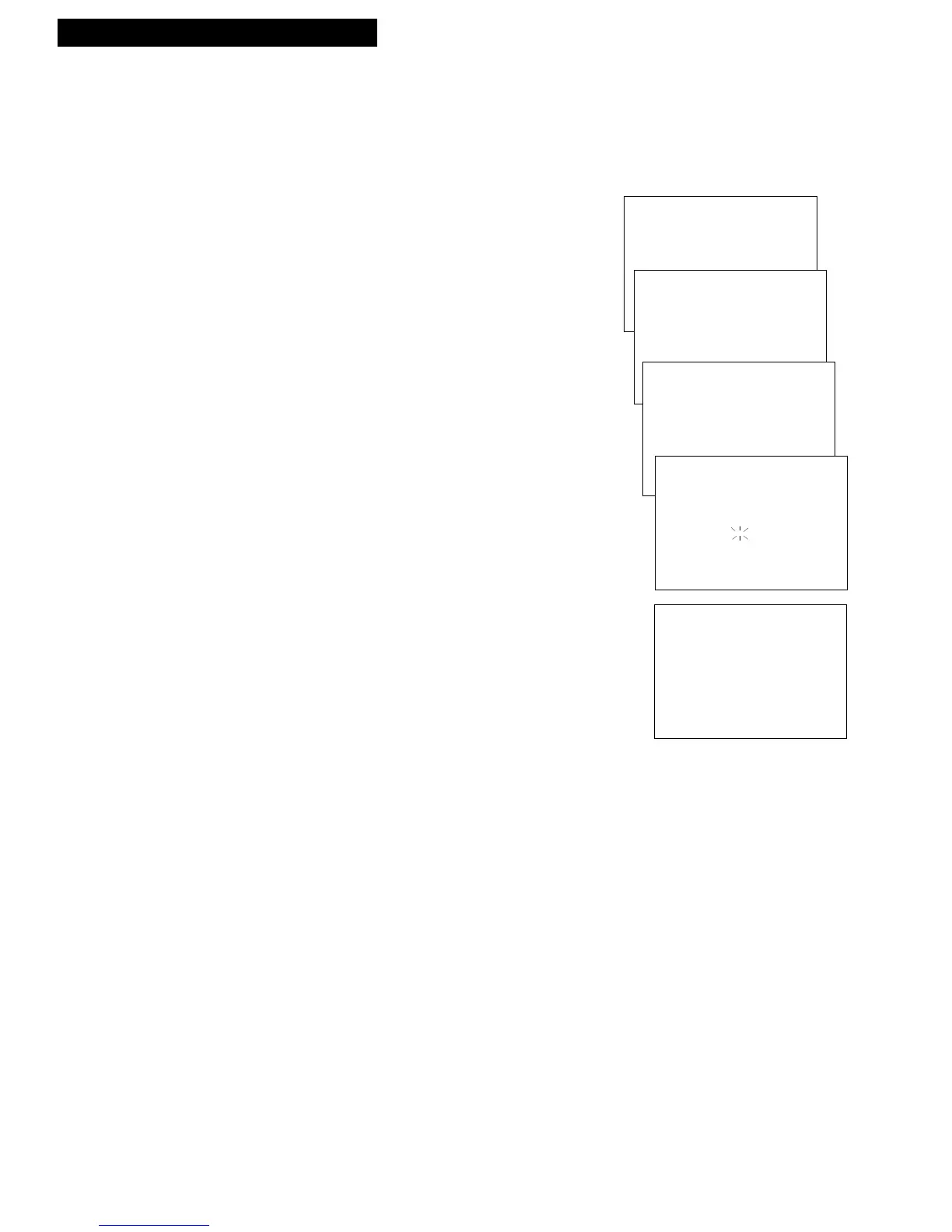
VCR MAIN MENU
1 TIMER PROGRAMMING
2 REVIEW PROGRAMS
3 CHANNEL SETUP
CHANNEL SETUP
1 AUTO-SEARCH CHANNELS
2 ADD/REMOVE CHANNELS
3 TUNING MODE: CABLE
4 CABLE BOX SETUP
IS A CABLE BOX BEING
USED WITH THE VCR FOR
ALL CHANNELS?
1 YES, CONTINUE
2 NO, EXIT
YOUR VCR WILL NOW
RECEIVE ALL CHANNELS
FROM THE CABLE BOX
ON VCR CH 11
PRESS MENU TO EXIT
ENTER THE CHANNEL
NUMBER FOR VIEWING
THE CABLE BOX SIGNAL
--
PRESS 01-13 OR INPUT
PRESS MENU TO EXIT
1. Press MENU on the remote to display the VCR
MAIN MENU
.
2. Press 3 to display the CHANNEL SETUP menu.
3. Press 4 to display the CABLE BOX SETUP menu.
4. Press 1 when the CABLE BOX SETUP menu
appears on the screen.
5. Press two numbers on the remote to enter the
output channel of your cable box. Press 0 before a
single-digit number. (Valid numbers are 01 – 13.)
Press CLEAR on the remote to correct an entry.
If you connected your cable box to the VCR using
the cable box’s audio/video out jacks, press INPUT
on the remote to select the VIDEO IN option.
6. Press MENU. A message appears. You can wait for
the message to time out, or you can press MENU to
return to CHANNEL SETUP.
The VCR automatically enters the output channel
of your cable box and CABLE in the TIMER
PROGRAMMING menu.
Recording While You’re Away (Timer Recording)
Select Cable Box Viewing Channel (Required only if all
channels are received from a cable box.)



 To Next Page