22
Recording a Program
Using Two VCRs for Copying and Editing Tapes
Operating Instructions
(Refer to hookup on page 6.)
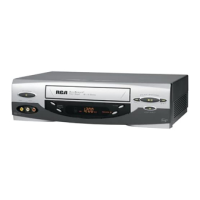
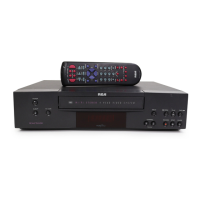
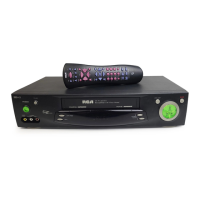
Use one VCR as the playback VCR and the other as the recording VCR.
1. Turn on the TV and VCRs.
2. Tune the TV to the VCR viewing channel, either 3, 4, or the TV’s video
input.
3. If you connected your VCR using Option A, (page 6), tune the
recording VCR to channel 3 or 4 – the one you selected on the back of
the playback VCR.
If you connected your VCR using Option B, (page 6), press INPUT on
the recording VCR’s remote to select the line input.
4. Insert the tape you want to copy into the playback VCR. Insert a blank
tape with safety tab in place into the recording VCR.
5. Press PLAY, then PAUSE on the playback VCR when you reach the
point on the tape or program where you want to begin copying. If the
tape was not recorded on the playback VCR, streaks may appear and
you may need to adjust tracking.
6. Press RECORD and PLAY at the same time on the recording VCR or
REC on the remote. Then, press PAUSE on the recording VCR.
7. Press PAUSE on both VCRs at the same time to begin copying the
tape.*
8. Edit out segments that you do not want to copy by pressing PAUSE on
the recording VCR’s remote to stop copying the tape. Then, locate the
next segment you want to copy on the playback VCR by using FWD,
REW, and PLAY. Press PAUSE on the playback VCR. Press PAUSE
on both VCRs at the same time to resume copying.
9. Press STOP•EJECT on both VCRs when you are finished.
* You may turn off the TV after the recording has started as it does not have
to be on to copy a tape.
Caution: The unauthorized
recording of television
programs and other
materials may infringe the
rights of others.
VCR MAIN MENU
1 TIMER PROGRAMMING
2 REVIEW PROGRAMS
3 CHANNEL SETUP
4 VCR SETUP OPTIONS
SETUP OPTIONS
1 REMOTE CONTROL: VCR1
2 AUTO PLAY: ON
PRESS VCR2 TO CHANGE
SETUP OPTIONS
1 REMOTE CONTROL: VCR2
2 AUTO PLAY: ON
0 EXIT TO MAIN MENU
Copying and Editing Using Compatible Remote
If you have a compatible RCA, ProScan, or GE remote with VCR1 and VCR2 buttons,
you can program this VCR to respond to VCR1 (VCR2). This lets you control both
VCRs with one remote for easier copying and editing.
Set the REMOTE CONTROL feature of this VCR to the VCR1 or VCR2 position. Then,
the compatible remote can control the VCR with either the VCR1 or VCR2 button
depending on the position you select in the menu.
1. Press MENU to display the VCR MAIN MENU.
2. Press 4 to display SETUP OPTIONS.
3. Press 1 to activate the REMOTE CONTROL: VCR1 or
VCR2 feature.
4. Press VCR1 or VCR2 on your compatible VCR’s
remote to change the setting and program the VCR to
respond to VCR1 or VCR2, depending on the position
you selected in Step 3.



 To Next Page