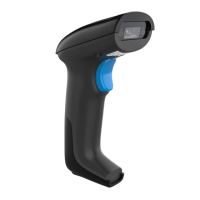
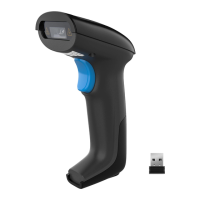
Step 3. Unplug the USB receiver and then insert the USB receiver into
the USB port of computer again.The scanner beeps “ di “two times
at lowest frequency, indicate that the scanner connect to computer
successfully.
Step 4. Scan “ Instant upload mode” code to allow the scanner to
upload barcodes to host instantly.
Step 5. Open the Notepad or Word in the Host, put the cursor on the
blank. Read labels for testing. When scanner decodes successfully
r,the scanner will beeps once and vibrates once.
( The beeper and vibration indication can be turned off. See Decoding
Volume Setting on page 18 and Vibrate setting on page 19 )
Note 1:
If fail to connect the scanner to computer, please unplug
the mini USB receiver and then plug the USB receiver into the USB
port again, repeat the connection steps above.
Note 2:
If you want to switch the connection mode back to
Bluetooth mode, please press the Button 3 for 1 second or
scan“Bluetooth HID”and ”Pairing ”in order.
See Button Function Instruction on page 3 or “ Bluetooth
Pairing”on page 5.
Note 3:
If the scanner is not paired with the USB receiver within 1
minute, it will exit the the pairing status automatically.
The setup codes scanning is not working when the scanner is in
wireless pairing status.



 To Next Page