1.3 Wired Mode
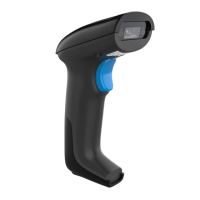
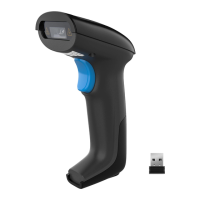
Step 1. Connect the scanner to computer via the provided USB cable.
After connect the scanner to computer, the scanner will automatically
switch to Wired Mode. The wireless indicator and the Bluetooth
indicator will disappear.
Step 2. Open the Notepad or Word in the Host, put the cursor on the
blank, read labels for testing. When scanner decodes barcode
successfully ,the scanner will beeps once and vibrates once.
( The beeper and vibration indication can be turned off. See Decode
Beeper Setting on page 18 and Vibration setting on page 19 )
Note 1:
After unplugging the USB cable, the scanner will automatically switch
to Bluetooth Pairing Mode or 2.4GHz Wireless Mode.
Charging The Scanner
1. Battery Level
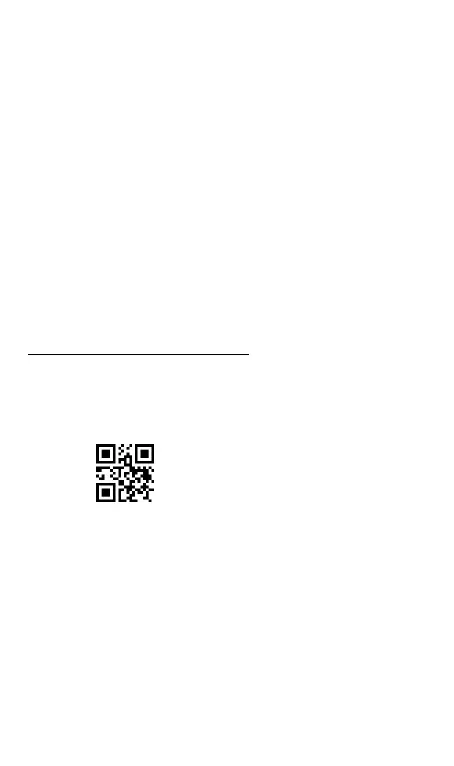
Open the Notepad or Word, put the cursor on the blank, scan
“Battery Level”code and users will know how much battery is left.
For example “ Battery : 100% “.
2. Charging the scanner
Refer to the Charge Indicator on the screen or scan “ Battery
Level“ setting code above. When it indicates the level of the battery
is 20% or lower, please charge the scanner in time.
Option 1. The scanner can be charged by connecting the scanner
directly to a computer through the micro-USB connector. You can use
the provided USB cable for this purpose.



 To Next Page