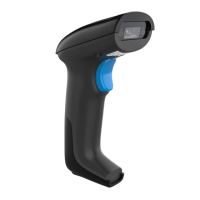
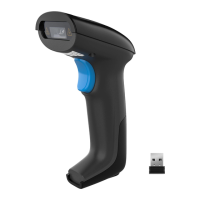
1. How to link the reader to a Bluetooth ready device
through the operation button ?
(1) Press Button 2 to wake up the bar code scanner.
(2) Press Button 3 for 1 second to switch the pairing mode to
Bluetooth Pairing mode.
(3) Press Button 3 for 8 seconds. The Bluetooth indicator flashing
quickly indicates that the scanner is discoverable by the Host.
( Alternatively, you can scan setting codes“Bluetooth HID”and
“ Pairing”in order, and then the bar code scanner will become
automatically discoverable by the Host. See Bluetooth Pairing on
page 5)
(4) On the Host,use the dedicated Bluetooth application to search for
new devices. Select the”Bar Code Scanner HID”from the list of
available devices. If you receive an error message, it may be necessary
to disable security on the device.
(5) When the scanner finish pairing with the Host, the Bluetooth
indicator remains on and the buzzer beeps “di”.
2. How to switch the pairing mode from Bluetooth mode to
Wireless mode ?
(1) Press Button 2 to wake up the bar code scanner.
(2) Press Button 3 for 1 second to switch the paring mode to 2.4GHz
Wireless Pairing mode. The 2.4GHz wireless indicator shows up.
(3) Press Button 3 for 8 seconds. The 2.4GHz Wireless indicator
flashing quickly that the scanner is ready to connect to the device.
(4) Insert the USB receiver into USB port of device ( Make sure the
USB receiver is recognized by the device)The bar code scanner will
pair to the device automatically, the 2.4GHz Wireless indicator will
remains on and the buzzer beeps”di” ( If the 2.4GHz wireless
indicator keep flashing, please follow the 2.4GHz Wireless Paring
Mode introduction on page 7 to operate the scanner )
Note
: After
switching to Bluetooth Pairing Mode, the scanner will
pair to the previous paired device automatically. If not, please operate
“ forget the device “on the Bluetooth application of device and
then follow Bluetooth Pairing introduction on page 5 to re-connect
the device.



 To Next Page