4. If offloading a REDMAG 1.8" SSD (48GB) or a REDMAG 1.8" SSD (512GB), power the RED STATION with a RED
STATION USB to DC Power Cable (24"). Using an eSATA or USB connection alone may not power the RED
STATION.
5.
Set the On/Off Switch on the back of the RED STATION to On.
6. Install the REDMAG 1.8" SSD in the media slot on the front panel of the RED STATION.
The computer recognizes the inserted SSD media and displays the SSD as a new drive.
NOTE: To offload data from the SSD, go to "Offload Data From Media to Your Computer" below.
OFFLOAD DATA FROM MEDIA TO YOUR COMPUTER
1. Connect a RED MINI-MAG or REDMAG 1.8" SSD to your computer.
2. Copy the RDM folder on the SSD to the archive storage media. This copies all the media and metadata files.
NOTE: You do not need to copy the log, magazine profile, or presets files.
3. Properly eject/unmount the SSD from the computer before physically removing the SSD from the REDSTATION or
before turning off the RED STATION.
NOTE: Longer R3Ds are broken up into 4GB segments that are grouped in the RDC folder. When you open the clips in
an application that accepts R3D
®
files, the clips are strung together into one continuous clip.
RED WATCHDOG
On Mac
®
computers with REDCINE-X PRO
®
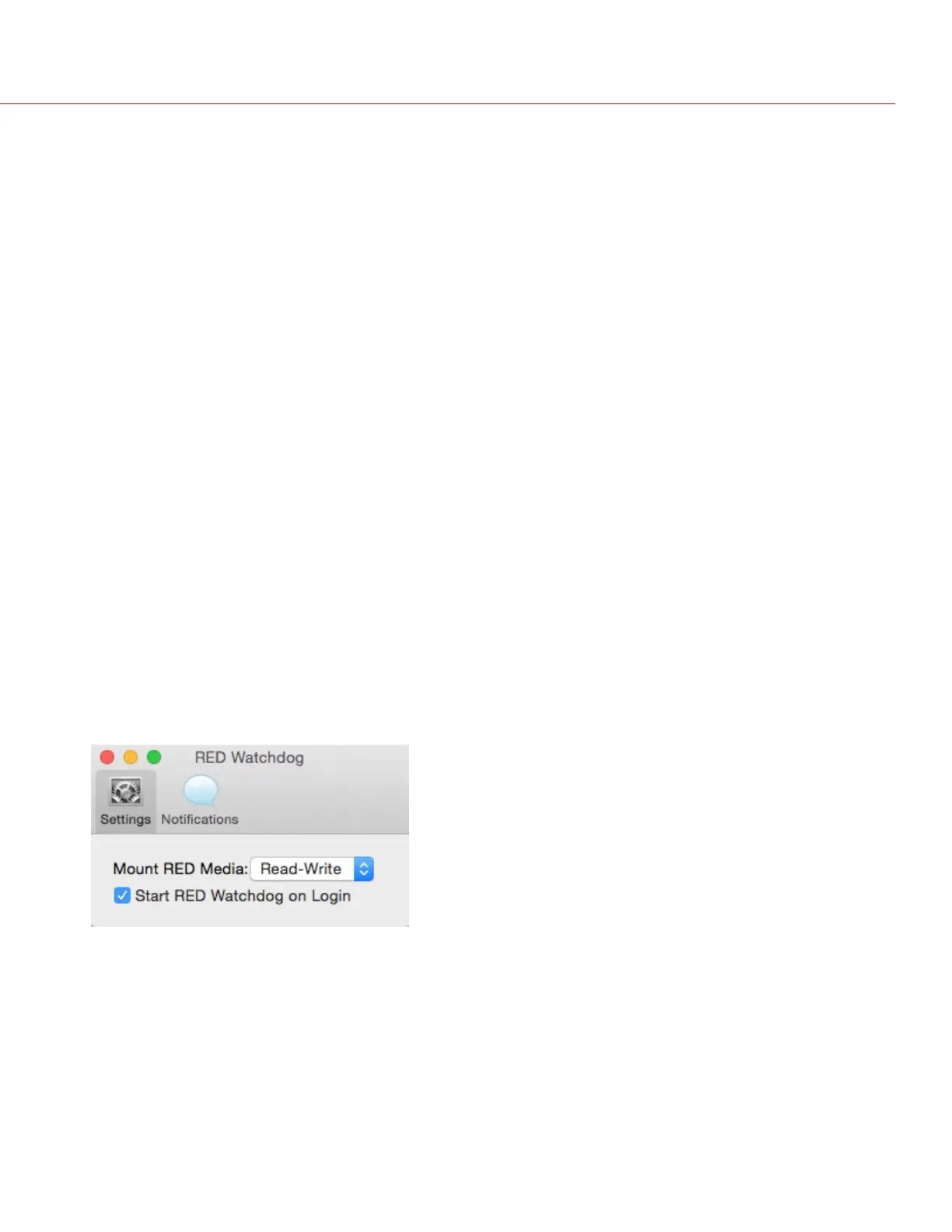
installed, RED Watchdog mounts RED media as read-only by default,
which means that you are unable to write files (including firmware upgrade files) to the SSD. RED Watchdog is
identified by the RED Coin icon located on the right side of the Mac Menu Bar.
To enable read/write, follow the instructions below:
1.
Click the RED Watchdog icon.
2.
Select Preferences.
3.
Select Read-Write from the Mount RED Media drop-down menu.
Figure: REDWatchdog
C O PYRIGHT © 2 017 R ED.C OM , LLC 955- 0047, REV- AH| 56
RED DSMC MEDIA OPERATION GUIDE


 To Next Page