12 Installation
Renkforce PL500D WiFi
3.3 Connection and display elements
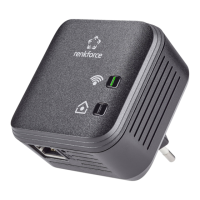
The PL500D WiFi has one Wi-Fi and one PLC button with LED status dis-
play, a network jack and a reset button.
3.3.1 Wi-Fi button
The Wi-Fi button controls the following Wi-Fi functions:
• WLAN on/off:
•In the factory default settings, Wi-Fi is already enabled and
Wi-Fi WPA2
encryption is configured. The default WiFi key for the initial installa-
tion of the PL500D WiFi is the adapter's WiFi key.
Before the networking procedure, take note of the WiFi key of the
PL500D WiFi from which all Wi-Fi configurations are to be transferred to all
other PL500D WiFi adapters. You will find the unique key on the label on the
back of th
e housing.
•In order to switch Wi-Fi
off, press and hold the Wi-Fi button longer than
3 seconds.
•In order to switch Wi-Fi back on
, tap the Wi-Fi button.
• Wi-Fi n
etwork with WPS encryption
•If the device is still on factory defa
ults, tap the Wi-Fi button in order to
activate WPS.
•If the Wi-Fi con
nection was switched off and you would like to activate
WPS, press the Wi-Fi button twice; once to switch Wi-Fi on, and once
to activate WPS.
WPS is one of the encryption standards developed by
the Wi-Fi Alliance. The
objective of WPS is to make it easier to add devices to an existing network.
For more detailed information, refer to Chapter 'Wi-Fi Protected Setup
(WPS)'.
• Indicator lights:
The integrated indicator lights (LEDs) show all of
the Wi-Fi statuses for the
PL500D WiFi by illuminating and/or flashing:
•When the Wi-Fi connection is switched off, the LED is also off.
•When the Wi-Fi connection is switched on, the LED lights g
reen.
•WP
S pairing is represented by quick flashing.


 To Next Page
 Loading...