52
e) Loading conguration les (Windows
®
)
• You can load a preset conguration le for your lament from the SD card to simplify the printing process. These
conguration les are also available to download from www.conrad.com.
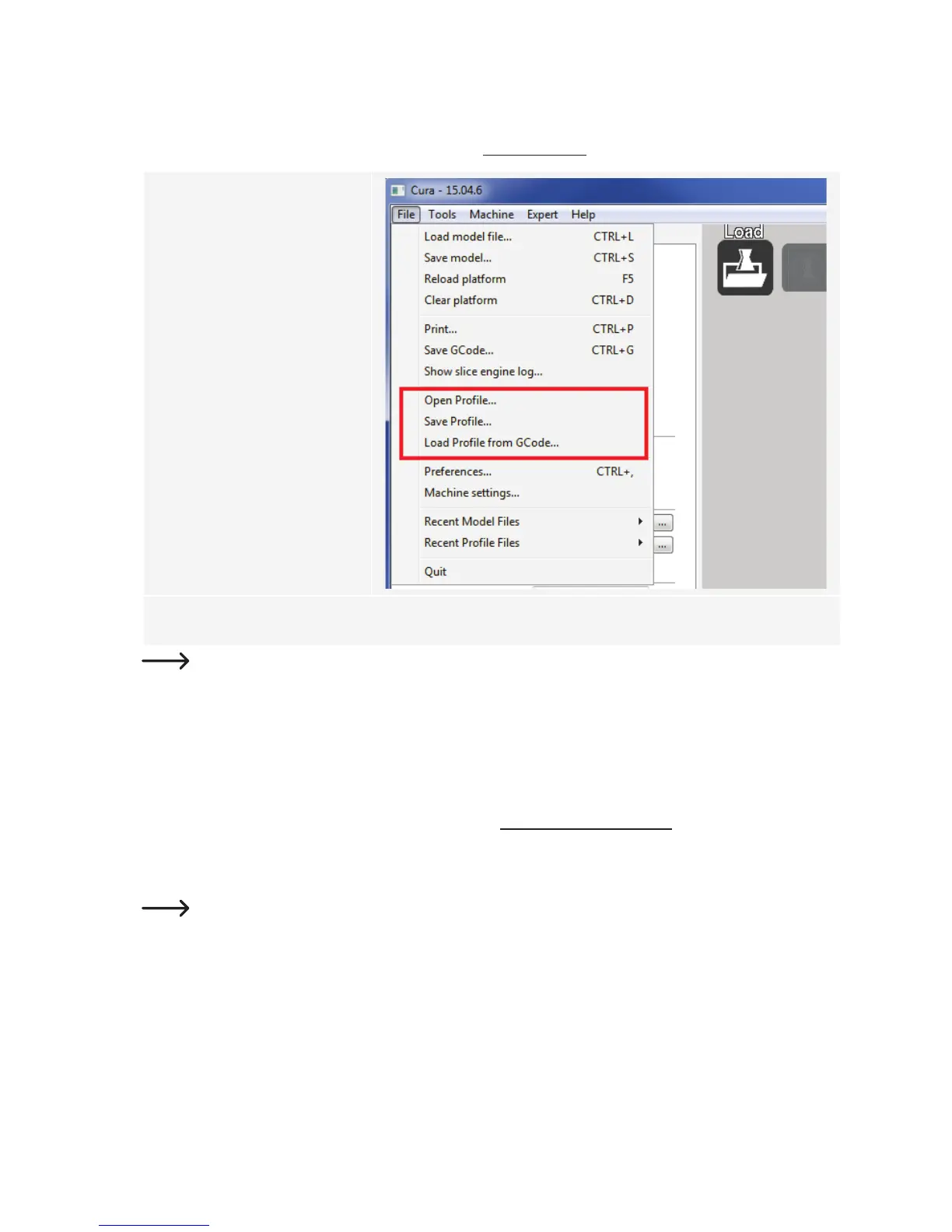
1 Click "File".
2 Select "Open Prole ...".
1
2
3 Select the desired lament conguration le from the pop-up window and conrm your selection.
The conguration les are saved to the SD card in the "Cong" folder. Alternatively, you can skip this step
and congure the settings from the previous section (see “d) Software settings (Windows
®
)” on page 48
for details).
f) Loading conguration les (Mac OS)
• Conguration les for Mac OS are not included on the SD card.
• These conguration les are available for download from www.conrad.com/downloads.
• Copy the les to your computer.
• Load the conguration les by repeating the steps in “c) Setting up the software (Mac OS)” on page 44.
Ensure that the downloaded conguration les start with "RF100 XL-xxx" or "RF100 XL Plus-xxx". Only
these les are compatible with Mac OS. Files that start with "Cong-xxx" are only compatible with
Windows
®
.


 To Next Page