53
g) Loading model les (Windows
®
and Mac OS)
• The "3D models" folder on the SD card contains a few examples for your rst prints. You can also download a wide
range of 3D models from the Internet. Alternatively, you can use a 3D program to design your own model. Ensure
that the 3D model is in .stl format.
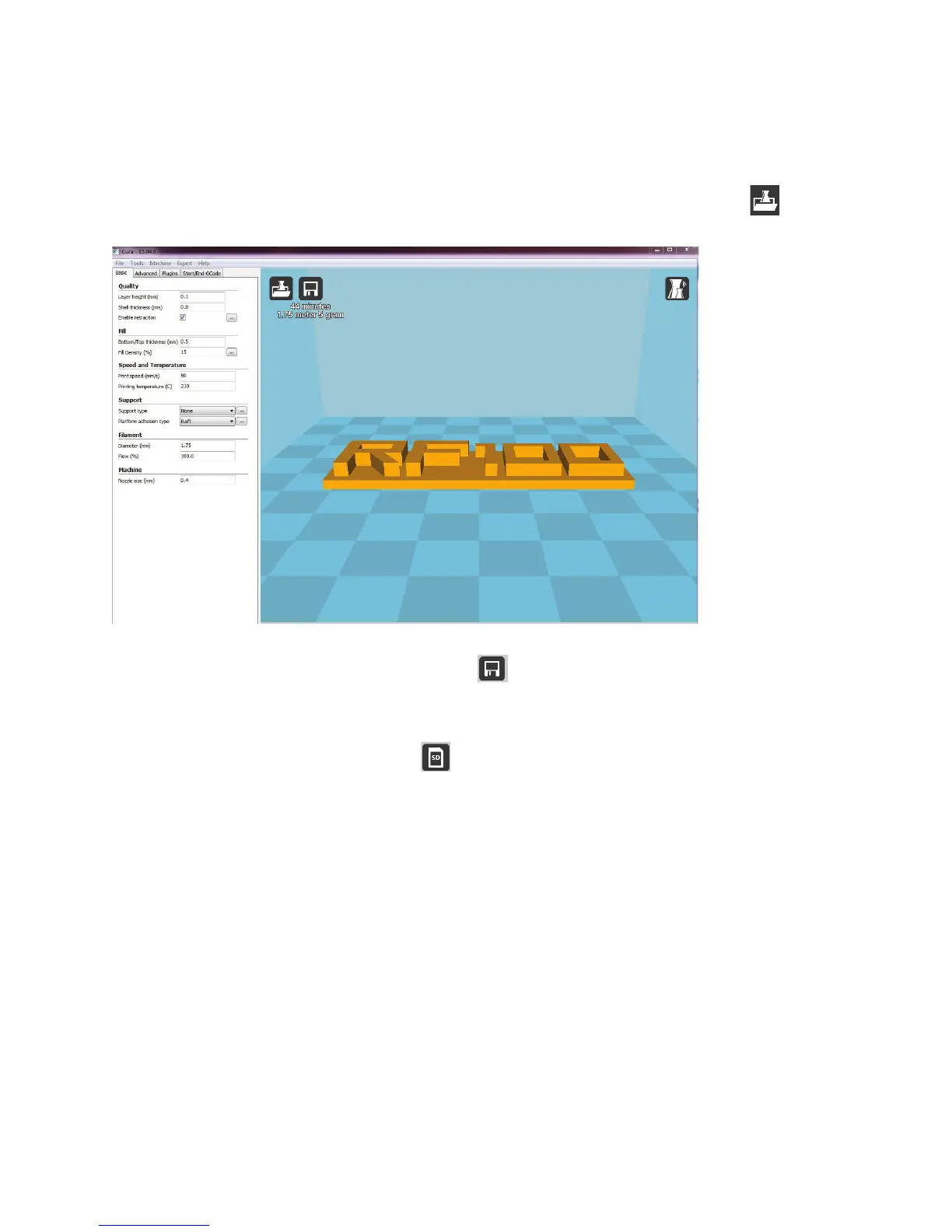
• Load the model le by running the mouse over the virtual print bed in the main window, or by clicking on
. The
le will be automatically converted into .gcode format.
If the SD card is not inserted into your computer, click on the symbol to save the GCODE le to your computer.
• To print without using your computer, save the GCODE le to the SD card. Insert the SD card into the 3D printer
and initiate printing via the control panel.
• If the SD card is inserted into your computer, the
symbol will be displayed, which enables you to save the le
to the SD card.


 To Next Page