EasyManua.ls Logo

Renkforce RF100 - User Manual

Renkforce RF100
47 pages
Print Icon
To Next Page IconTo Next Page
Loading...
Operating Instructions
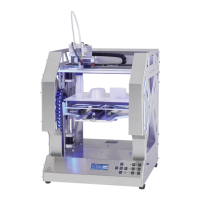
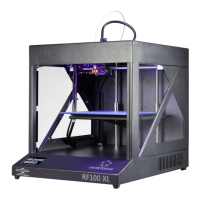
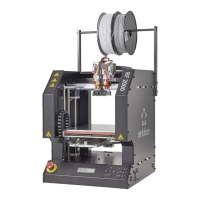
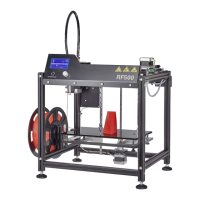
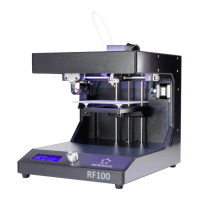
RF100 3D printer fully-assembled
Item No. 1507428

Table of Contents

Other manuals for Renkforce RF100

Questions and Answers

  • Y
    ygregoryJul 27, 2025
    Why does my Renkforce 3D Printers printed object not adhere to the build bed?
    • N
      Natalie WilsonJul 27, 2025
      If the printed object does not stick to the build bed, it could be due to several reasons. The nozzle temperature might be too low, so try increasing it. There might be residues on the build bed, so clean it. The print speed could be too high, so reduce it. Consider recalibrating the build bed. You can also try adding a raft to the print object.
  • D
    dunnmonicaAug 2, 2025
    How to fix Renkforce 3D Printers no USB connection?
    • K
      Kimberly ReidAug 2, 2025
      If you cannot establish a USB connection to the 3D printer, check the USB line connection. Ensure the correct USB port is selected in the software and that the necessary drivers are installed. Try unplugging and then re-plugging the USB cable, switching the 3D printer off and on again, or restarting your computer. You can also try using a different USB port on your computer or connecting the 3D printer directly to a USB port without using a USB hub.
  • S
    Shari KingAug 8, 2025
    What to do if Renkforce RF100 filament becomes stuck during unloading?
    • M
      Mindy RangelAug 8, 2025
      If the filament becomes stuck during unloading, try loading and unloading the filament again.
  • S
    Sandra HayesAug 14, 2025
    What to do if Renkforce RF100 nozzle cools down unexpectedly?
    • D
      Diana HallAug 15, 2025
      If the nozzle cools down unexpectedly, select < Preheat PLA> to reheat the nozzle and have further action within following 5 minutes for example load/ unload filament, printing etc.
  • J
    Jonathan StewartAug 20, 2025
    How to remove Renkforce 3D Printers printed object from build bed?
    • T
      Tracey PrattAug 20, 2025
      If the printed object cannot be removed from the build bed, wait until it has cooled down. If it still sticks, use the scraper to remove the object.

Summary

Introduction and Safety Guidelines

1. Introduction

Welcomes the user and provides context for the operating instructions.

2. Explanation of Symbols

Clarifies the meaning of safety and informational symbols used in the manual.

8. Safety Instructions

Presents comprehensive warnings and precautions for safe operation of the 3D printer.

Product Overview, Features, and Setup

3. Intended Use

Defines the purpose and limitations for which the 3D printer is designed.

6. Features and Functions

Lists the key capabilities, specifications, and operational aspects of the printer.

11. Installation

Provides a step-by-step guide for the physical setup and connection of the 3D printer.

Control Panel and SD Card Printing

12. Control Panel

Explains the printer's interface, initial operation, and menu functions for user control.

a) Initial Operation

Details how to navigate menus and adjust parameters for the first time use of the printer.

15. Print from SD Card

Guides the user through the process of starting print jobs directly from the SD card.

Advanced Printing with Cura Software

16. Print from Cura software

Introduces the Cura software and its role in preparing 3D models for printing.

c) Setup of the Software - Windows

Outlines the steps for installing and configuring the Cura software on a Windows operating system.

d) Setup of the Software - Mac OS

Provides instructions for installing and configuring the Cura software on a Mac OS system.

Maintenance, Troubleshooting, and Technical Data

17. Cleaning and Maintenance

Covers essential procedures for cleaning and maintaining the 3D printer's components.

c) Clean the Build Bed

Instructions for cleaning the build bed to ensure optimal print adhesion.

18. Troubleshooting

Offers solutions for common issues encountered with the 3D printer.

20. Technical Data

Lists detailed specifications and technical information pertaining to the 3D printer.

Renkforce RF100 Specifications

General IconGeneral
Filament Diameter1.75 mm
Nozzle Diameter0.4 mm
ConnectivityUSB, SD card
Print TechnologyFused Deposition Modeling (FDM)
Print SpeedUp to 100 mm/s
Supported MaterialsPLA, ABS

Related product manuals