EasyManua.ls Logo

Renkforce RF100 v2 - User Manual

Renkforce RF100 v2
48 pages
Print Icon
To Next Page IconTo Next Page
Loading...
Operating Instructions
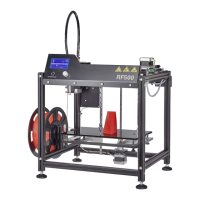
RF100 v2 3D printer fully-assembled
Item No. 1548286

Table of Contents

Questions and Answers

  • J
    James DunlapAug 21, 2025
    How to fix defects in printing object with Renkforce 3D Printers?
    • A
      andersondavidAug 21, 2025
      To resolve defects in your printed object with your Renkforce 3D Printer: * Check the nozzle temperature settings to ensure they match the filament material. * Only start printing when the nozzle has reached the correct temperature. * Reduce the distance between the build bed and the nozzle. * Avoid using other programs requiring high computing power while printing from a PC. Try printing from the SD card to rule out USB connection issues. * Remove any excessive filament on the nozzle before each print.
  • C
    Cody WilliamsAug 25, 2025
    What to do if my Renkforce 3D Printers printing stops during the process?
    • E
      Emily SullivanAug 25, 2025
      If your Renkforce 3D Printer stops printing during the process, especially when printing from an SD card, disconnect your computer from the 3D printer. Also, check your computer's settings to ensure it doesn't switch to standby mode or shut down during printing due to software installations or updates.
  • C
    Chase ThompsonAug 26, 2025
    Why my Renkforce 3D Printers does not work after switching on?
    • L
      Lauren JohnsonAug 26, 2025
      If your Renkforce 3D Printer is not working after switching it on, and the display and print space lighting remain dark, check the connection of the mains line and ensure the mains socket is properly supplied with current. Also, check the mains fuse.
  • B
    Brian ThomasAug 28, 2025
    How to fix no USB connection to Renkforce 3D Printers?
    • S
      Scott TurnerAug 28, 2025
      If you are unable to establish a USB connection with your Renkforce 3D Printer, try the following: 1. Check the USB line connection. 2. Ensure the correct USB port is selected in the software. 3. Verify that the required drivers are installed. 4. Unplug and then replug the USB cable. 5. Switch the 3D printer off and on again. 6. Restart your computer. 7. Use a different USB port on your computer. 8. Connect the 3D printer directly to a USB port, avoiding any USB hubs.
  • M
    michaelparksAug 30, 2025
    What to do if the filament supply breaks on Renkforce 3D Printers?
    • L
      lisawoodAug 30, 2025
      If the filament supply breaks off or there is not enough filament material supplied to your Renkforce 3D Printer, check the filament spool to ensure it turns easily. Also, check whether the filament is trapped between the spool and the extruder, ensure the filament is properly inserted through the filament tube, verify that the nozzle temperature is adequate for the filament material, and inspect the nozzle for clogs, cleaning it if necessary.
  • L
    Laura OrtegaSep 1, 2025
    How to remove the printed object from the build bed of my Renkforce 3D Printer?
    • M
      Maurice WebbSep 1, 2025
      If the printed object is stuck on the build bed of your Renkforce 3D Printer, wait until it has cooled down. If it still doesn't come off easily, use the scraper to remove it.
  • R
    robert30Sep 3, 2025
    What to do if LC display shows undecipherable content on Renkforce 3D Printers?
    • K
      Kimberly PooleSep 3, 2025
      If the LC display of your Renkforce 3D Printer shows undecipherable content or remains blank, restart the 3D printer.
  • K
    Katherine GonzalezSep 5, 2025
    What to do if moving path of nozzle is blocked on Renkforce 3D Printers?
    • J
      Jill HallSep 6, 2025
      If the moving path of the nozzle is blocked on your Renkforce 3D Printer, make sure to remove any excessive filament from the nozzle before starting each print.
  • M
    Michelle BaileySep 7, 2025
    How to fix a clogged nozzle on Renkforce 3D Printers?
    • C
      Christopher LoveSep 7, 2025
      If the nozzle of your Renkforce 3D Printer is clogged, cleaning the inside of the nozzle may help. If the issue persists, disassemble the extruder for further cleaning. As an alternative, you can replace the extruder unit.
  • M
    Mallory PrestonSep 9, 2025
    What to do if filament becomes stuck during unloading on Renkforce 3D Printers?
    • R
      ricethomasSep 10, 2025
      If the filament becomes stuck during unloading with your Renkforce 3D Printer, try loading and unloading the filament again.

Summary

Introduction

Explanation of Symbols

Intended Use

Delivery Content

SD Card Content

SD Card 3 D Models

Contains various 3D model files in .gcode, .jpg, .stl format for printing.

SD Card Configuration Files

Contains configuration files for different filament materials like PLA, Wood, Copper, Elastic.

SD Card Manual

Contains the Quick-Start-Guide.

SD Card Software and Drivers

Contains the Cura software and USB driver.

Features and Functions

Working Principle of the 3 D Printer

Safety Instructions

General Safety Information

Covers general safety rules, warnings for children, environmental protection, and careful handling.

Connecting to Mains Power

Instructions on connecting the device to the mains socket safely.

Operating Elements and Parts

Printer Components Overview

Identifies and labels the physical parts of the printer.

Included Printer Accessories

Lists and labels all included accessories with the printer.

Before Installation

Installation

Setting Up the 3 D Printer

Guides on setting up the printer for safe operation and proper ventilation.

Printer Installation and Connection

Details on connecting the printer to the mains and ensuring correct voltage.

Control Panel Operations

Initial Control Panel Operation

Describes how to navigate and interact with the control panel during initial use.

Control Panel Menu Functions

Lists and explains various menu options and their functions.

Info Screen Display

Explains the information displayed on the LCD screen during operation.

General 3 D Printing Notes

Nozzle Temperature Settings

Discusses optimal nozzle temperature for print quality and material.

Preventing Nozzle Clogging

Provides tips to avoid nozzle clogs during printing.

Print Layer Thickness Explained

Explains how layer thickness affects print quality and duration.

Preparation Steps

Build Bed Calibration Guide

Step-by-step guide to calibrate the build bed for proper adhesion.

Setting Up Filament

Instructions on how to mount and prepare the filament for printing.

Loading Filament into Extruder

Detailed steps for loading filament into the extruder.

Changing or Replacing Filament

Guides on how to swap filament types or colors.

Cura Software Installation Guide

Refers to a later section for Cura software installation.

Printing from SD Card

Starting a Print from SD Card

Instructions on how to initiate a print job directly from the SD card.

Pausing Print Jobs

How to temporarily pause an ongoing print job.

Adjusting Print Parameters

Advanced users can adjust settings like speed and temperature during printing.

Stopping Print Jobs

Steps to safely stop a print job in progress.

Emergency Stop Procedure

How to immediately halt all printer operations in an emergency.

Restarting the 3 D Printer

Procedures for restarting the printer after an emergency stop or malfunction.

Printing with Cura Software

Cura Software General Notes

Introduces the Cura software and its capabilities for 3D printing.

Cura Software Installation

Instructions for installing the Cura software on the computer.

Cura Setup for Windows

Guides for setting up Cura on Windows, including driver installation.

Cura Setup for Mac OS

Guides for setting up Cura on Mac OS, including profile loading.

Cura Software Settings (Windows)

Details on configuring basic and advanced settings in Cura for Windows.

Loading Windows Config Files

How to load pre-configured material profiles in Cura for Windows.

Loading Mac OS Config Files

Instructions for loading configuration files for Mac OS.

Loading 3 D Model Files

Guides on loading 3D model files into Cura for printing.

Starting Prints from Cura

Steps to start a print job from Cura via USB connection.

Stopping Prints from Cura

How to stop a print job initiated from Cura.

Cura Emergency Stop

How to perform an emergency stop for Cura-initiated prints.

Cleaning and Maintenance

Cleaning the Printer Exterior

Instructions for cleaning the exterior of the 3D printer.

Cleaning the Nozzle

How to clean the outside of the printer's nozzle.

Cleaning the Extruder Interior

Guides on cleaning the interior of the extruder.

Cleaning the Build Bed

Instructions for cleaning the build bed.

Replacing the Fuse

Steps for safely replacing the fuse in the device.

Unloading Filament

Procedures for removing filament from the extruder.

Storing the 3 D Printer

Guidelines for storing the printer when not in use.

Troubleshooting Guide

Product Disposal

Technical Specifications

Renkforce RF100 v2 Specifications

General IconGeneral
Print TechnologyFDM (Fused Deposition Modeling)
Nozzle Diameter0.4 mm
Filament Diameter1.75 mm
ConnectivityUSB, SD Card
Operating System CompatibilityWindows, Mac OS, Linux
Print BedHeated
Bed TemperatureUp to 100 °C
DisplayLCD
FrameAluminum
Supported MaterialsPLA, ABS
Power Supply110-240V

Related product manuals