28
b) Installation
• Installthele“Cura_15.04.6.exe“(forWindows
®
)or“Cura-15.04.6-MacOS.dmg“(forMacOS)fromthedirectory
“Software”fromtheSDcard.
• Follow the on-screen instructions during the installation process. For details, refer to instructions provided on
https://ultimaker.com/.
c) Setup of the Software - Windows
®
Connect to the 3D printer
• Connectthe3DprintertoafreeUSBportonyourcomputerwiththehelpofthesuppliedUSBcable.Switchthe
printer on.
Whentheprinterisconnectedtothecomputer,ensuretheprinterremainsswitchedonatalltimes.
• Whenconnectingprinterandcomputerforthersttime,theoperatingsystemrecognizesthenewhardwareand
searchesforsuitabledrivers.
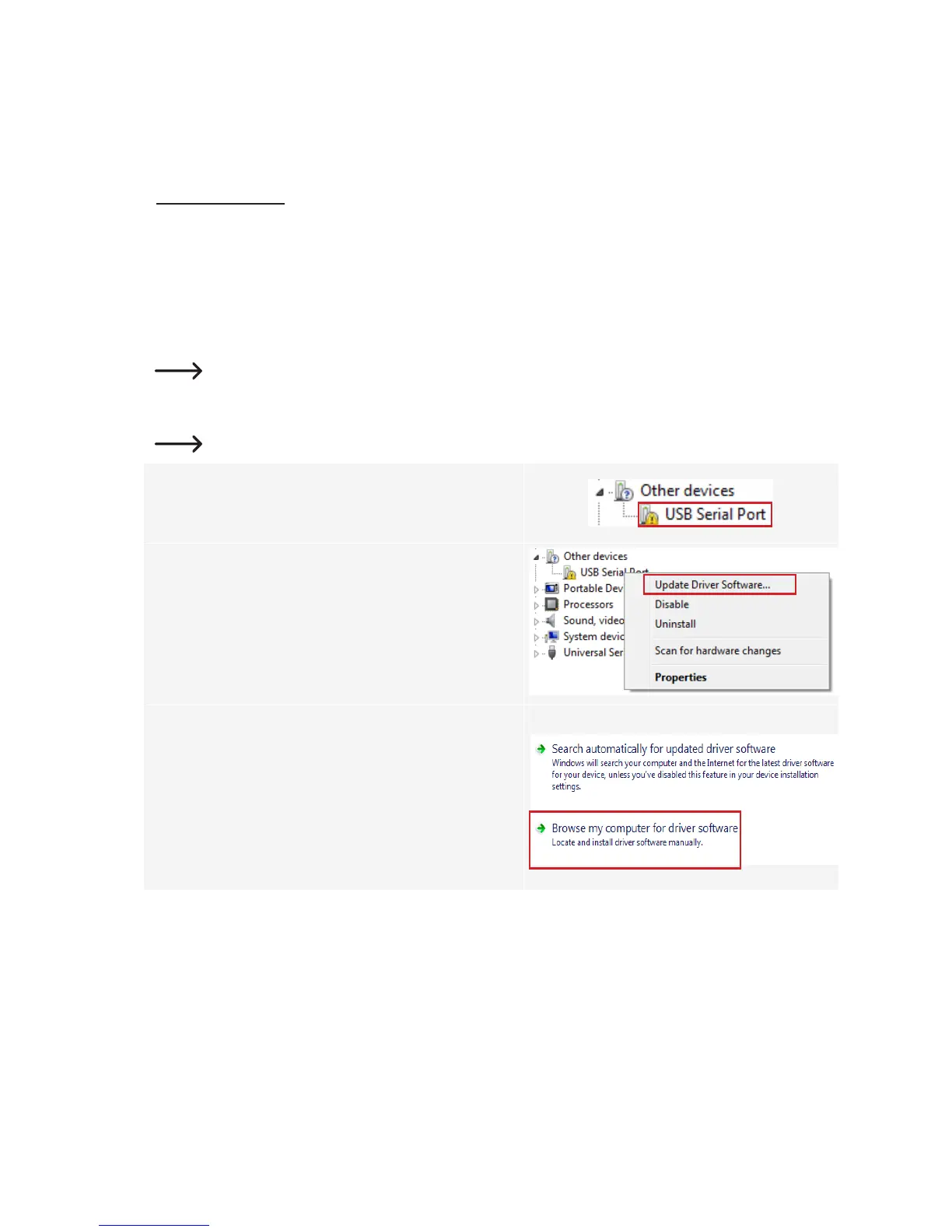
Ifasuitabledriverisnotavailable,youcanmanuallyinstallthenecessarydrivers.Dothefollowing:
1 OpenPCdeviceManager.
Anewdeviceisrecognizedunder“Otherdevices”(orPorts
COM & LPT).
2 Right click on the “USB Serial Port”, and then select
“Update Driver Software...”.
3 Click on “Browse my computer for driver software.”
TherequireddriverisavailableontheSDcard“Software/
ft232 usb uart driver”.
4 Followtheon-screeninstructionstonalizetheupdating
process.


 To Next Page