28
Getting started
d At the end of the assessment session, the app will ask if you would like Revitive to
remember the intensity level you reached for your next session using the Auto
Ramp-Up feature.
e The app will now switch to the Dashboard screen.
You are now ready to start your Therapy and the Dashboard will show you how long
you need to use your Revitive today.
You can complete your suggested Therapy sessions whenever it suits you. If you
are unable to complete the session in one sitting you can stop and start throughout
the day. Revitive will track how many minutes you have completed.
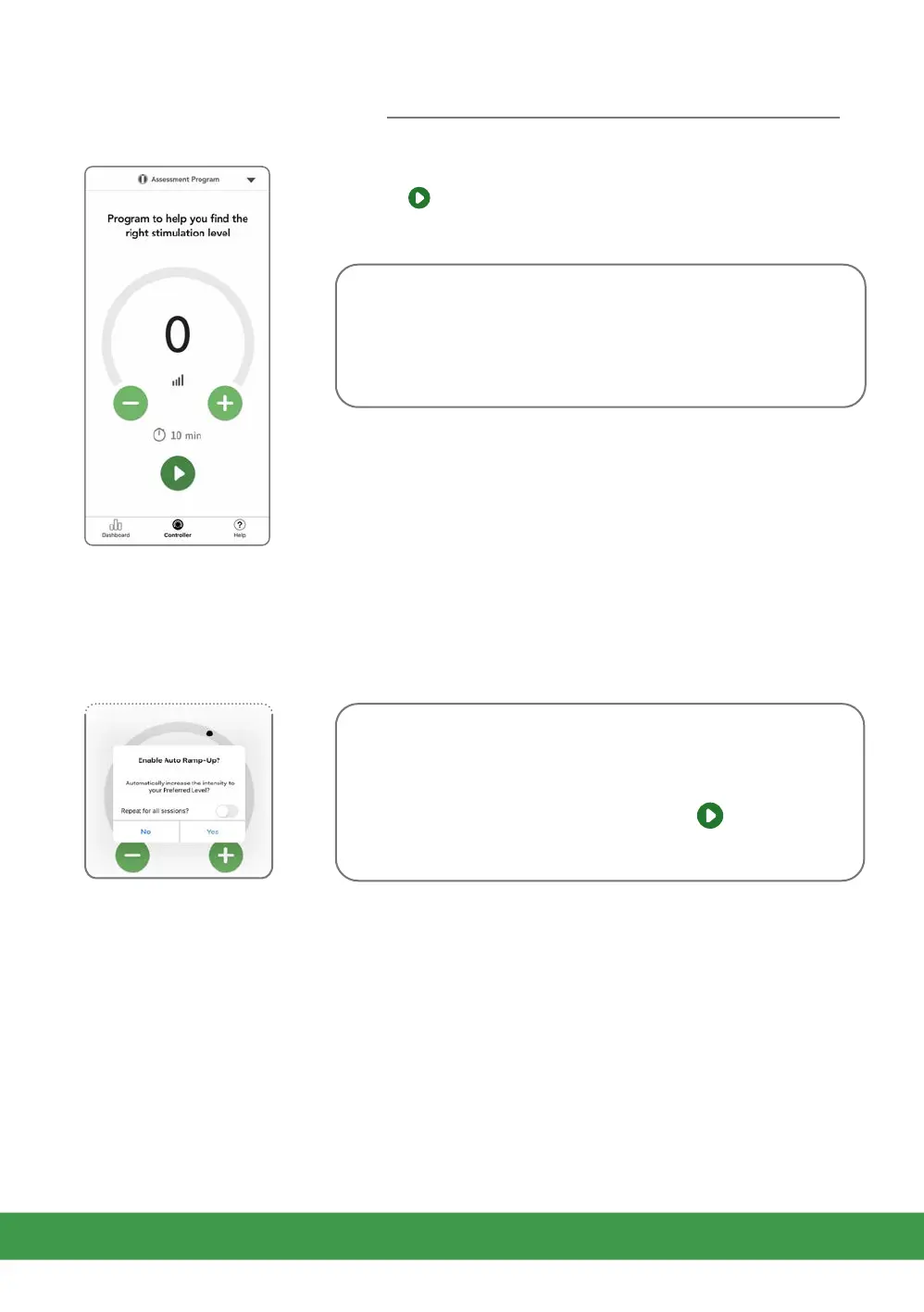
c On first use, the ‘Assessment’ program will be selected.
Tap to start the Assessment program, responding to
any on-screen questions about hydration.
Note: Very dry feet may cause Revitive to auto-pause,
and stimulation will not be possible until the soles of
your feet are hydrated. If this happens, apply some
moisturiser to the soles of your feet.
The remaining stimulation time begins to count down
in minutes as the program runs.
Refer to page 26 which explains how to control
the stimulation from the app.
About Auto Ramp-Up: Enabling Auto Ramp-Up aims
to simplify use of your Revitive. When enabled Revitive
will automatically increase the intensity level to your
preferred level when you tap the Start button. You
will not need to manually increase the intensity.


 To Next Page