MIRACO Quick Start Guide
C
2023 REVOPOINT 3D ALL RIGHTS RESERVED
09
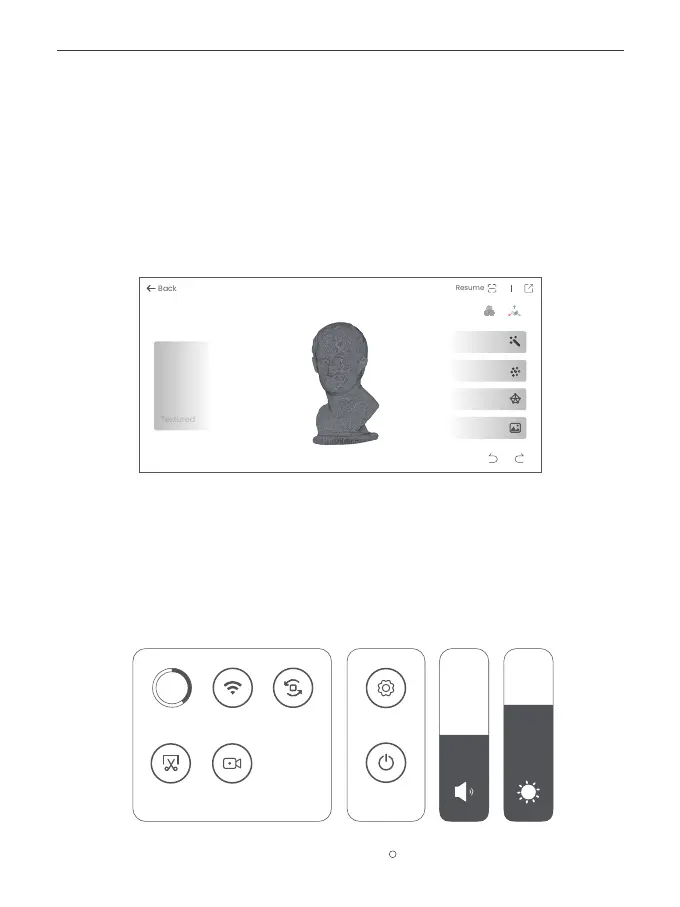
Step 2: One-tap Edit and Manual Edit
Refer to Revopoint Official Website (https://www.revopoint3d.com/pages/support-miraco) for MIRACO’s
User Manual for detailed parameter adjustment.
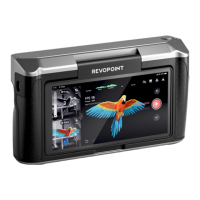
1) One-tap Edit
Tap the [One-tap Edit] button to automatically perform point cloud Fusion, Mesh, and Texture (when
Color mode is enabled).
It’s recommended to select One-tap Edit for 3D scanning beginners.
2) Manual Edit
Tap the [Fusion], [Mesh], [Texture] in sequence to adjust the corresponding parameters and process
the scan.
Software Update
Step 1: Swipe down from the top of the screen, tap [Settings] > [WLAN], and connect to a network.
0000000000000
High/Feature/General
Camera Module: Near
Raw Data
Fused
Meshed
1
<
<
4
/
Fusion
One-tap Edit
Mesh
Texture
Screen Recording
Storage Screen Rotation
Screenshot
SettingsWLAN
45%
Shut Down


 To Next Page