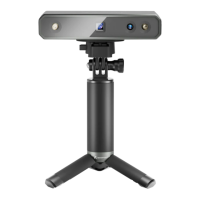
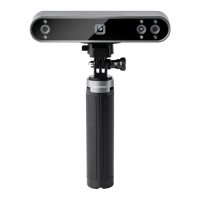
MIRACO Quick Start Guide
C
2023 REVOPOINT 3D ALL RIGHTS RESERVED06
Scan
Step 1: Instructions.
Read the instructions for [Scan Settings] and [Exposure Adjustment] on MIRACO when it is first
activated.
Step 2: Set up a scanning environment.
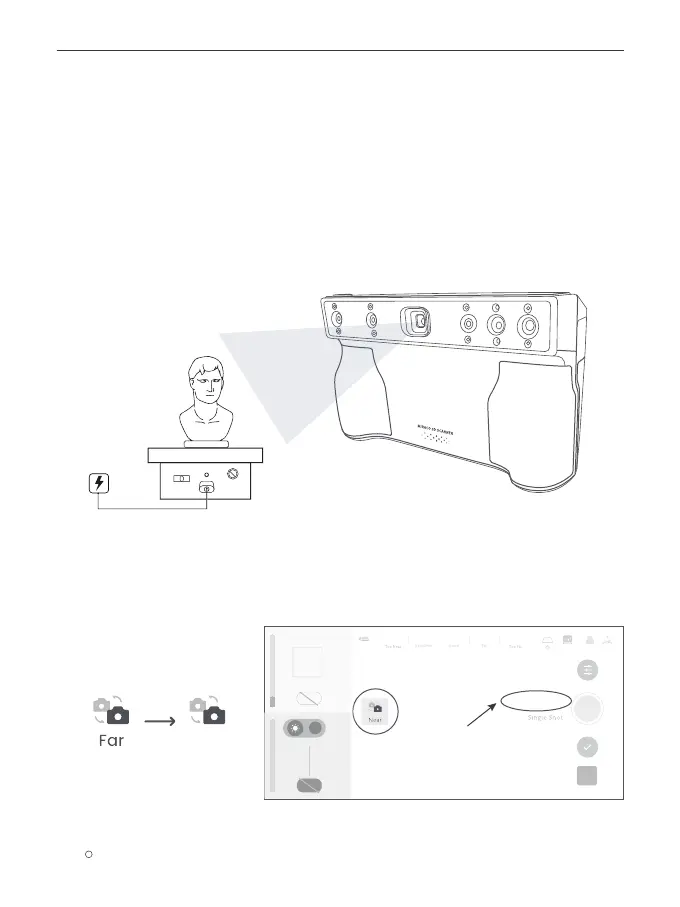
For the first scan, it is recommended to scan the Sample Bust included in the package. Find a
tabletop free of any clutter, put the Sample Bust on the turntable, and ensure no unwanted
objects are within the scanning area.
Step 3: Select a scanning mode.
Selecting [Continuous] and [Near] modes to scan the Sample Bust is recommended.
Near
Model
Continuous
Auto
Auto
WB
Near-mode Distance:
about 18 cm
1


 To Next Page