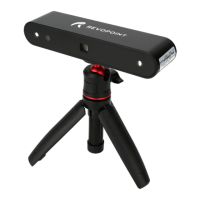
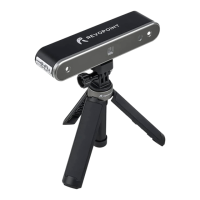
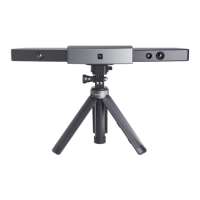
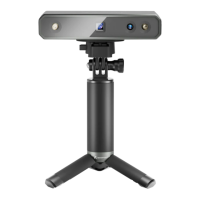
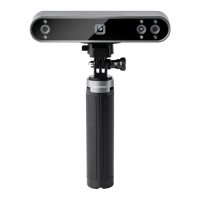
Step 1: Connect your MIRACO to a computer using the USB Type-C Cable.
Step 2: See the popup on MIRACO’s screen and tap [Data Transfer].
Step 3: Find files on your computer.
1) Export Projects (Both Windows and macOS PCs are supported)
Open Revo Scan 5 on your PC, and make sure it’s V 5.4.1 or after.
Check the target Projects and click Export on your PC.
File Transfers Via USB Cable
2) Find Screen Recording and File Transfers (ONLY works on Windows PCs)
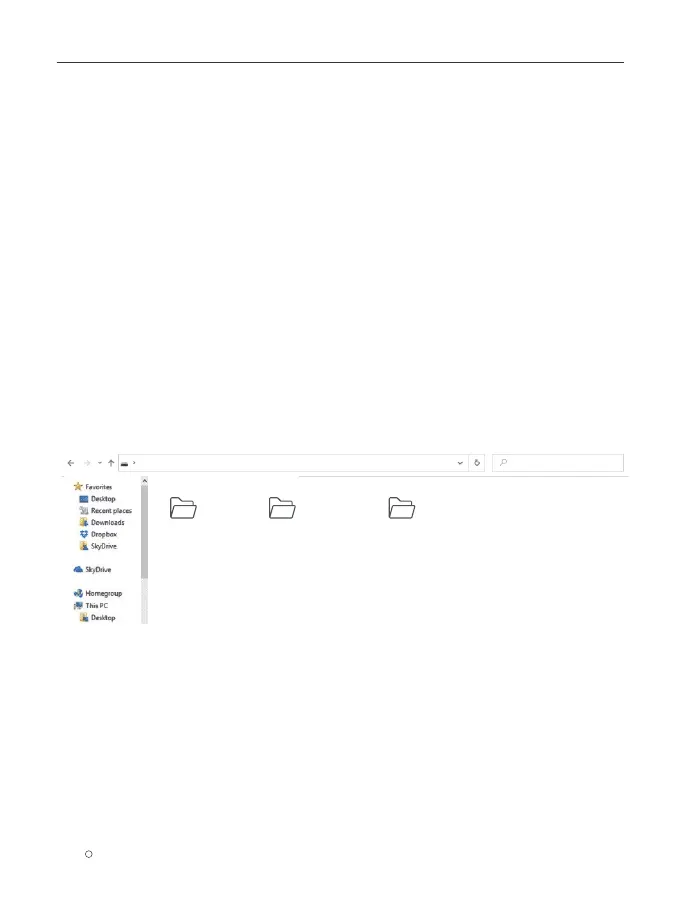
Windows: Right-click the Windows icon on the toolbar, then click File Explorer. Expand This PC, and
locate your hard drive. Then, find the MIRACO. Copy MIRACO’s data to your PC.
Path: Windows icon —> File Explorer —>This PC —> MIRACO —> Internal shared storage —> Copy
MIRACO's data
This PC > MIRACO > Internal shared storage
Search Internal shared storage
Projects Screenshots Screenrecordings
Project: An album including the scanning configuration, Raw data, processed data, and user operation history in
memory or hard disk. Each project can include one or more 3D models.
MIRACO Quick Start Guide
12
C
2023 REVOPOINT 3D ALL RIGHTS RESERVED


 To Next Page