Sending Stored Scan Data by E-mail
68
6
Note
❒ The destination titles are pro-
gramed in the delivery serv-
er.
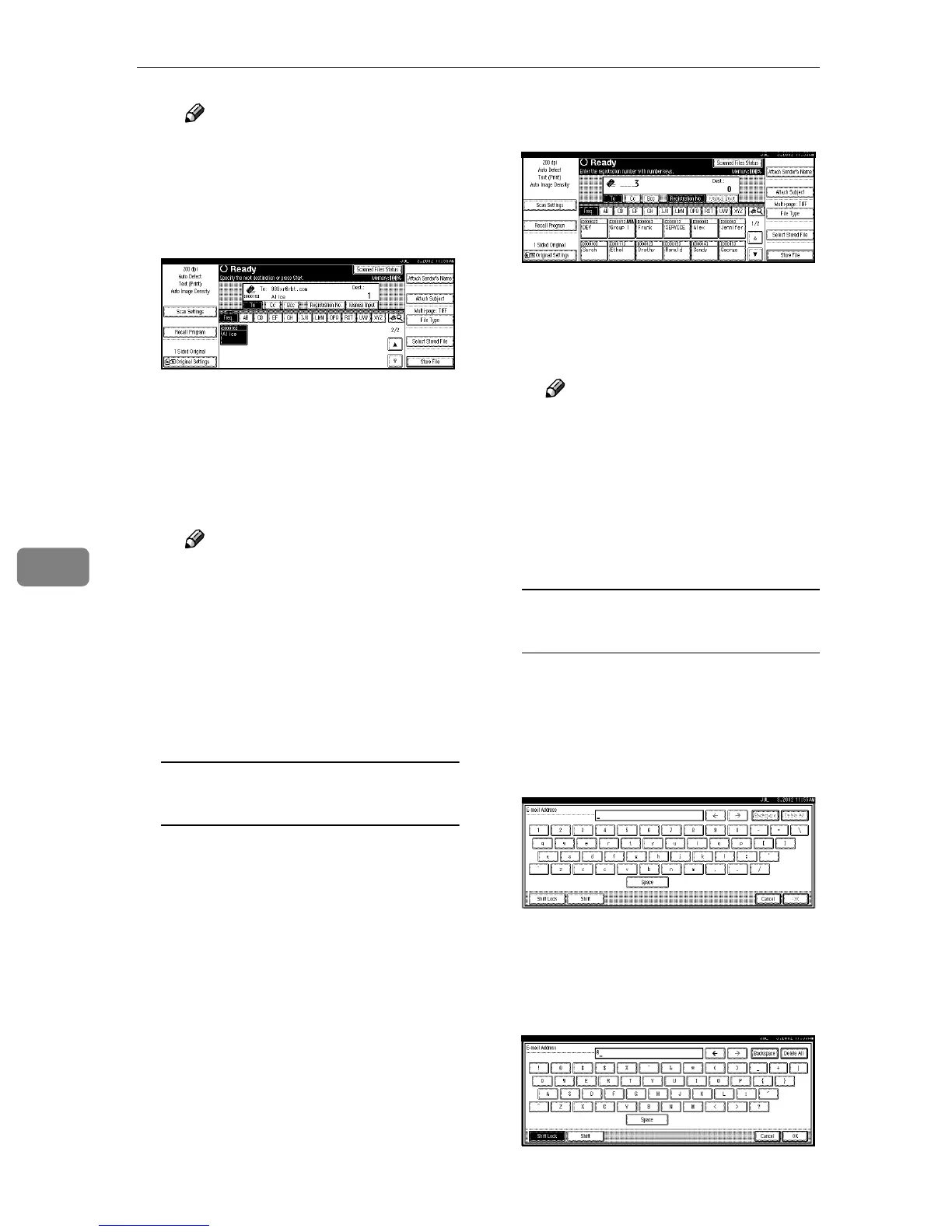
B Select the destination to which
the scan data is to be sent.
The selected destination is high-
lighted and also appears in the
destination field at the top of the
screen. A line appears over the
title of the category to which the
destination belongs.
Note
❒ To deselect a destination,
press the destination once
more, or press [U
UU
UPrev.] or
[T
TT
TNext] to bring up the desti-
nation in the destination
field, and then press [Clear].
C To select more destinations, re-
peat step B
BB
B.
Using a short ID number to select
a destination
A Press [Registration No.].
B Use the number keys to enter
the 5-digit ID number that has
been assigned to a destination.
If the entered number is less
than 5 digits long, press the {
{{
{#}
}}
}
key after the last number.
Example:
To enter 00003
Press the {
{{
{3}
}}
} key and then the
{
{{
{#}
}}
} key using the number keys.
The destination corresponding
to the short ID number is dis-
played in the destination field at
the top of the screen.
Note
❒ To deselect a destination,
press [U
UU
UPrev.] or [T
TT
TNext] to
display the destination in the
destination field, and then
press [Clear].
C To select more destinations, re-
peat step B
BB
B.
Manual input of the e-mail
address
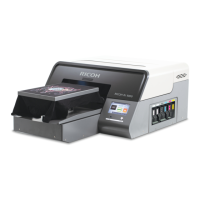
A Press [Manual Input].
The soft keyboard is displayed
to enter the e-mail address.
B Enter the e-mail address with
the soft keyboard.
Example:
To input @
Press [Shift Lock] or [Shift] and
then [@].




 To Next Page