Sending Stored Scan Data by E-mail
70
6
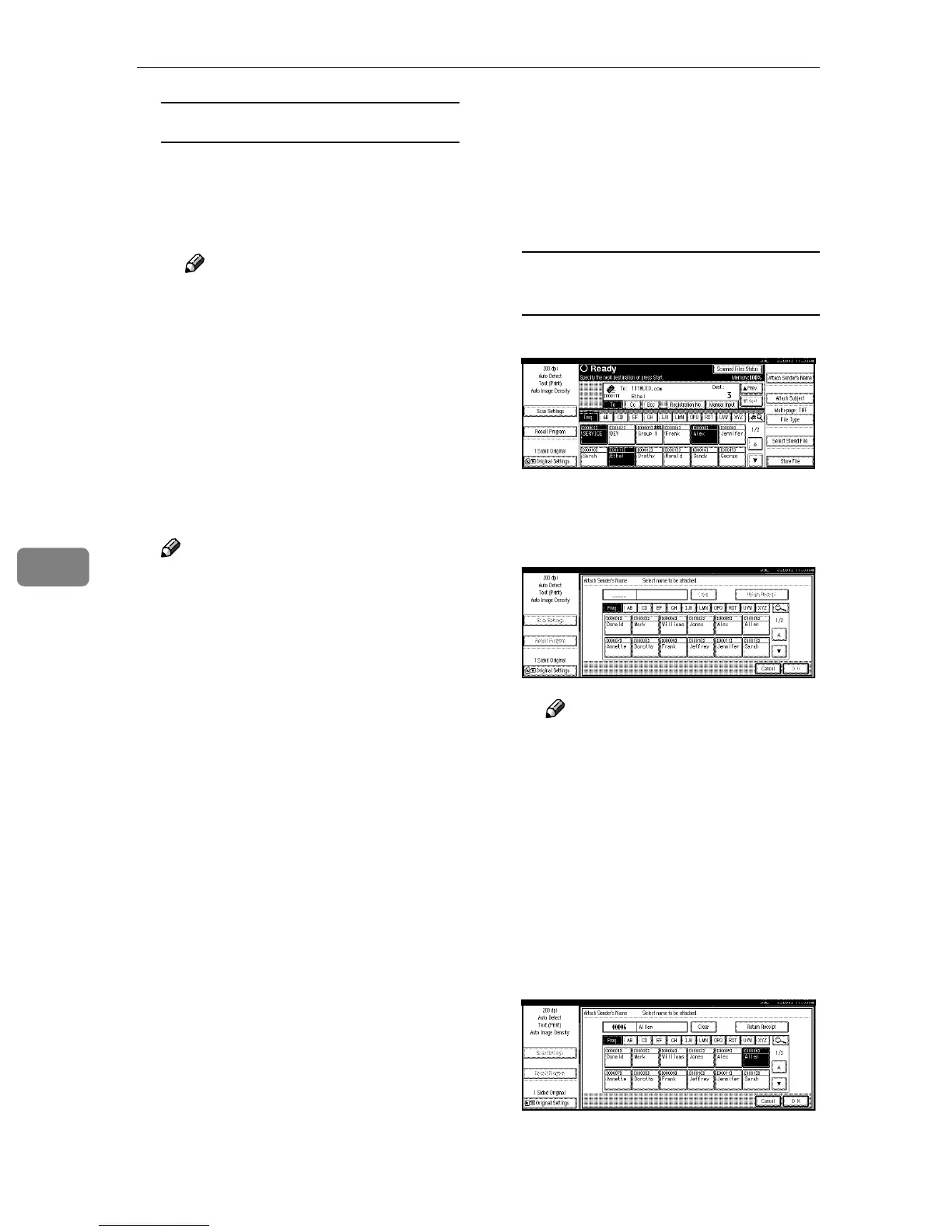
Checking selected destinations
A Use the destination field at the
top of the screen to check
which destinations are select-
ed.
Note
❒ When multiple destinations
are selected, the selected des-
tinations are displayed in the
order they were selected by
pressing [U
UU
UPrev.] or [T
TT
TNext].
❒ Pressing the {
{{
{Check Modes}
}}
}
key on the control panel lets
you verify the list of selected
destination(s).
I
II
I
Specify the sender.
Note
❒ When a sender is selected, the
sender name is automatically
placed in the “From” field of the
e-mail so that the sender can be
identified when the e-mail is re-
ceived.
❒ An example of “E-mail Informa-
tion Language” is shown below.
This e-mail has been sent from
[XXX]. The scanning time was
YYYY:MM:DD HH:MM:SS
(+0900). The administrator's e-
mail address is sent for refer-
ence. ⇒ p.24 “E-mail Informa-
tion Language”
❒ To prevent misuse of a sender
name, we recommend you set
up a password for the sender.
❒ Be sure to select or enter a send-
er’s name. Otherwise [Key Oper-
ator’s E-mail Address] is used as
the sender’s name. ⇒General
Settings Guide
Three methods are available for se-
lecting a sender: select the sender
from the list, enter the 5-digit short
ID number of the sender with the
number keys, and search for the
sender and select it.
When selecting a sender from the
list
A Press [Attach Sender’s Name].
The list of senders registered in
this machine is displayed.
B Select the sender.
Note
❒ If a password has been set, a
screen for entering the pass-
word is displayed after se-
lecting the sender.
Enter the password, and then
press [OK].
After verification of the pass-
word, the sender name is dis-
played.
C To verify receipt, press [Return
Receipt].
[Return Receipt] is highlighted.




 To Next Page