Adding paper, Toner and Staples
84
5
Changing to a Size that is Not Automatically Detected
If you load a paper size that is not selected automatically, you need to specify the
paper size with the control panel. This section explains how to load these paper
taking 11”× 15”L as an example.
Important
❒ Following paper sizes that are not selected automatically.
• Tray 2, Tray 3:
11” × 15”L, 11” × 14”L, 10” × 15”L, 10” × 14”L, 8
1
/
4
” × 14”L, 8” ×
10”L
• Tray 4, Tray 5, Tray 6 (Wide LCT):
A4L, B5L, A5K , B6L, A6L, 8
1
/
2
" × 14"L, 8
1
/
2
" × 13"L, 8
1
/
4
" × 13"L,
10
1
/
2
" × 7
1
/
4
"KL, 11" × 15"L, 10" × 14"L, 8
1
/
4
" × 14"L
• Multi Bypass Tray (Tray 7), Interposer:
A4L, B5L, A5K, B6L, 8
1
/
2
" × 14"L, 8
1
/
2
" × 13"L, 8
1
/
4
" × 13"L, 10
1
/
2
"
× 7
1
/
4
"KL, 11" × 15"L, 10" × 14"L, 8
1
/
4
" × 14"L, 8" × 10"L
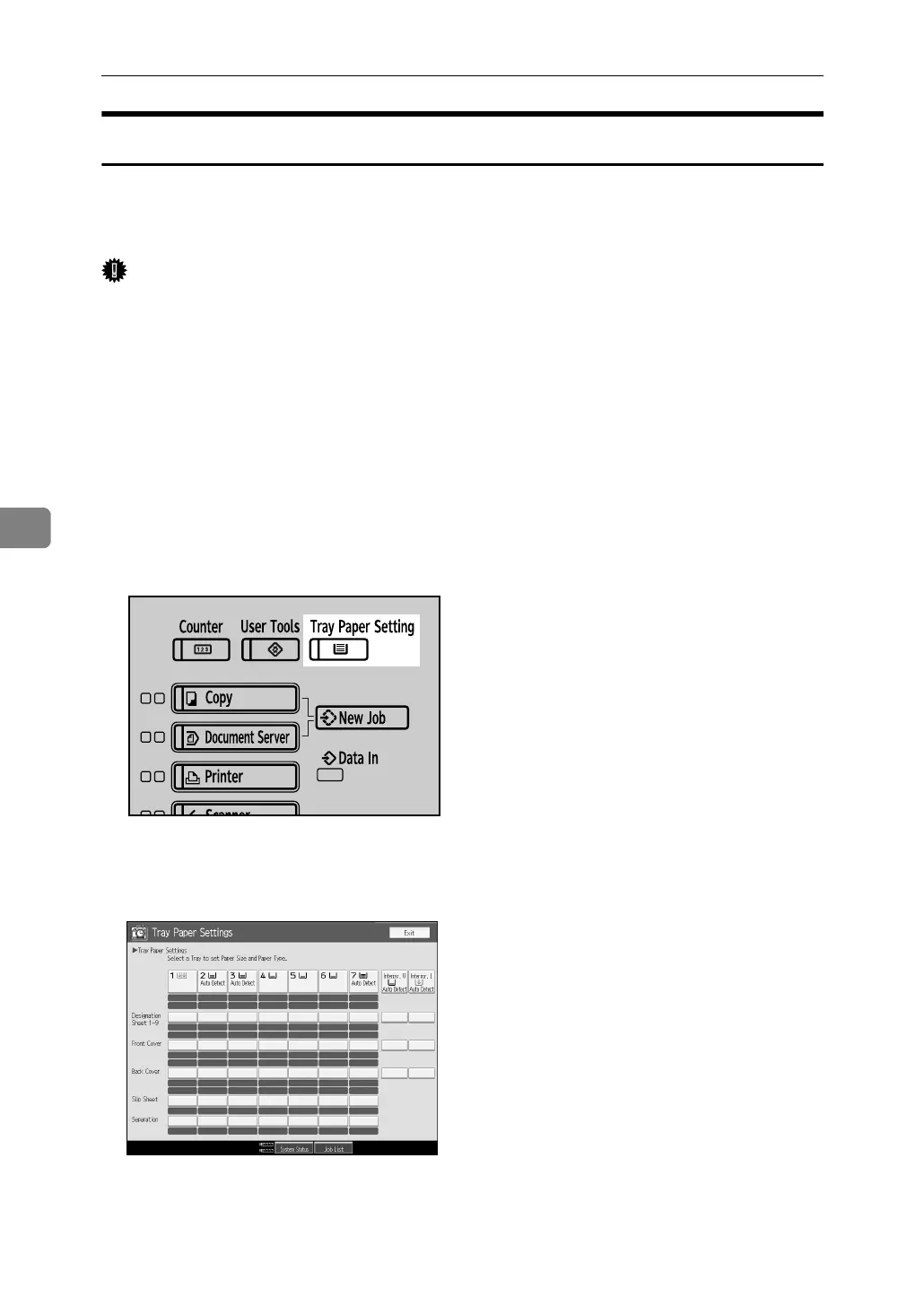
A Press the {Tray Paper Setting} key.
The Tray Paper Settings screen appears.
B Select the tray number on the screen.
ANR102S



 To Next Page