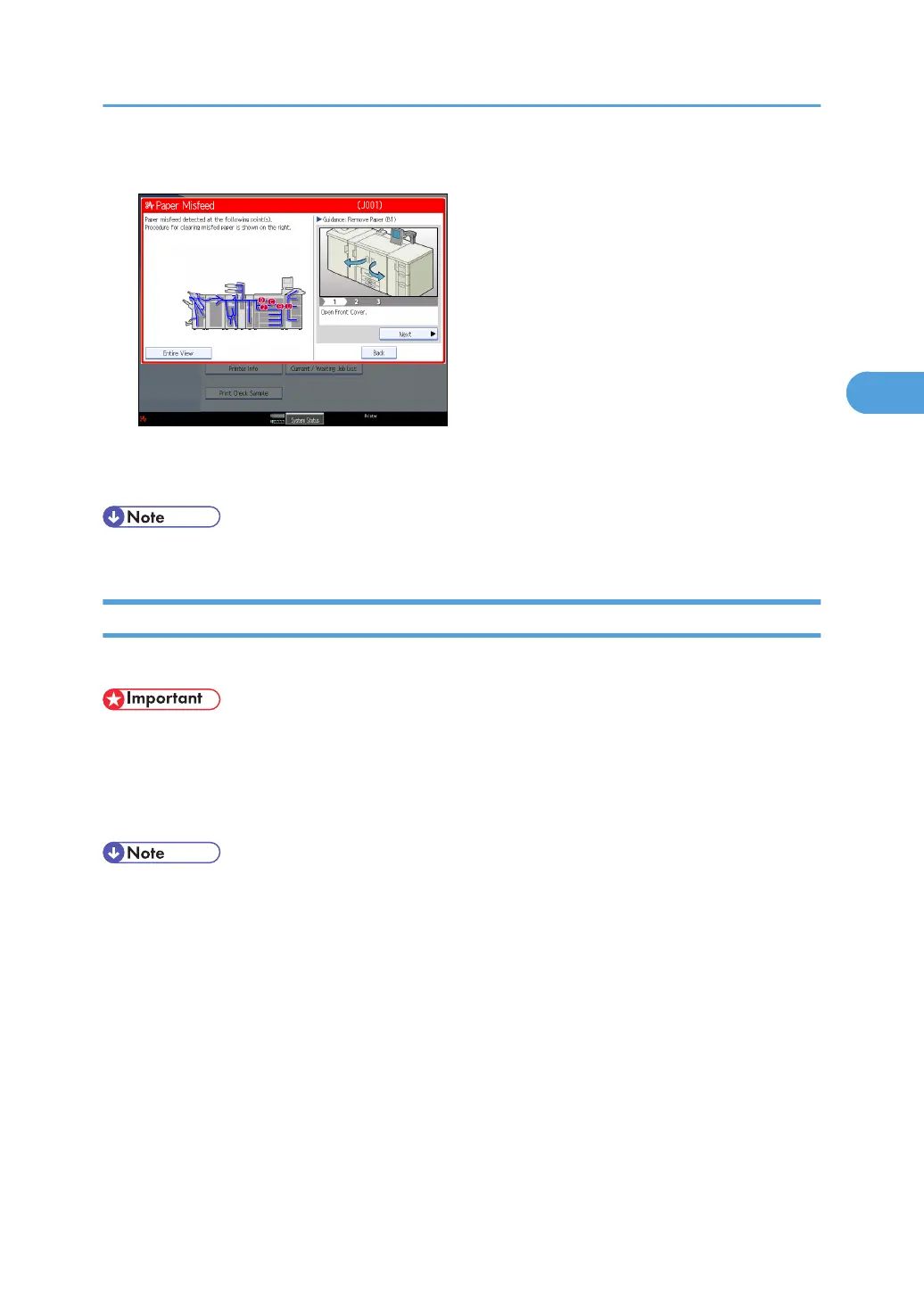
3. After each step is complete, press [Next]. To go back to the previous step, press [Previous].
Press [Entire View], the entire machine is displayed.
4. When all jammed paper is removed, restore the machine to the original state.
• More than one misfeed may be indicated. When this happens, check all the areas indicated.
Removing Jammed Paper
This section describes how to remove jammed paper.
• The fusing section of this machine might be very hot. Caution should be taken when removing misfed
paper.
• When removing jammed sheets, take care to touch only those areas explicitly indicated in the manual.
• Do not remove the fusing unit. Doing so will result in loss of print quality.
• If paper becomes jammed inside the decurler or after being fed through it, any prints that are already
finished will be output to the decurler's purge tray.
• Inside the finisher, or inside the front cover, there is a sticker explaining how to remove misfed paper.
• If a detailed removal instruction appears on the right of the screen, follow it.
• You can also use the procedure indicated in [System Status] to remove jammed paper.
Removing Jammed Paper
49





 To Next Page