Operation Guide
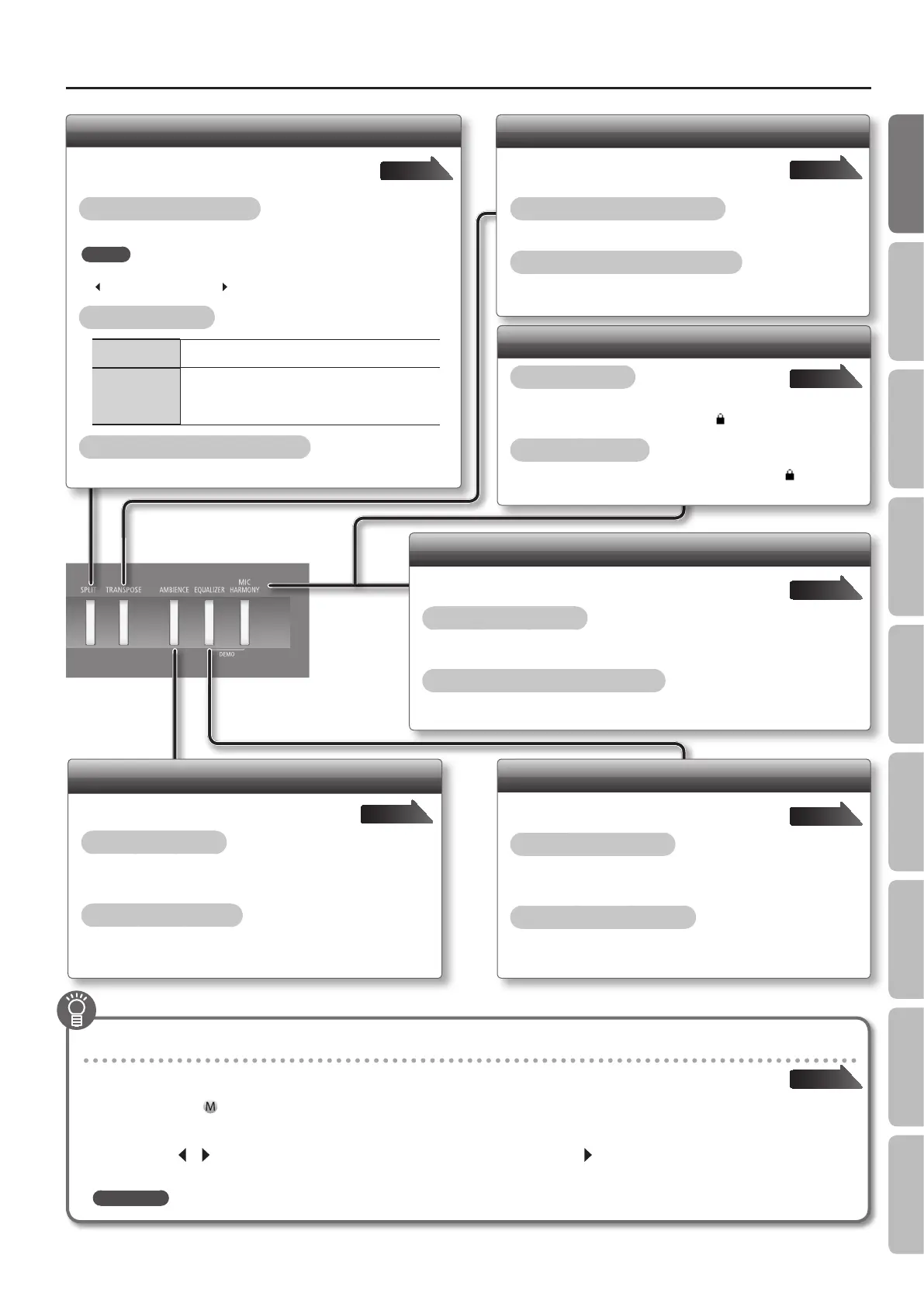
Disabling the Buttons (Panel Lock)
Locking the panel
Hold down the [MIC HARMONY] button until the
lower right of the display shows the “ ” icon.
Unlocking the panel
Hold down the [MIC HARMONY] button, until the “ ” icon
disappears.
Page 42
Changing the Key (Transpose)
Use this feature to shift the pitch of the keyboard
and songs.
Turning the transpose feature on
Press the [TRANSPOSE] button so it’s lit.
Changing the transposition interval
While holding down the [TRANSPOSE] button, press the [–] [+]
buttons or play the note.
Page 19
Adding Reverberation (Ambience)
Add concert-hall acoustics to your performance.
Turning ambience on
Press the [AMBIENCE] button so it’s lit.
Adjusting the ambience
Hold down the [AMBIENCE] button and press the [–] [+] buttons.
Page 17
Playing Dierent Tones with the Right and Left Hands (Split Play)
You can split the keyboard in two, and play one tone with
your left hand and another tone with your right hand.
Turning the split feature on
Press the [SPLIT] button.
MEMO
When using Split Play, you can adjust the volume balance by pressing the
[
BACKING] or [KEYBOARD ] button while holding down the TONE button.
Changing the tones
Right-Hand Tone
1. Press the desired TONE button.
2. Press the [–] [+] buttons.
Left-Hand Tone
1. Hold down the [SPLIT] button and press the desired
TONE button.
2. Hold down the [SPLIT] button and press [–] [+]
buttons to select the desired tone.
Changing the keyboard’s split point
Hold down the [SPLIT] button and press the key at the desired split point.
Page 15
Adjusting the Tone Color (Equalizer)
Adjust the tone color.
Turning the equalizer on
Press the [EQUALIZER] button so it’s lit.
Selecting the equalizer type
Hold down the [EQUALIZER] button and press [–] [+] buttons.
Page 17
Saving your current temperament settings, equalizer settings, and related settings into memory (Memory Backup)
Temperament settings, equalizer settings, and other settings reset to their defaults when power is turned o.
By using the Memory Backup function, you can make sure the changes you’ve made to settings are retained in internal memory.
In this manual, the “ ” icon indicates settings retained by the Memory Backup function.
Page 40
1. Press the [SONG] and [RHYTHM] buttons simultaneously.
2. Use the [ ] [ ] (SLOW/FAST) buttons to select “Memory
Backup.”
3. Press the [METRONOME] button.
4. Press the [ ] (FAST) button to select “Yes.”
REFERENCE
For details on the settings that can be stored, refer to “Items Stored by Memory Backup” (p. 57).
Adding Harmony to the Vocal Input from the Microphone (Mic Harmony)
Add harmony to your singing.
Turning mic harmony on
Press the [MIC HARMONY] button so it’s lit.
Adjusting the volume of the harmony
Hold down the [MIC HARMONY] button and press the [–] [+] buttons.
Page 34
7
Operation Guide Getting Ready Performing Recording Designing Sounds Microphone Registrations AppendixSettings


 To Next Page