EasyManua.ls Logo

Roland FP-9 - Playing Two Layered Tones-Dual Play; Playing Different Tones with the Right and Left Keyboard Sections-Split Play

Roland FP-9
40 pages
Print Icon
To Next Page IconTo Next Page
To Previous Page IconTo Previous Page
Loading...
Playing
Two
Layered
Tones—Dual
Play
You
can
play
two
different
sets
of
sounds
from
a
single
key
at
the
same
time.
This
method
of
play
is
called
“dual
play.”
Example:
Let’s
combine
the
tones
for
piano
and
strings.
Piano!
Piano2
E.Piano
Harpsit
Vibes
Sass
Strings
Voice
Sam
O90000000
Octave
+
Pedai
Sw
_Sostenute
Expression
Tower
aR
ry
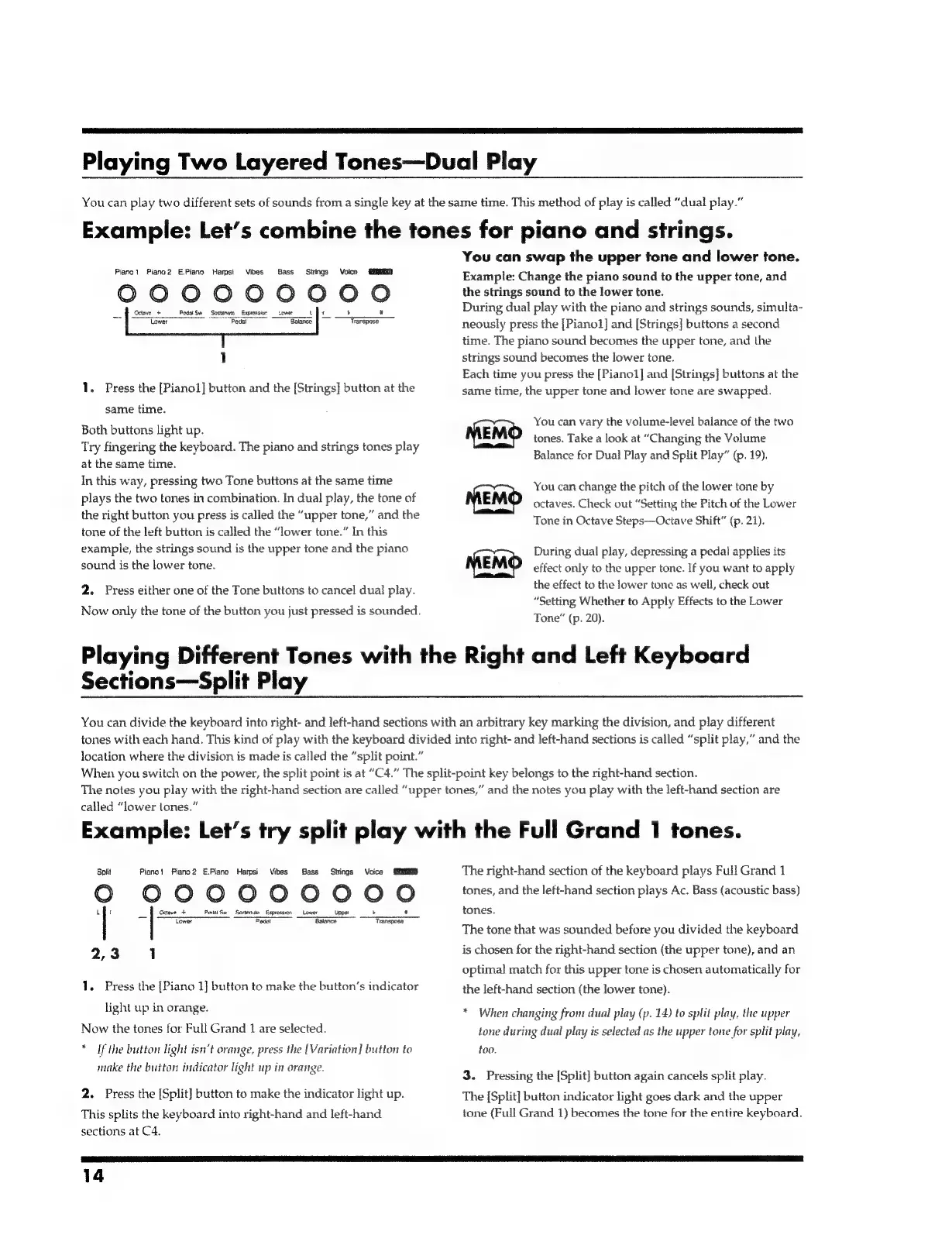
1.
Press
the
[Pianol]
button
and
the
[Strings]
button
at
the
same
time.
Both
buttons
light
up.
Try
fingering
the
keyboard.
The
piano
and
strings
tones
play
at
the
same
time.
In
this
way,
pressing
two
Tone
buttons
at
the
same
time
plays
the
two
tones
in
combination.
In
dual
play,
the
tone
of
the
right
button
you
press
is
called
the
“upper
tone,”
and
the
tone
of
the
left
button
is
called
the
“lower
tone.”
In
this
example,
the
strings
sound
is
the
upper
tone
and
the
piano
sound
is
the
lower
tone.
2.
Press
either
one
of
the
Tone
buttons
to
cancel
dual
play.
Now
only
the
tone
of
the
button
you
just
pressed
is
sounded.
You
can
swap
the
upper
tone
and
lower
tone.
Example:
Change
the
piano
sound
to
the
upper
tone,
and
the
strings
sound
to
the
lower
tone.
During
dual
play
with
the
piano
and
strings
sounds,
simulta-
neously
press
the
[Pianol]
and
[Strings]
buttons
a
second
time.
The
piano
sound
becomes
the
upper
tone,
and
the
strings
sound
becomes
the
lower
tone.
Each
time
you
press
the
[Pianol]
and
[Strings]
buttons
at
the
same
time,
the
upper
tone
and
lower
tone
are
swapped.
You
can
vary
the
volume-level
balance
of
the
two
MEMO
tones.
Take
a
look
at
“Changing
the
Volume
Balance
for
Dual
Play
and
Split
Play”
(p.
19).
You
can
change
the
pitch
of
the
lower
tone
by
MEMO
octaves.
Check
out
“Setting
the
Pitch
of
the
Lower
Tone
in
Octave
Steps—Octave
Shift”
(p.
21).
During
dual
play,
depressing
a
pedal
applies
its
MEMO
effect
only
to
the
upper
tone.
If
you
want
to
apply
the
effect
to
the
lower
tone
as
well,
check
out
“Setting
Whether
to
Apply
Effects
to
the
Lower
Tone”
(p.
20).
Playing
Different
Tones
with
the
Right
and
Left
Keyboard
Sections—Split
Play
You
can
divide
the
keyboard
into
right-
and
left-hand
sections
with
an
arbitrary
key
marking
the
division,
and
play
different
tones
with
each
hand.
This
kind
of
play
with
the
keyboard
divided
into
right-
and
left-hand
sections
is
called
“split
play,”
and
the
location
where
the
division
is
made
is
called
the
“split
point.”
When
you
switch
on
the
power,
the
split
point
is
at
“C4.”
The
split-point
key
belongs
to
the
right-hand
section.
The
notes
you
play
with
the
right-hand
section
are
called
“upper
tones,”
and
the
notes
you
play
with
the
left-hand
section
are
called
“lower
tones.”
Example:
Let’s
try
split
play
with
the
Full
Grand
1
tones.
Split
Piano!
Piano2
E.Piano
Harpsi
Vibes
Bass
Stings
Voice
SD
Ceotave
PetalSa
Sestenuto
Exprossion
Lower
Upper
Tower
Pedal
Balance
“ana
2,3
1
1.
Press
the
[Piano
1]
button
to
make
the
button’s
indicator
light
up
in
orange.
Now
the
tones
for
Full
Grand
1
are
selected.
*
Ifthe
button
light
isn’t
orange,
press
the
[Variation]
button
to
make
the
button
indicator
light
up
in
orange.
2.
Press
the
[Split]
button
to
make
the
indicator
light
up.
This
splits
the
keyboard
into
right-hand
and
left-hand
sections
at
C4.
The
right-hand
section
of
the
keyboard
plays
Full
Grand
1
tones,
and
the
left-hand
section
plays
Ac.
Bass
(acoustic
bass)
tones.
The
tone
that
was
sounded
before
you
divided
the
keyboard
is
chosen
for
the
right-hand
section
(the
upper
tone),
and
an
optimal
match
for
this
upper
tone
is
chosen
automatically
for
the
left-hand
section
(the
lower
tone).
*
When
changing
from
dual
play
(p.
14)
to
split
play,
the
upper
tone
during
dual
play
is
selected
as
the
upper
tone
for
split
play,
too.
3.
Pressing
the
[Split]
button
again
cancels
split
play.
The
[Split]
button
indicator
light
goes
dark
and
the
upper
tone
(Full
Grand
1)
becomes
the
tone
for
the
entire
keyboard.
14

Related product manuals