Basic Operation
Introduction Playing/Creating Sounds Use with a Computer Overall Settings Appendix
Quick Guide
[SHIFT] Button Operations
By holding down the [SHIFT] button and pressing another button,
you can edit the settings of the button you pressed, or access a
specic screen (shortcut).
If you hold down the [SHIFT] button while editing a parameter’s
value, the value will change in larger steps.
Shortcut list
Shortcut Explanation
[SHIFT] + [PART VIEW] Accesses the Studio Set select screen.
[SHIFT] + PART [
]
Select the part 1.
[SHIFT] + PART [
]
Select the Ext part.
[SHIFT] + cursor [
]
Switch between tabs in screens that
contain tabs.
[SHIFT] + cursor [
]
[SHIFT] +
[MOTIONAL SURROUND]
Accesses the Motional Surround setting
screen without changing the MOTIONAL
SURROUND ON/OFF status.
[SHIFT] + [MENU] Accesses the Expansion Load screen.
[SHIFT] + [EDIT]
Accesses the corresponding WRITE MENU
screen for each page.
[SHIFT] + [ENTER]
Switches the display type in the top
screen..
[SHIFT] + [EXIT] Accesses the DEMO MENU screen.
[EXIT] + [
] (startup)
Starts up the INTEGRA-7 without loading
the expansions.
* Continue holding down [EXIT] button
until the top screen appears.
[MENU] + [
] (startup)
Returns the LCD contrast and LCD
backlight brightness to their factory
settings, and accesses the LCD contrast
setting screen.
* Continue holding down [MENU] button
until the setup screen appears.
[SHIFT] +
press the [VOLUME]
Continues preview playback. Press the
[VOLUME] knob once again to stop.
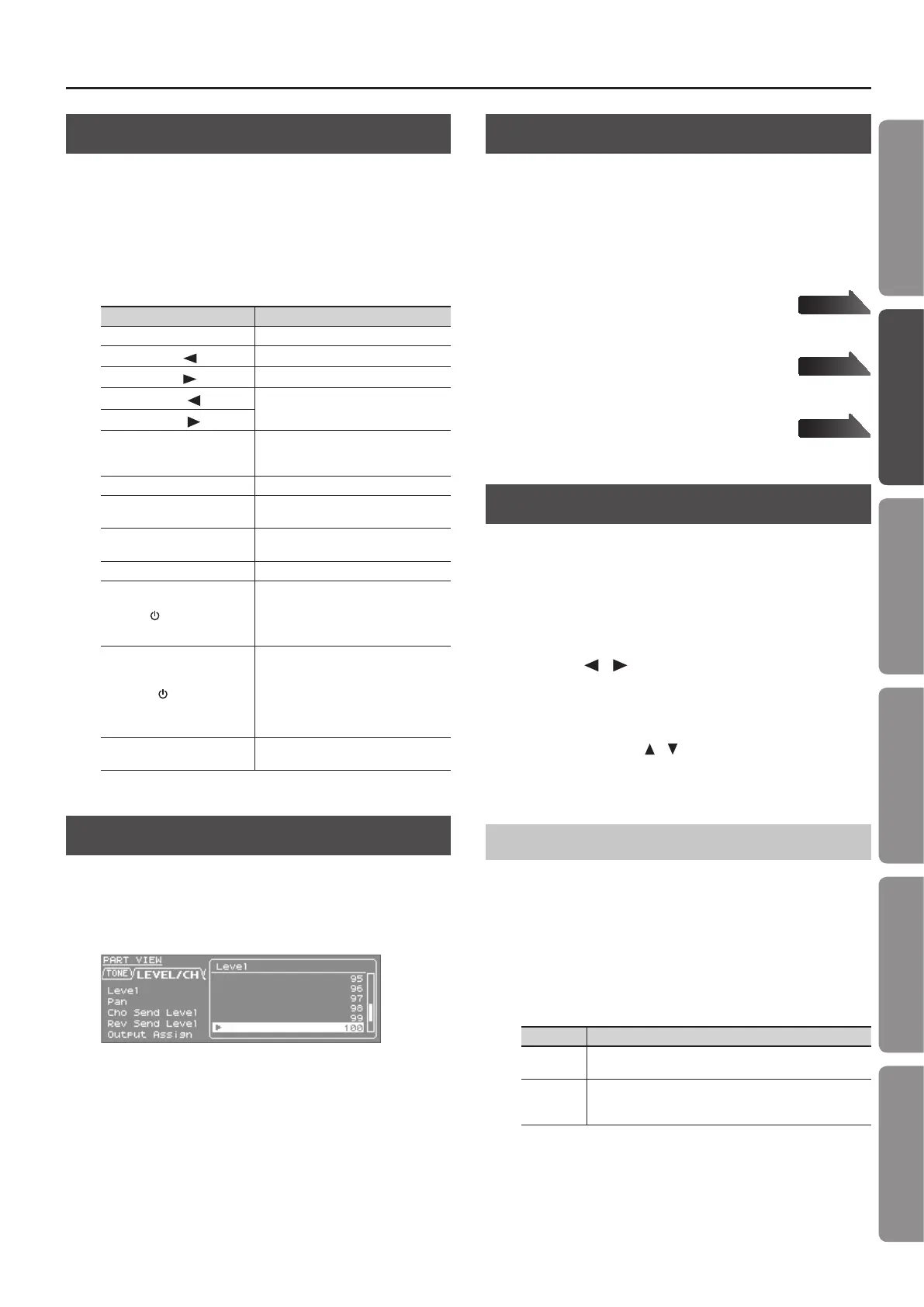
[ENTER] Button Operations
The [ENTER] button is used to set a value or to execute an
operation.
In the various editing screens, pressing the [ENTER] button will
display a parameter list. Select a value and then press the [ENTER]
button once again to conrm your selection.
Saving
From the top screen, hold down the [SHIFT] button and press the
[EDIT] button to access the WRITE MENU screen. Select a studio set
or tone, and save your settings.
From the TONE EDIT screen, hold down the [SHIFT] button and
press the [EDIT] button to save the tone.
From the SYSTEM screen, hold down the [SHIFT] button and press
the [EDIT] button to save the system settings.
Studio Set
Save the Studio Set.
Tone/Drum Kit
Save the Tone/Drum Kit
System
Save overall settings for the INTEGRA-7.
Assigning a Name
The INTEGRA-7 lets you assign names to the following items.
• Studio Set
• Tone/Drum Kit
• Sound data to be exported
• Backup le
Regardless of what you’re naming, the procedure is the same.
1. Press the [ ] [ ] buttons to move the cursor to the
location where you wish to input a character.
2. Turn the VALUE dial, or press the [DEC] [INC] buttons to
specify the character.
You can use the cursor [ ] [ ] buttons to switch between
uppercase and lowercase letters.
3. If you decide to cancel your input, press the [EXIT] button.
Inserting or Deleting Characters
When entering a name, you can insert or delete characters.
1. While entering a name, press the [MENU] button.
The Menu screen will appear.
Pressing the [MENU] button once again will take you back to the
previous screen.
2. Choose “INSERT” or “DELETE,” and press the [ENTER]
button.
Function Explanation
INSERT
Press the [ENTER] button to insert a space (blank) at the
cursor location.
DELETE
Press the [ENTER] button to delete the character at the cursor
location; subsequent characters will be moved forward to ll
the gap.
page 34
page 40
page 48
29










 To Next Page