EasyManua.ls Logo

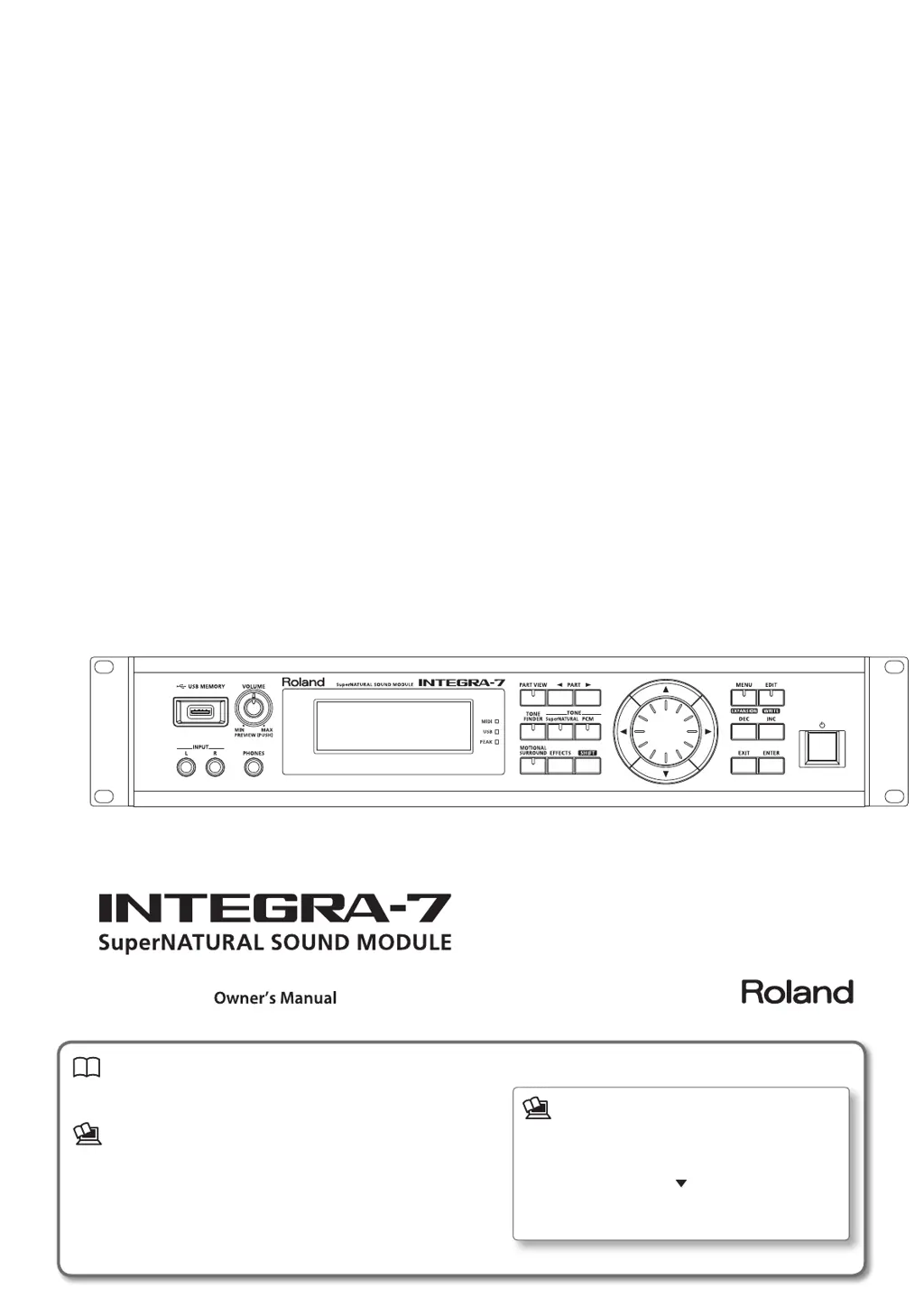
Roland INTEGRA-7 - User Manual

Roland INTEGRA-7
68 pages
Print Icon
To Next Page IconTo Next Page
Loading...
Owners Manual (this document)
Read this rst. It explains the basic things you need to know in order to use
the INTEGRA-7.
PDF Manual (download from the Web)
Parameter Guide
This explains all parameters of the INTEGRA-7.
Sound List
This is a list of the sounds built into the INTEGRA-7.
MIDI Implementation
This is detailed information about MIDI messages.
To obtain the PDF manual
1.
Enter the following URL in your computer.
http://www.roland.com/manuals/
2. Choose “INTEGRA-7” as the product name.

Table of Contents

Other manuals for Roland INTEGRA-7

Questions and Answers

  • B
    Brian HaneyAug 18, 2025
    Why is there no sound coming from my Roland Recording Equipment?
    • J
      Jeanette SimonAug 18, 2025
      If you are experiencing no sound with your Roland Recording Equipment, ensure that the connected amplifier or speaker is powered on. Also, verify that the volume on any connected devices is appropriately adjusted, and that the [VOLUME] knob on your Roland device is not set to the minimum level. Check that your amp, speakers, or headphones are correctly connected. If using headphones produces sound, inspect your connection cables and equipment for any malfunctions. Confirm that the MIDI transmit channel of any connected device matches the MIDI receive channel (Rx Channel) of the Roland unit, and use a connection cable that does not contain a resistor.
  • R
    ramirezheatherAug 21, 2025
    What to do if the sound from Roland Recording Equipment is distorted?
    • B
      Brian RayAug 21, 2025
      If your Roland Recording Equipment is producing a distorted sound, try lowering the [VOLUME] knob. Also, check the “Output Gain” setting in the “SOUND” system settings to ensure it is not excessively high. If you are using an input signal (front or rear), make sure the input level is not clipping, indicated by the PEAK indicator on the front panel lighting up. Adjust the volume of the connected device to prevent the PEAK indicator from lighting.
  • T
    tmendozaAug 23, 2025
    Why won't my Roland Recording Equipment turn on?
    • D
      Diana CooperAug 23, 2025
      If your Roland Recording Equipment is not turning on, ensure that the AC power cord is correctly connected. It is crucial to only use the AC power cord included with the unit to avoid any risk of malfunction.
  • A
    audrey29Aug 26, 2025
    Why are notes broken off on my Roland Recording Equipment?
    • C
      carolwintersAug 26, 2025
      If notes are being cut off when using your Roland Recording Equipment, it might be due to exceeding the maximum number of simultaneous notes (128). Try reducing the number of layers in the Live Set you're using or increase the voice reserve setting for layers where notes must not drop out.
  • M
    Melissa SheltonAug 27, 2025
    Why is there no sound from a specific part on my Roland Recording Equipment?
    • K
      Kenneth RiveraAug 27, 2025
      If you can't hear sound from a specific part on your Roland Recording Equipment, check if the volume level of that part has been lowered and adjust the Level to raise it. Also, verify that the part is not muted by changing the mute setting to “-.” Finally, ensure that the Rx Switch of the part is turned on.
  • J
    Jeffrey MossAug 30, 2025
    Why is the pitch wrong on my Roland Recording Equipment?
    • X
      Xavier GutierrezAug 30, 2025
      If the pitch of your Roland Recording Equipment sounds wrong, start by checking the “Master Tune” setting in the “SOUND” system settings. Then, verify the pitch bend messages transmitted by any external MIDI devices connected to your equipment. Finally, check the Coarse Tune and Fine Tune settings to ensure they are properly configured.
  • E
    eric62Sep 1, 2025
    How to stop my Roland Recording Equipment from turning off unexpectedly?
    • T
      Tracy BowersSep 1, 2025
      If your Roland Recording Equipment unexpectedly turns off, you can prevent this by changing the “Auto Off” system setting to “OFF.” This will ensure the unit stays on as long as it's powered.
  • M
    Mallory PaulSep 3, 2025
    Why can’t I back up to a USB flash drive on my Roland Recording Equipment?
    • M
      martinezcharlesSep 3, 2025
      If you are unable to back up data to a USB flash drive using your Roland Recording Equipment, ensure that the USB flash drive has sufficient free space. If space is not the issue, format the USB flash drive on the Roland unit.
  • D
    Darryl BurnsSep 6, 2025
    What to do if Roland Recording Equipment doesn't recognize USB flash drive?
    • C
      Casey KramerSep 6, 2025
      If your Roland Recording Equipment is not recognizing a USB flash drive, ensure that the drive is formatted as FAT. The Roland unit can only recognize USB flash drives formatted as FAT. Drives with other formats like NTFS will not be recognized. You can format the USB flash drive on the Roland unit.
  • D
    Dawn GeorgeSep 8, 2025
    Why can’t I hear the audio signal from the computer on my Roland Recording Equipment?
    • J
      Jamie BrownSep 8, 2025
      If you can't hear the audio signal from your computer through your Roland Recording Equipment, the sampling rate of the audio signal from the computer might be different from the sampling rate of the Roland unit itself. Change the Sampling Rate setting of the Roland unit to match the sampling rate of the audio signal from your computer.

Summary

Owners Manual

PDF Manual Download

Instructions for downloading the complete PDF manual from Roland's website.

IMPORTANT SAFETY INSTRUCTIONS

General Safety Warnings

Essential safety precautions to prevent fire, electric shock, or injury.

USING THE UNIT SAFELY

Symbols and Notices

Explains warning symbols and cautions for safe operation.

IMPORTANT NOTES

Power, Placement, and Maintenance

Guidance on power supply, unit placement, and cleaning procedures.

01 Main Features

SuperNATURAL Sound Technology

Overview of SuperNATURAL tones, synth capabilities, and drum kits.

Quick Guide Overview

PCM Tones and Motional Surround

Introduction to PCM tones, multi-effects, and Motional Surround spatial audio.

02 Getting Ready

Connecting to Computer via USB

Steps for connecting the INTEGRA-7 to a computer for music production.

03 Using the Internal Sounds

Screen Overview and Tone Selection

Explanation of the INTEGRA-7 screen and how to select internal sounds.

04 Using the Expansion Sounds

EXPANSION Virtual Slots

Guide to loading and using expansion sounds via virtual slots.

05 Creating a Sound Field with Depth

Motional Surround Setup

How to set up and use Motional Surround for 5.1 channel surround audio.

Editing a Studio Set

Motional Surround Editing

Detailed settings for Motional Surround and effects routing.

06 Using SONAR LE to Play Sounds (Windows)

SONAR LE Setup

Installing and configuring SONAR LE with the INTEGRA-7 for Windows.

Panel Descriptions

Front Panel Controls

Identification and explanation of the INTEGRA-7's front panel buttons and ports.

Panel Descriptions (Continued)

Rear Panel Connections

Explanation of all rear panel jacks and connectivity options.

Getting Acquainted with the INTEGRA-7

Studio Sets and Tone Structure

Introduction to Studio Sets, parts, and how tones are composed.

Getting Acquainted (Continued)

Effects Overview

Explanation of available effects for tones and studio sets.

Basic Operation

Core Controls and Editing

Explanation of basic button operations, cursor movement, and value editing.

Playing Sounds

Selecting and Auditioning Sounds

Steps to choose Studio Sets, view parts, mute/solo, and audition tones.

Editing a Studio Set

Common and Part Settings

Adjusting common settings and individual part parameters.

Editing a Studio Set (Continued)

Saving and Motional Surround Panning

Procedures for saving Studio Sets and panning sounds spatially.

Editing a Tone

Editing SN Acoustic and Synth Tones

Detailed editing parameters for SuperNATURAL Acoustic and Synth tones.

Editing a Tone (Continued)

Editing PCM Tones and Saving

Editing PCM tones and saving edited tones/drum kits.

Editing a Tone (Continued)

Editing Tone Effects

Detailed editing of Multi-Effects (MFX) and Compressor/EQ.

Using the INTEGRA-7 with Your Computer

USB Connectivity and Drivers

Connecting via USB, role of drivers, USB MIDI, and USB Audio.

Using the INTEGRA-7 (Continued)

USB MIDI and Signal Flow

Using USB MIDI as an interface and understanding MIDI signal flow.

Using the INTEGRA-7 (Continued)

USB Audio and Sampling Rate

Details on USB Audio functionality and setting the sampling rate.

Overall Settings

System Configuration

Overview of system settings, startup, sound, sync, and saving.

Convenient Functions

Utility Operations and USB Formatting

Accessing utility functions and formatting USB flash drives.

Convenient Functions (Continued)

Exporting and Importing Sound Data

Procedures for transferring sound data to and from USB drives.

Convenient Functions (Continued)

Managing USB Flash Drive Data

Marking, deleting, renaming files, and backing up user data.

Convenient Functions (Continued)

Factory Reset and Auto Off

Restoring factory settings and configuring the auto-off timer.

Troubleshooting

Common Problems and Solutions

Solutions for general issues and synthesizer sound problems.

Error Message List

Message Explanations and Actions

Meanings and recommended actions for various error messages.

MIDI Implementation Chart

MIDI Message Details

Comprehensive chart of MIDI messages and their functions.

Specifications

Technical Details

Specifications for sound generation, effects, connectors, power, and dimensions.

Block Diagram

Signal Flow Overview

Visual representation of the INTEGRA-7's internal signal paths.

Environmental Information

Recycling and Hazardous Substances

Product recycling instructions for EU countries and hazardous substance info for China.

Declarations and Warnings

Compliance and Safety Notices

FCC, Canadian, and Proposition 65 compliance and safety statements.

Information

Roland Service Centers and Distributors

List of authorized Roland service centers and distributors worldwide.

Roland INTEGRA-7 Specifications

General IconGeneral
Audio (L/R) in2
USB connector typeUSB Type-A
Audio (L/R) out5
Digital audio coaxial out1
Product colorGray
Sound effectsChorus, Reverberation
Built-in speaker(s)No
Chorus effects quantity3
Reverberation effects quantity6
MIDI inYes
6.35 mm (1⁄4-inch) input4
6.35 mm (1⁄4-inch) output8
Display typeLCD
Power source typeAC
Weight and Dimensions IconWeight and Dimensions
Depth262 mm
Width481 mm
Height89 mm
Weight3900 g

Related product manuals