Convenient Functions
Introduction Playing/Creating Sounds Use with a Computer Overall Settings Appendix
Quick Guide
Restoring Backed-up Settings from a USB
Flash Drive (RESTORE)
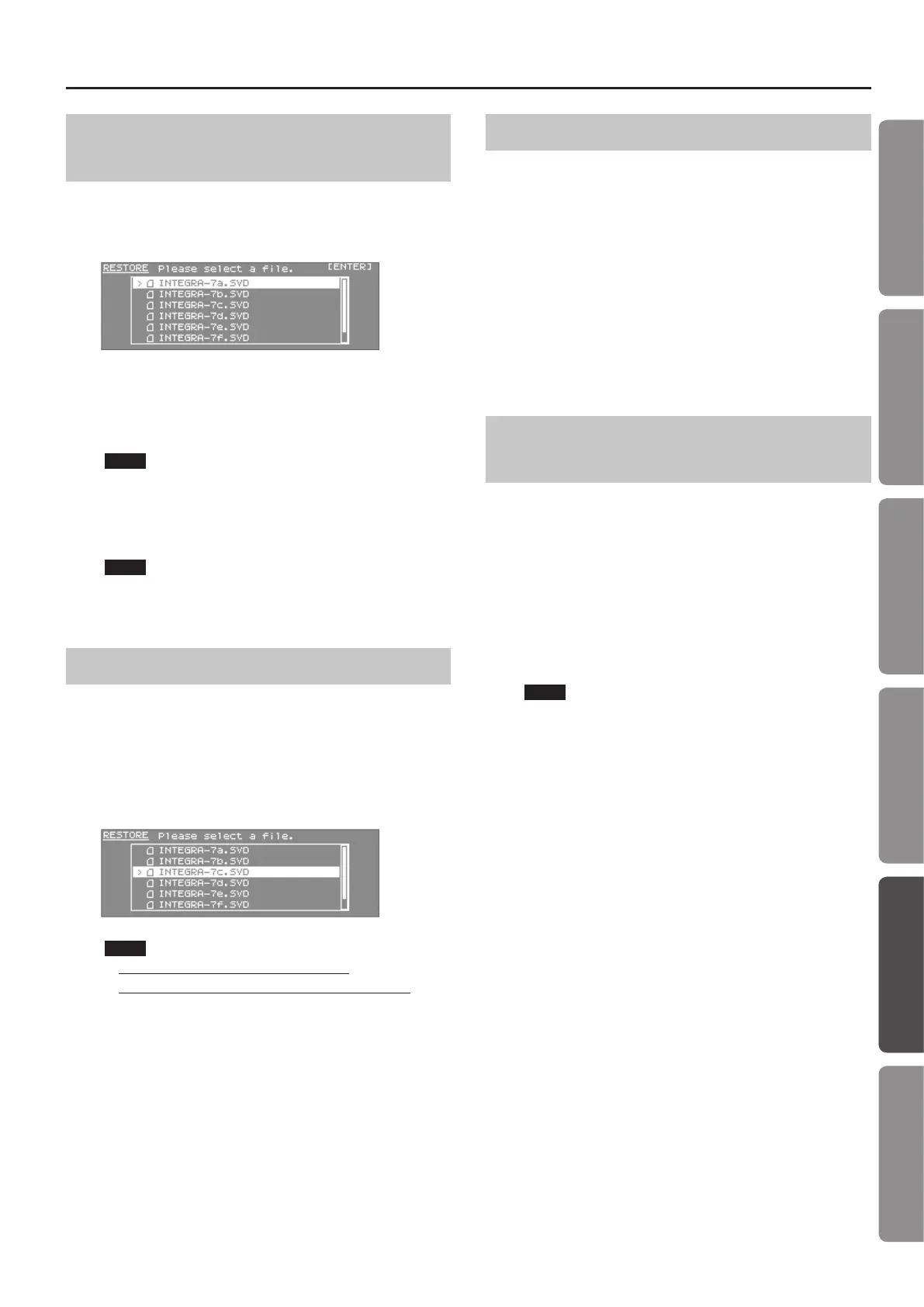
1. In the UTILITY screen, choose “RESTORE” and press the
[ENTER] button.
The RESTORE screen will appear.
2. Select the le that you want to restore.
3. Press the [ENTER] button.
A message will ask “Are you sure?”
NOTE
When you execute the Restore operation, all settings currently
saved in the INTEGRA-7 will be lost. If you want to keep the
current settings, back them up under a dierent name.
4. To execute, choose “OK” and press the [ENTER] button.
NOTE
Never turn o the unit while the restore operation is in progress.
5. Turn the INTEGRA-7 o, and then on again.
Deleting a Backup File
You can delete a data le in the screen where you select a data le
to be restored.
1. In the UTILITY screen, choose “RESTORE” and press the
[ENTER] button.
The RESTORE screen will appear.
2. Select the data le that you want to delete.
NOTE
Data that you delete cannot be recovered.
Take care not to inadvertently delete important data.
3. Press the [MENU] button.
4. Choose “DELETE” and press the [ENTER] button.
A message will ask “Are you sure?”
5. Choose “OK” and press the [ENTER] button.
Renaming a Backup File
You can rename a data le in the screen where you select a data le
to be restored.
1. In the UTILITY screen, choose “RESTORE” and press the
[ENTER] button.
The RESTORE screen will appear.
2. Select the data le that you want to rename.
3. Press the [MENU] button.
4. Choose “RENAME” and press the [ENTER] button.
For details on assigning a name, refer to “Assigning a Name” (p. 29).
5. Press the [ENTER] button.
Backing Up USB Flash Drive Data to a
Computer
Here’s how to back up the data from a USB ash drive to your
computer.
1. Turn o the INTEGRA-7.
2. Disconnect the USB ash drive from the INTEGRA-7, and
connect it to your computer.
3. On your computer, open the USB ash drive.
4. Copy (drag and drop) the entire “ROLAND” folder from the
USB ash drive into a folder on your computer.
NOTE
• You must copy the entire “ROLAND” folder.
• The data will not be backed up correctly if you copy only part of
the les in the “ROLAND” folder.
5. When the copy is completed, unmount (eject) the USB
ash drive from your computer, and then disconnect it
from the computer.
Windows 7/ Windows Vista / Windows XP users:
In My Computer (or Computer), right-click the “removable disk” icon
and choose “Eject.”
Mac OS X users:
Drag the USB ash drive icon into the Trash (Eject icon).
53










 To Next Page