16
Operating the DJ-707M
Recording
You can use Serato DJ Pro’s recording functionality to record sounds that
you’ve mixed on the DJ-707M.
* For details, refer to the Serato DJ Pro user manual.
1. In Serato DJ Pro, click the [REC] key to access the REC panel.
2. Click [REC] to start recording.
3. To stop recording, click [REC] once again.
4. To save, enter a le name in the text entry eld and click [Save].
Inputting Sound from an External Device
Audio from devices such as a DJ player or turntable (analog) can be input
directly to the rear panel INPUT (CH 1–CH 2) jacks, and mixed by the
DJ-707M’s mixer section.
You can also use Serato DJ Pro’s eect units to apply eects to the external
audio inputs.
You can use the mic section to apply a vocal eect to the audio input from
mics connected to the MIC IN 1 or 2 jacks.
Inputting Sound from a DJ Player
1. Connect your DJ player or other line-level device to any of the
INPUT (CH 1–CH 4) jacks.
2. As appropriate for the channel to which your line-level device
is connected, set the corresponding input select switch to
“LINE.”
3. Use the [TRIM] knob and channel fader to adjust the output
level.
5 You can use the [HI], [MID], and [LOW] knobs to adjust the volume of the
high, mid, and low-frequency regions.
5 You can use the [FILTER/FX] knob to apply a lter.
5 You can operate the eect section to apply Serato DJ Pro’s eects.
Inputting Sound from a Turntable
1. Connect your turntable to either of the INPUT jacks (CH 1 or CH
2).
2. As appropriate for the channel to which your turntable is
connected, set the corresponding input select switch to
“PHONO.”
3. Use the [TRIM] knob and channel fader to adjust the output
level.
5 You can use the [HI], [MID], and [LOW] knobs to adjust the volume of the
high, mid, and low-frequency regions.
5 You can use the [FILTER/FX] knob to apply a lter.
5 You can operate the eect section to apply Serato DJ Pro’s eects.
Inputting Sound from a Mic
1. Connect a mic to the MIC IN 1 or 2 jack.
2. In the mic section, press the MIC 1 or 2 [ON] button to make it
light.
3. Use the mic section’s [LEVEL] knob to adjust the output volume
of the mic.
5 You can use the [HI], [MID], and [LOW] knobs to adjust the volume of the
high, mid, and low-frequency regions.
5 Use the [DUCK] button to turn ducking on (lit) or o (unlit).
5 Use the [FX] button to turn the vocal eect on (lit) or o (unlit). Use the
[VOCAL FX] knobs to adjust the depth of the vocal eect.
TR Operations
For deck 3, you can play “patterns” created using drum sounds
(instruments) such as those of a Roland TR-808 rhythm machine.
What are patterns?
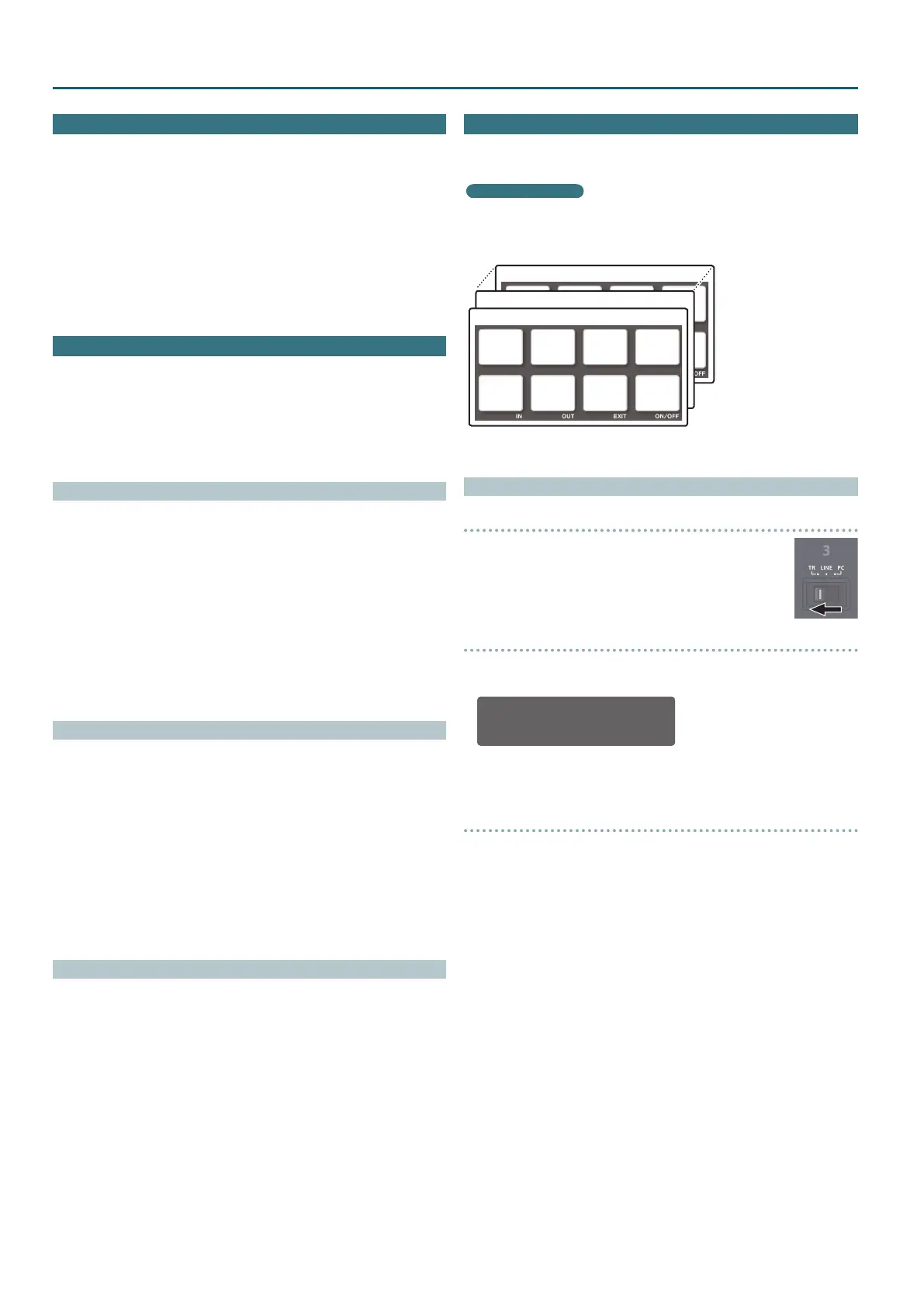
“Patterns” contain performance data for instruments. Sixteen patterns are
provided.
Each pattern has eight “variations,” and when you select a pattern, the
variations are automatically assigned to performance pads 1–8.
Pattern 16
Variation
1
Variation
2
Variation
3
Variation
4
Variation
5
Variation
6
Variation
7
Variation
8
Pattern 2
Pattern 1
Variation
1
Variation
2
Variation
3
Variation
4
Variation
5
Variation
6
Variation
7
Variation
8
Playing Patterns
Preparation
1. Set the mixer section CH3 input select switch to
“TR.”
2. In the left deck, press the DECK [1/3] button to
make it light red.
Selecting a pattern
1. Turn the [SELECT (ENTER)] knob to select a pattern (01–16), and
press the knob to conrm.
TR: Pattern
[01]
The variations of the selected pattern are assigned to performance pads
1–8.
Playing back a pattern
1. Press a performance pad 1–8 to select a variation.
The pad you pressed blinks.
5 You can select multiple variations by holding down a pad and pressing
another pad.
2. Press the [
r
] button.
The variation starts playing.
5 If you selected multiple variations, the variation whose pad is blinking
plays, and then the other variations play consecutively starting with the
lowest-numbered variation.
5 If you select the next variation during playback, the pad you press blinks.
5 If you hold down the [SHIFT] button and press a pad, the variation of
the pad that you press is reserved. When the currently-playing variation
nishes playing, playback automatically switches to the reserved
variation.


 To Next Page