34
Basic Operations
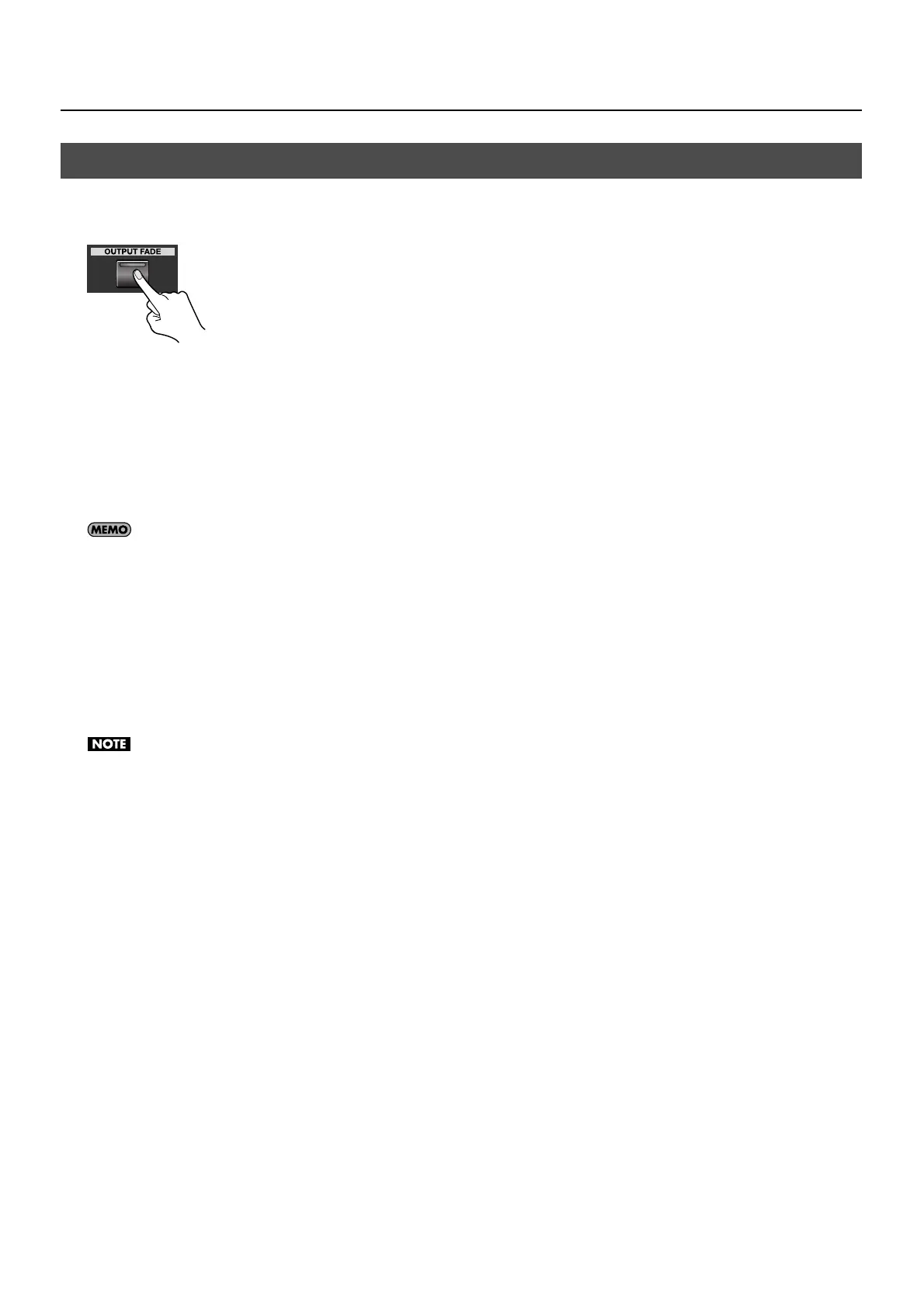
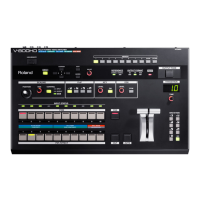
You can use the [OUTPUT FADE] button to apply a fade to the final output of the V-800HD. Applying a fade makes the output
video gradually disappear (fade-out) or appear (fade-in).
fig.output-fade.eps
1. Apply a fade-out.
Pressing the [OUTPUT FADE] button makes the button flash and starts a fade-out. When the fade-out has been completed, the
button stops flashing and stays lit.
2. Apply a fade-in.
Pressing the button a second time makes it flash and starts a fade-in. When the fade-in has been completed, the button goes
dark.
You can use the menus (p. 51) to change the following settings related to fades.
• Fade time The default setting is 0.5 seconds.
• Fade color The default setting is black.
Fades to Other Images
Fades to plain color (like black) are possible. Using menus, you can change settings.
Fade to Still Image
You can apply a fade to a still image imported into the V-800HD’s internal memory from a USB memory device (p. 44). From the
System menu, select [Output Fade], then for the [Mode] setting, select [Fade to Still Image].
If the still image is assigned to channel 10, then assigning the still image to an output fade or freezing the picture during output is not possible.
Also, when you are freezing the video during output, the source on channel 10 changes to a plain colored image (background color).
Fade to Output Freeze
You can stop (freeze) the video currently being output (p. 48). From the System menu, select [Output Fade], then for the [Mode]
setting, select [Output Freeze].
Applying Fade to Final Output


 To Next Page