41
About Other Features
Using the [SIZE] dial in the SCALING section, you can enlarge or reduce the view of the picture. You can also use the [POSITION]
joystick to change the display position.
* On the V-800HD, you can enlarge or reduce the picture within a range of 10% to 1,000%.
Enlarging/Reducing the Source Picture
1. Put the picture you want to enlarge or reduce into standby.
On the [PST/EFFECT] side, select the channel of the picture you want to enlarge or reduce.
2. Enlarge or reduce the picture, and adjust its display position.
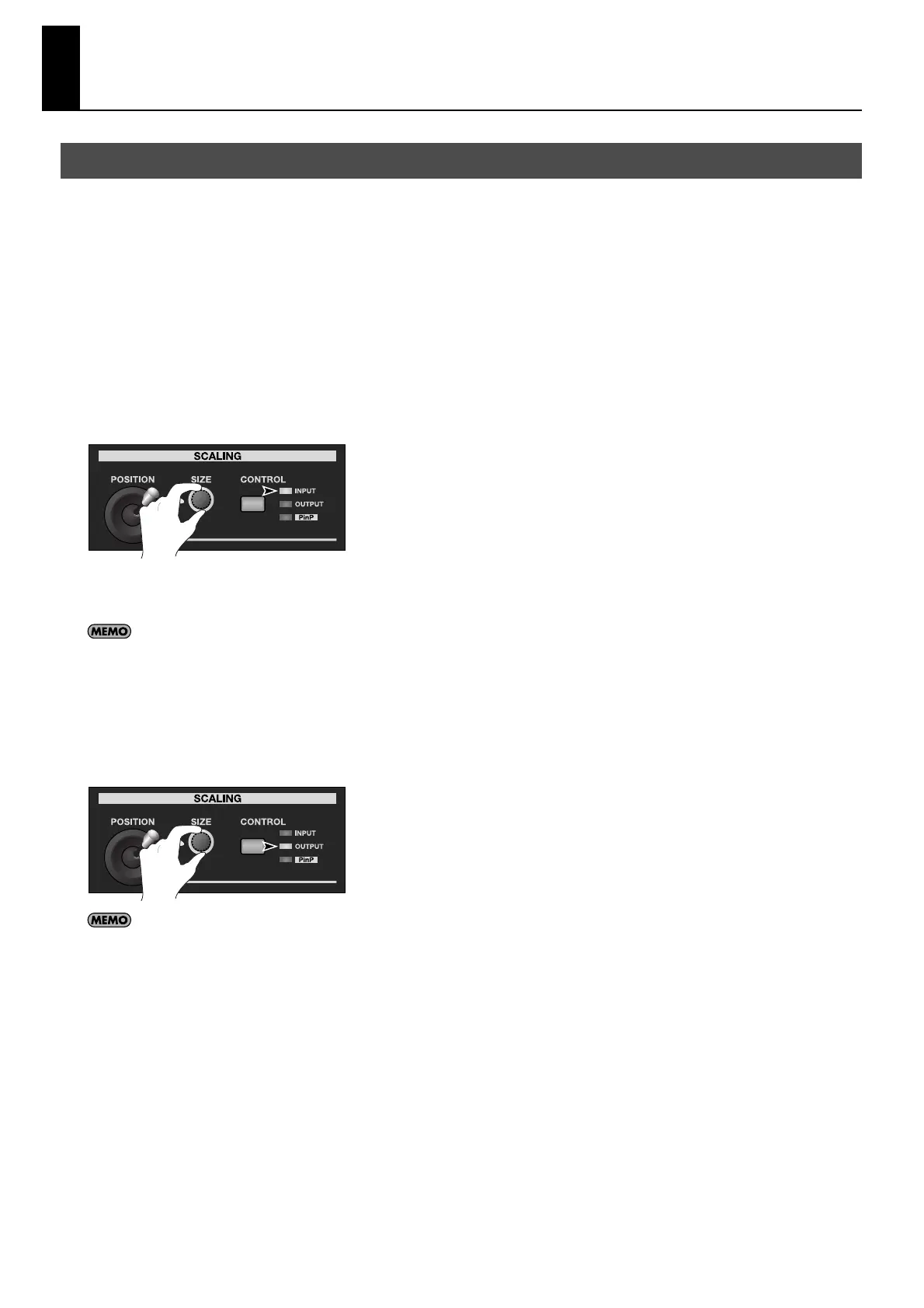
At the SCALING section, press the [CONTROL] button to make the [INPUT] indicator light up. The results of the adjustments using
the [SIZE] dial and the [POSITION] joystick are shown on [PVW] section of the multi-view monitor.
* Note, however, that the picture on the source monitor will not be modified.
fig.scale-PVW.eps
3. Output the enlarged or reduced picture.
Use the [AUTO] or [CUT] button or the video fader to output the picture on standby.
You can also enlarge or reduce the picture and adjust its display position by changing the values of [Zoom] and [Position] in the Input menu. In
the Input menu, you can also change cropping parameters and the aspect ratio for the picture.
Enlarging/Reducing the Currently Output Picture
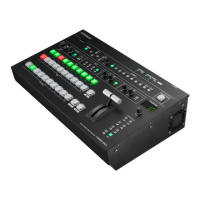
At the SCALING section, press the [CONTROL] button to make the [OUTPUT] indicator light up. You can enlarge or reduce the
picture by using the [SIZE] dial. You can also use the [POSITION] joystick to change the display position. The results of the
adjustments are shown on [PGM] section of the multi-view monitor.
fig.scale-PGM.eps
You can also enlarge or reduce the picture and adjust its display position by changing the values of [Zoom] and [Position] in the Output menu. In
the Output menu, you can also enlarge or reduce the vertical/horizontal size of the picture independently.
Enlarging/Reducing the Picture


 To Next Page