48
About Other Features
You can create a still image from the V-800HD’s output video and save it to internal memory (Output Capture).
* The created still image cannot be saved to a USB memory device.
1.
Display the System menu.
Press the [MENU] button to display the menu. Use the [CURSOR] buttons to select [System], then press the [ENTER] button to
display the System menu.
2.
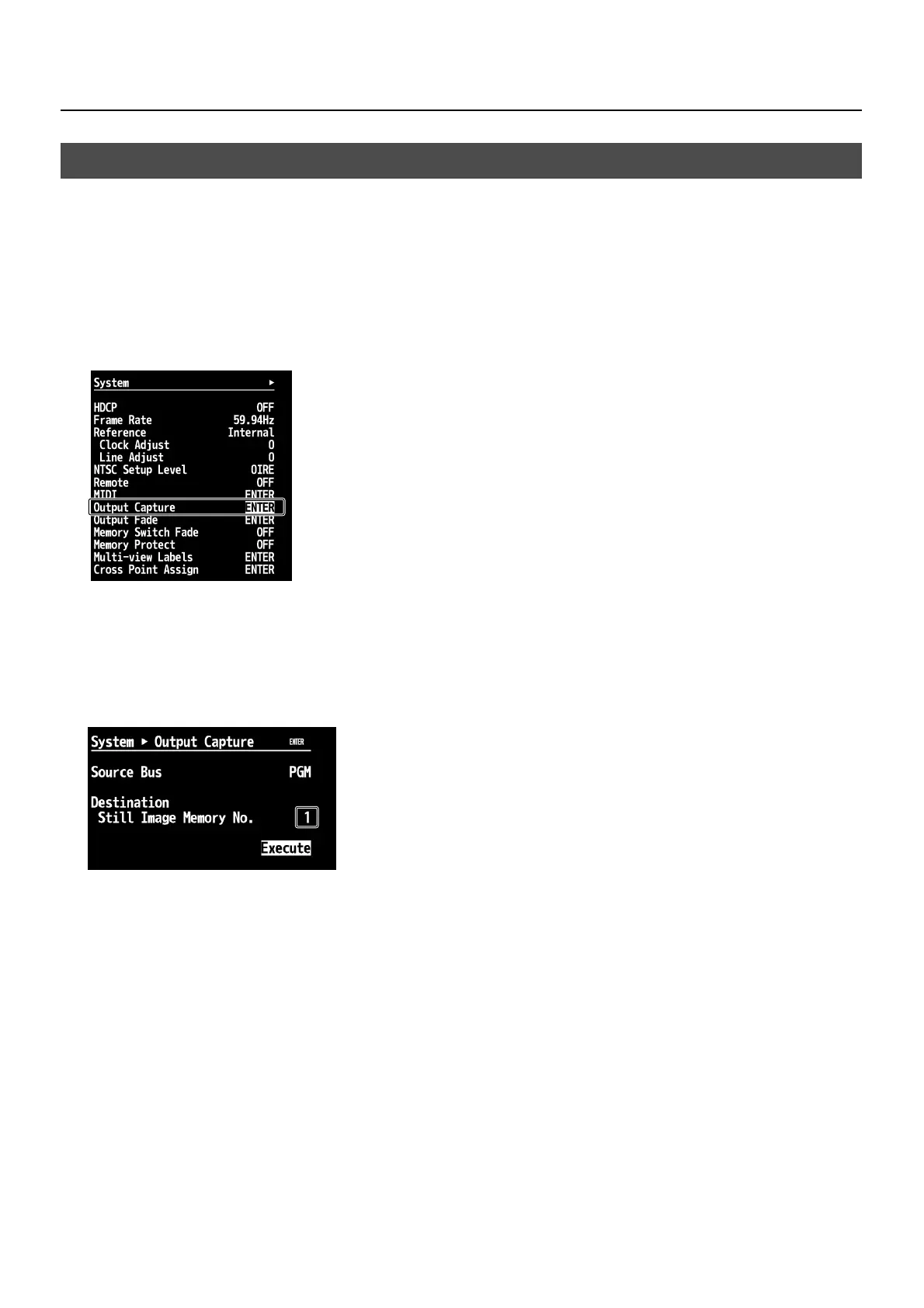
Select [Output Capture].
Use the [CURSOR] buttons to select [Output Capture], then press the [ENTER] button to move to the next screen.
fig.output-capture.eps
3.
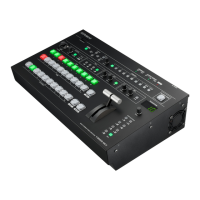
Select the source.
Use [Source Bus] to select the source video. You can select from among [PGM], [PVW] or [AUX]. Selecting a source makes the
video appear at [PGM] section of the multi-view monitor.
4.
Select the memory of the destination for saving.
Under [Destination], select saving-destination memory number ([1] through [16]) in [Still Image Memory No.].
fig.destination-memory.eps
5.
Execute creation and saving of the still image.
Use the [CURSOR] buttons to highlight [Execute], then press the [ENTER] button. A still image is created from the video being
output and saved at the number specified in step 3.
Using the procedure just described to create a still image lets you assign it to channel 9 or 10. You can also assign it to an output
fade (p. 34) in the same way as for still images imported from a USB memory device.
Creating a Still Image from Final-output Video


 To Next Page