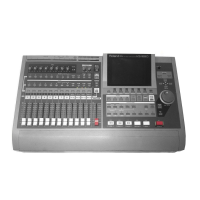
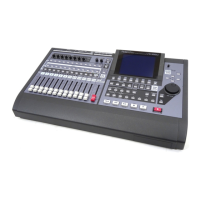
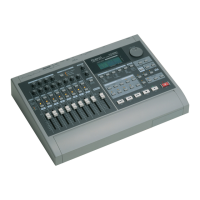
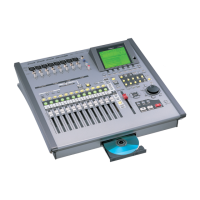
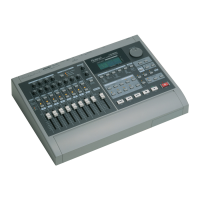
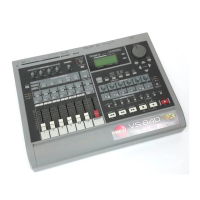
1. Make settings as shown below.
fig.10-01(connection.eps)
2. Insert the disk onto which VS-880/840 song data
has been recorded into the Zip drive.
3. For the current drive, select the drive (IDE hard
disk) you want to be the load destination.
4. Press [PLAY (DISPLAY)].
5. Hold down [SHIFT] and press [F1 (SONG)].
The Song menu icon is displayed.
6. Press [F4 (Imprt)]. If “Imprt” does not appear in
[F4], first press [PAGE] until “Imprt” is displayed,
and then press [F4 (Imprt)].
fig.10-01a(sg_imp.eps)
7. Press [F1 (SelDr)].
A list of drives appears in the display.
Press [ ], [ ], [ ], and [ ] to select the load
source drive, and rotate the TIME/VALUE dial to
select the load source partition, then press [F1 (Back)].
fig.10-02(sg_imp_dr.eps)
8. Rotate the TIME/VALUE dial to move the cursor
to the song you want to copy, and press [F4
(MARK)]. When [F3 (ALL)] is pressed, you can
place or remove the mark points on all the songs.
In addition, by pressing [F2 (SelSg), you can dis-
play a list of available songs. At this point, after
placing mark points in the song, press [F1 (Back)].
fig.10-03(sg_imp_sg.eps)
9. Press [F5 (Exec)].
A confirmation message appears in the display.
10. Press [YES].
“STORE Current?” (Store the current song?) appears
in the display.
11. If you wish to save the current song, press [YES];
if not, then press [NO]. If you have selected a
demo song, then press [NO].
12. After Song Import is completed, return to Play
condition. At this time, the song converted for use
by the VS-1680 becomes the current song.
Chapter 10 Compatibility
149
Chapter 10


 To Next Page
 Loading...