12
ENGLISH
Press the “MENU/ ” key to enter the main menu, & select “ ” image
registration.
Press the “SELECT/ENTER” key to enter into image overlap adjustment mode.
Press the navigation keys (up, down, left & right to perform the visible image
shift operation.
Press the “SELECT/ENTER” key to exit the image overlapping mode (Note: If
there is no operation for more than 6 seconds, the image overlapping mode
will be automatically exited).
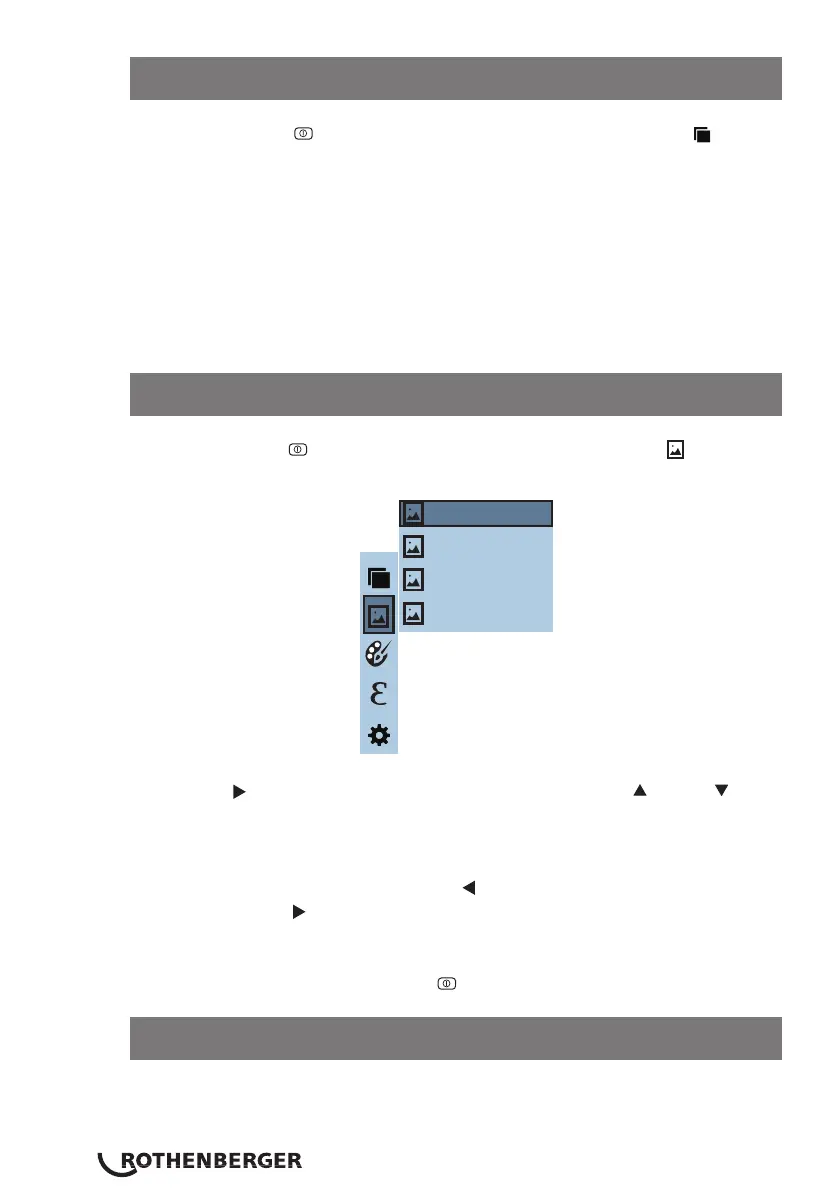
Press the “MENU/ ” key to enter the main menu, & select “ ” image.
Select the image you would like to delete, the screen will show a “delete
photo prompt”. You can scroll through yes or no options by pressing
Press the “ ” key to enter image list. Then press the “ ” or “ ” key
to navigate to the image you want to select. To view the image press the
“SELECT/ENTER” key.
When viewing the images, press the “ ” key to view the previous
image, Press the “ ” key to view the next image.
Press the “SELECT/ENTER” key to return to the previous menu and to exit the
menu altogether press the “MENU/ ” key.
11.2 Image overlapping application
11.3 Image submenu – view image
11.4 Deleting images
171229-105030
171229-105031
171229-105032
171229-105033



 To Next Page