GPS Follow Me function requires strong GPS signal, once the function been initiated, the drone
can follow the smart phone whereever it goes, below are the steps to activate this function:
Image Rcognition Follow Me function enables the drone to follow the object's in circle movement
to rotate .
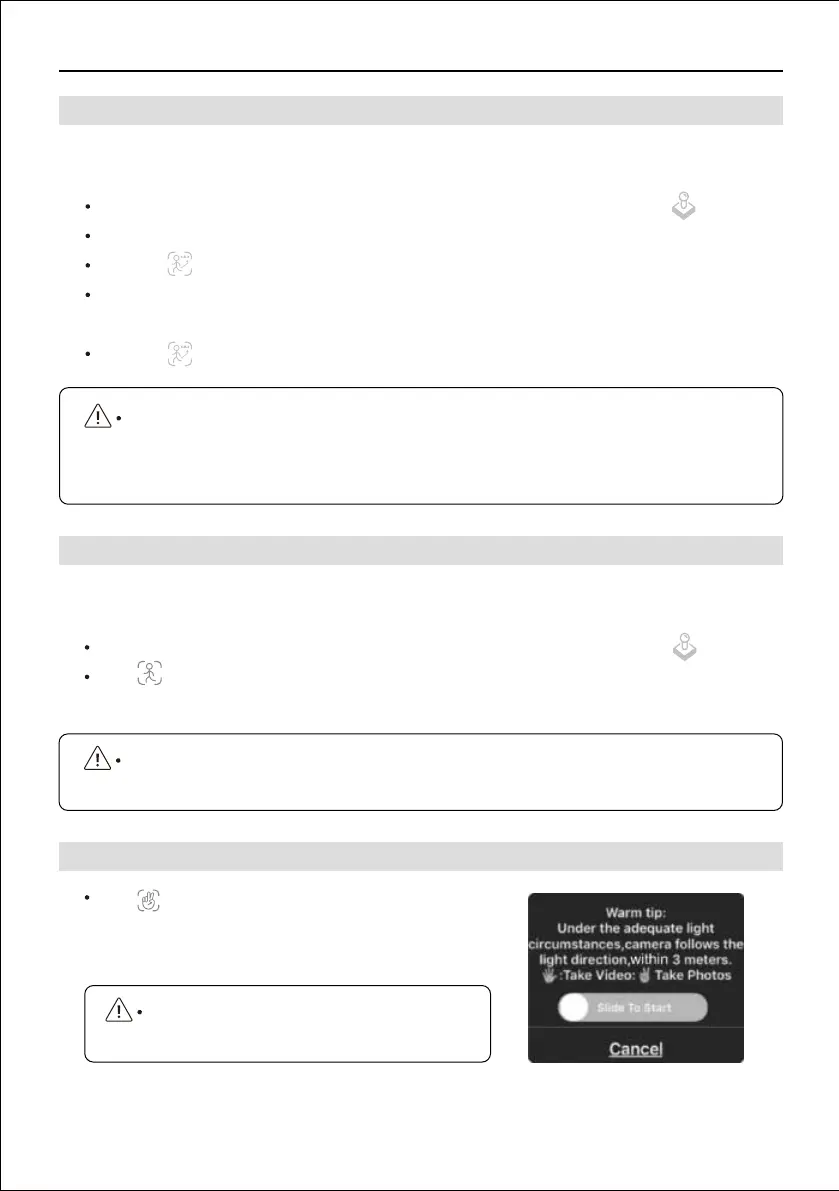
Click on the app, count down 3 seconds to 0 with
hand motion to take photos and record video. Follow
the instruction on the app.
Connect the drone's WiFi on the smart phone, access to the app CONTROL interface.
Make sure the flight distance is within 10-100meters.
Click the on the app.
Waiting for app to indicate drone status "Follow Me Ready", now the drone will move along
with the positioning coordinates on the app.
Click the on the app interface again to exit the Follow Me mode.
Connect the drone's WiFi on the smart phone, access to the app CONTROL interface.
Click , tap on the object or person plans to track, tap to confirm the selection, drone
rotates following the object's in circle movement.
9.4 GPS Follow Me
9.5 Image Recognition Follow Me
9.6 Hand Gesture
GPS Follow Me function will be affected by the tall structures, trees and the living areas
with WIFI signal inteference. GPS Follow-me function is not activated when the GPS
signal weak or GPS positioning off on the mobile device.
Make sure the size of the frame isn't too large, so as to ensure the recognization is
acheiveable.
When raise the hand, make sure to keep the
elbow at the same height of the shoulder.
F11GIM2 User Manual
Copyright ©2021 Ruko All Rights Reserved.
21


 To Next Page