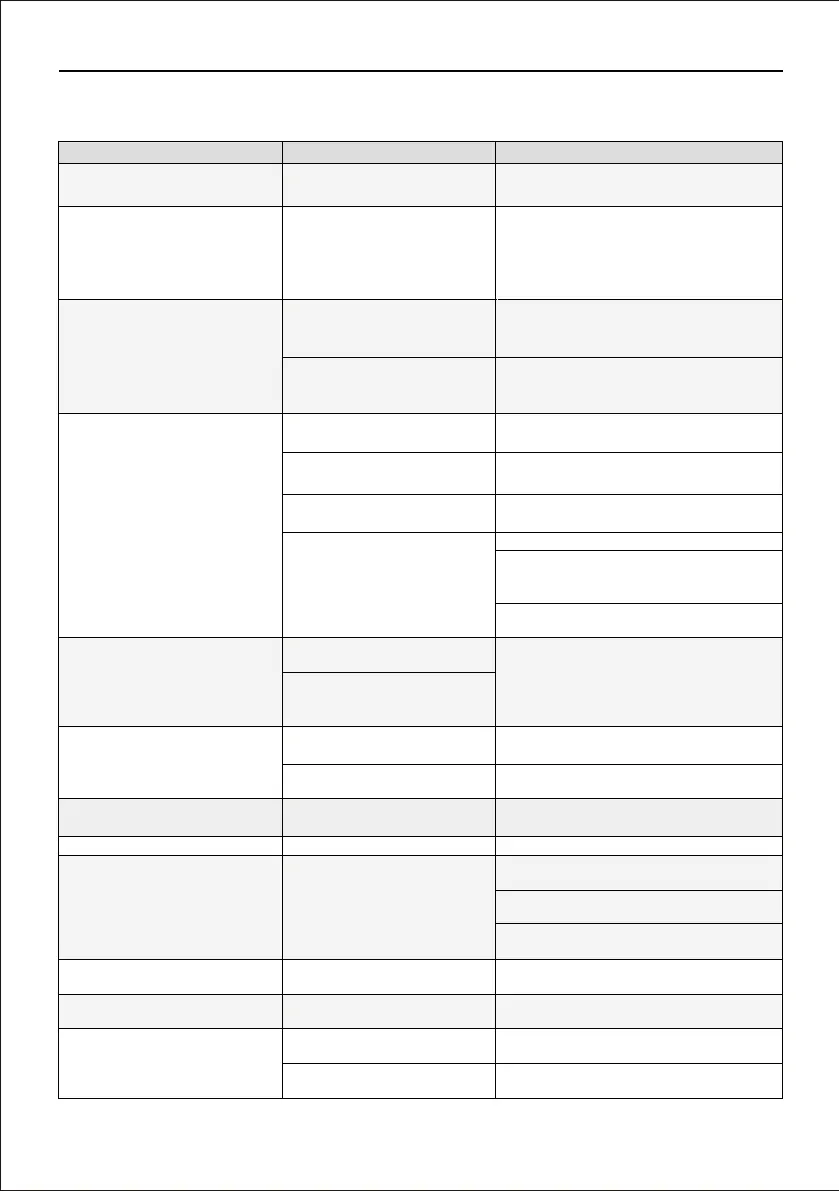
F11GIM2 User Manual
Copyright ©2021 Ruko All Rights Reserved.
35
16 COMMON PROBLEMS
The phone isn't connected to
the drone's WiFi
Problem Reason
Solutions
The motors don't turn on
Gimbal is not working
Phone setting blocks the
connection
The drone was placed on an
unlevel surface
Drone always move to left or
right, can't fly stabily
Drone flies in circle and
uncontrollable
The app keep showing GPS
signal weak
Battery and Controller can't be
charged or takes a long time
Response to remote
control delayed
Suddenly falls
The control signal was
interupted
The battery is loose and loses
power
The charger be used to charge
is not compatible
Max control distance
limitation
The drone is in beginner
mode
App reminds distance limited
Make the battery tight to ensure good
contact
Use a charger which's output currency is
5V/3A
The drone reaches the max
control distance
Refer to manual to get the drone
out of beginner mode
Lift up the remote controller antenna, point
it to the drone
Fly in an outdoor enviroment without
interference around
Fly in a higher altitude to avoid other
object's interference
Drone flies wobblily Propellers deformation Replace the propellers
Neaby GPS signal is weak or
there are interference around
Move to an open outdoor area to fly
Enviroment has impacted the
drone compass
Low air flow interference
Manually initiate the compass calibration,
and fly in an open area
The drone tilt angel too large
caused it's calibration been
interupted
Place the drone to a level
surface and restart
Fly in a higher altitude
Turn off VPN if there any
Re-install the app, allow all the app access
permission required
Some certain phones can't connect with
the drone
For Android phone, pay attention to the
reminder when connecting the WiFi, detail
refer to manual
Take the drone to an outdoor open area
Weak GPS signal, drone is
not qualified to fly
Set the drone phone auto-connect with the
drone's WiFi "RUKO-GIM-*****, forget other
network.
Open the phone WiFi list, connect the
drone's WiFi which names "RUKO-GIM-*****
To ensure the quality, all drones have been
tested before shipping. There might be
slight inevitable blemishes for minor
quantity, but it is guaranteed that all
drones are 100% brand new.
Fly the drone in an open area, to avoid tall
structures, trees and the living areas with
WIFI signal interference
The product has minor
scraches
Video freezes
There is interference around
The WiFi didn't stay
connected
App access permission isn't
allowed
The control signal was
interupted
Lift up the remote controller antenna, point
it to the drone
App can't display the drone
camera
Every drone has been tested
before shipping


 To Next Page