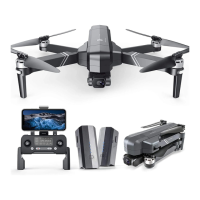
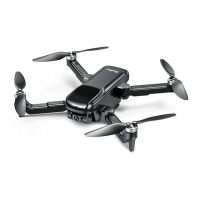
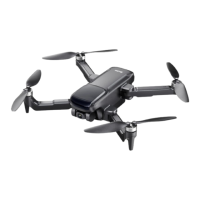
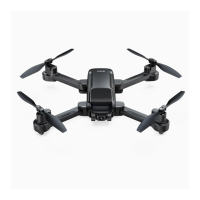
F11GIM2 User Manual
10 Connect the APP
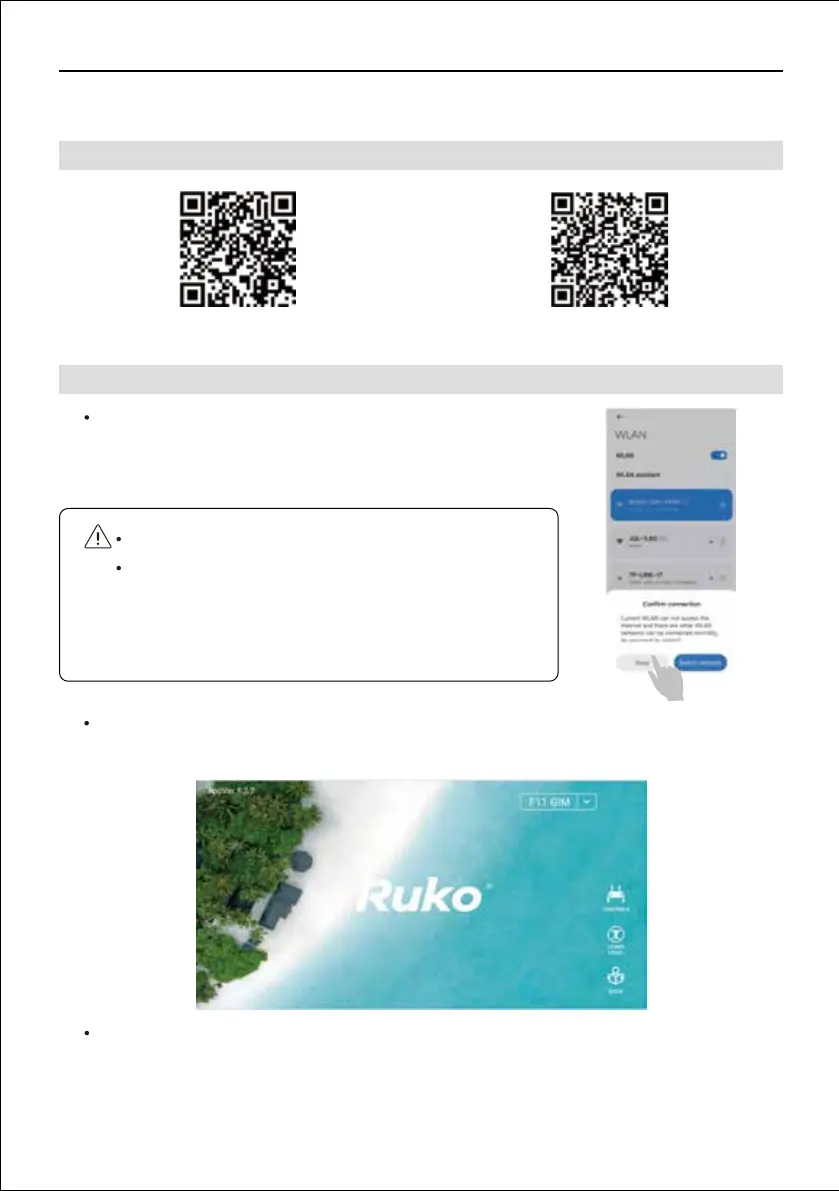
Once the drone and remote controller connected, access
"SETTING" on smart phone, open the "WLAN", find the
drone's WiFi which name "RUKO-GIM-XXXX", open the app.
Once the drone WiFi has been connected, the app will recognize the drone model and connect
automatically.
CONTROLS: tap to access the instant video transmission and drone control interface.
LEARN TO FLY: tap to watch the guide video.
GUIDE: tap in to read the manual, and watch instructional videoes.
Copyright ©2021 Ruko All Rights Reserved.
22
10.1 Download the App
10.2 Connect the APP with Drone
QR code of "RUKO DRONE" for Apple IOS system. QR code of "RUKO DRONE" for Android system.
Tips:
Android phones requires user to check a "confirm connection"
after choose the drone's WiFi on the phone, please wait
around 10-30 seconds until this reminder come up, otherwise
the connection will be failed.


 To Next Page