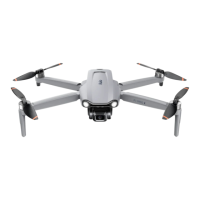
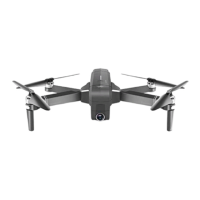
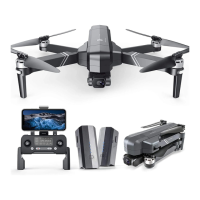
Follow Mode
Ensure that the Ruko Pro APP has been downloaded and installed
on the smartphone;
Turn on the GPS positioning of the smartphone to connect to the
Aircraft’s WiFi;
After the aircraft takes off in an open environment with good GPS
signal, ensure that the flight range is within 32-164 feet(10-50
meters) for the best effect;
Tap the icon on the APP interface, and then click the "GPS
Follow" icon to enter the follow mode;
"Follow me mode is ready" will be displayed on the APP interface
and the aircraft turns on the “follow mode” . The aircraft tracks your
movement as you move.
Tap the icon on the APP interface again to exit the "Follow Me"
mode.
Route Rules
Make sure you have downloaded Ruko Pro APP on your phone;
Connect your smartphone to the aircraft’s WiFi;
After the aircraft takes off, in GPS mode, tap on the app ;
You can find a red circle on the map (limited flight range). Mark
the points (up to 16) which you plan to fly the aircraft along within
the circle;
If you want to reset the marked point or flight path, you can tap
"Delete Single Point" or "Delete All";
Confirm that the marked points are correct and tap "Go" button.
The aircraft will start Waypoint Flight.
Copyright ©2023 Ruko All Rights Reserved.
22
F11 PRO User Manual
Push the right joystick to cancel the waypoint flight function.
①
①
③
③
④
④
⑤
⑤
⑥
⑥
②
②
The GPS follow-me function only works when the GPS signal is
strong. Please avoid high buildings, trees, and areas where WIFI
signal might be interfered.
Aircraft is not equipped with obstacle avoidance function. Please
use it in open areas free of obstacles.


 To Next Page