More Features
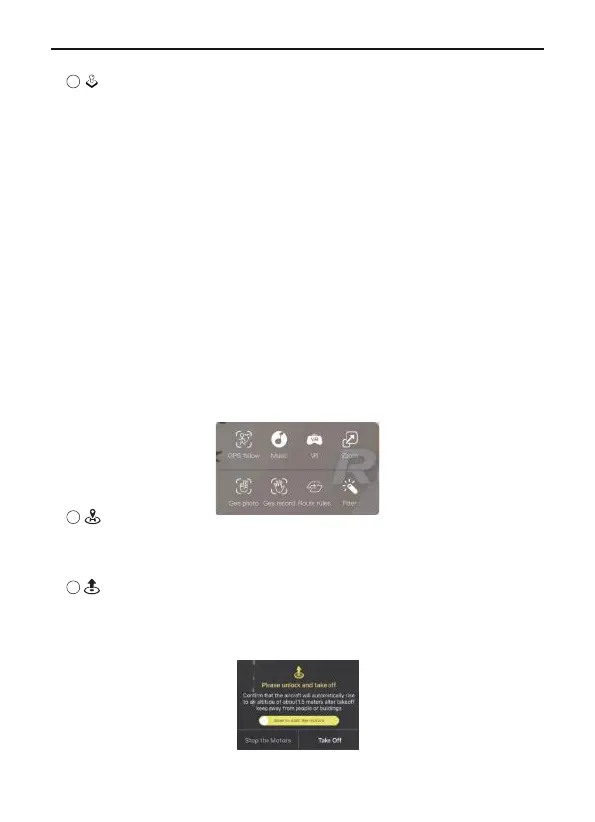
GPS Follow: Tap to start the follow me function, the aircraft
will use the GPS in the smartphone to follow you.
Music: Add music to the video. Click to enter the music page,
select the page and enter the video shooting.
VR: Click this button to use the VR glasses function.
Zoom: Click the button to use the zoom function, up to 5 times
zoom.
Gesture photo: Tap this icon to use gestures to control aircraft
to take photos.
Gesture record: Tap this icon to use gestures to control aircraft
recording.
Route rules: Click the change icon to enter the map, select a
waypoint on the map, and the aircraft will follow the waypoint
to fly. Up to 16 waypoints can be set.
Filter: Tap to select a different filter mode to take photos or
videos.
F11 PRO User Manual
Copyright ©2023 Ruko All Rights Reserved.39
13
14
15
Start Motors / Stop Motors/ Take Off
Click to expand the control panel, click "Slide to start the motors"
to start the motors, then click "Take Off" to take off the drone; Click
"Stop the Motors" to stop the motors after starting the motors.
RTH
Tap to initiate Smart RTH and have the aircraft return to the
last recorded Home Point and turn off the motors.


 To Next Page