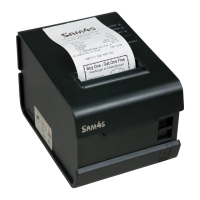
EasyManua.ls Logo

Sam4s HCUBE-102S - User Manual

Sam4s HCUBE-102S
109 pages
Print Icon
To Next Page IconTo Next Page
Loading...
HCUBE-102S
User Manual
Rev.1.0

Questions and Answers

  • A
    Arthur ParkerAug 14, 2025
    Why is the LED not on and my Sam4s HCUBE-102S Printer not working?
    • L
      Lisa TaylorAug 14, 2025
      If the Sam4s Printer's LED is off and the printer isn't working, the issue could be due to several reasons. First, ensure the printer is properly connected to a power supply and turned on. If the problem persists, there might be a broken circuit board, in which case you should contact your dealer.
  • D
    delgadodesireeAug 17, 2025
    What to do if the paper is not feeding normally in my Sam4s HCUBE-102S Printer?
    • D
      donna53Aug 17, 2025
      If paper isn't feeding normally in your Sam4s Printer, it's likely jammed. Open the printer cover, carefully check the paper path, and remove any jammed paper.
  • T
    Tyler MatthewsAug 20, 2025
    What does it mean when the error LED blinks and the beeper alarms on my Sam4s HCUBE-102S Printer?
    • V
      vloweryAug 21, 2025
      If the Error LED is blinking and the beeper is alarming on your Sam4s Printer, it could be due to several reasons: the thermal print head may be overheated (turn the printer off and resume when it cools); there may be over-voltage or low-voltage (print with specified voltage); or there may be a cutter jam (restart the printer).
  • V
    Victoria HooverAug 25, 2025
    How to fix blurred printing or spots on my Sam4s Printer?
    • S
      Sarah HallAug 25, 2025
      Blurred printing or spots on your Sam4s Printer output can arise from several causes. Check that the roll paper is loaded correctly and that you're using recommended thermal roll paper. Also, the thermal head or print roller might be dirty, so clean them. Finally, the print density might be too low, so increase the print density level.
  • T
    Traci ArmstrongAug 27, 2025
    What to do if error LED and paper LED are always on and beeper alarms on my Sam4s Printer?
    • J
      Jose CannonAug 27, 2025
      If the Error LED and paper LED are constantly on and the beeper is alarming on your Sam4s Printer, it could be either that the printer cover is open (close the printer cover) or that the paper has run out (reload the roll paper).
  • R
    robert58Aug 30, 2025
    Why does my Sam4s HCUBE-102S keep having paper jams?
    • S
      sandersjanetAug 30, 2025
      A paper jam in your Sam4s Printer can occur due to several reasons. The thermal printer head may be overheated, so reduce the printing density. The printer might be driving too fast, so reduce the printer speed. Alternatively, the paper feeding position might be incorrect; ensure the paper is parallel with the paper mount and inserted correctly between the platen roller and thermal printer head.
  • S
    Steven JenningsSep 2, 2025
    Why are vertical print words missing on my Sam4s HCUBE-102S Printer?
    • J
      Jennifer DorseySep 3, 2025
      Missing vertical print words on your Sam4s Printer usually indicates a dirty thermal head or print roller, so you should clean them. If the problem persists, the thermal head might be damaged, and you should contact your dealer for assistance.
  • C
    Carol CallahanSep 6, 2025
    What causes a cutter jam where the movable cutter cannot go back on my Sam4s HCUBE-102S Printer?
    • A
      Amanda OdonnellSep 6, 2025
      If the movable cutter cannot go back due to a cutter jam in your Sam4s Printer, this could be caused by cutter abrasion, worm gear and worm wheel abrasion, a burnt motor, or paper scraps. You may need to replace the cutter, worm gear and worm wheel, or motor. Also, clean any paper scraps on the transmission system.
  • H
    hweaverSep 9, 2025
    Why is my Sam4s HCUBE-102S not cutting paper completely?
    • A
      Amy HernandezSep 9, 2025
      Insufficient cutting on your Sam4s Printer is often due to cutter edge abrasion or paper that is too thick. The solution is to replace the cutter.

Summary

Statement

Important Safety Instructions

Safety Warnings

Warns about hot print head and static damage to the printer head.

Operating Instructions

Provides instructions for printer placement, power, and usage.

Overview

Printer Introduction

Introduces the HCUBE-102S thermal receipt printer and its applications.

Main Features

Lists key features like low noise, high print speed, and easy paper loading.

Getting Started

Packing List

Details the accessories included in the printer package.

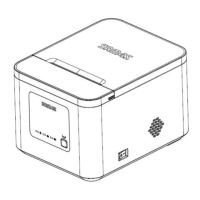
Printer Appearance

Specifications

Printer Specifications

Lists technical details like printing method, resolution, speed, and interfaces.

Printing Media Specifications

Specifies paper type, width, outer diameter, and thickness.

Thermal Paper Usage Notices

Provides important notices for using thermal paper to maintain print quality.

Printing and Cutting Positions

Illustrates the printable area and paper width for printing.

Cutting Position Guide

Details the paper cutting position (L1) for the HCUBE-102S model.

Installation and Usage

Media Loading Procedure

Step-by-step guide on how to load the thermal paper roll into the printer.

Power Connection

Instructions for connecting the printer to a power source.

Cash Drawer Connection

Instructions for connecting a cash drawer to the printer's interface.

LED Indicators and Beeper

Explains the function of LED indicators and beeper for printer status.

Print Testing

Overview of printer test functions and how to perform them.

Interfaces

USB Interface

Explains the USB interface pinout and signal names.

Cash Drawer Interface

Describes the cash drawer interface pinout and electrical characteristics.

Power Port Connector

Details the pinout and signals for the power port connector.

Serial Interface

Provides the pinout configuration for the serial (RS-232) interface.

RJ45 COM Interface

Explains the RJ45 COM interface pinout and network connection notes.

Troubleshooting

Printer Not Working Issues

Lists common problems for a non-functional printer and their solutions.

LED and Beeper Alarms

Troubleshooting guide for LED indicator and beeper alarms.

Printing Troubles

Addresses common printing issues like blurred text and feeding problems.

Paper Cutting Problems

Solutions for issues related to the auto-cutter, such as jams or insufficient cuts.

Cutter Jam Troubleshooting

Detailed steps to resolve a cutter jam issue safely.

Printer Cleaning and Maintenance

Cleaning the Print Head

Instructions for safely cleaning the printer's thermal print head.

Cleaning Sensors and Paper Path

Guide for cleaning printer sensors, rollers, and the paper path.

Utility Tool Instructions

Utility Tool Installation Guide

Step-by-step guide for installing the printer utility software.

Using the Utility Tool

Overview of the utility tool's functions and interface.

Managing Printers in Utility

Instructions for adding, modifying, deleting, and connecting printers.

Printer Test Options

Details printer tests: Self Test, Partial Cut, Text Print, 2D Code.

Command Test Function

How to send commands to the printer for testing purposes.

Managing Images

Instructions for downloading, printing, and deleting images on the printer.

Downloading Fonts

Steps to download and install fonts onto the printer.

Parameter Settings

Guide to configuring serial port, language, cutter, buzzer, and other parameters.

Advanced Settings

Accesses configurations for paper reduction, black marks, length, logos.

Firmware Update Procedure

Steps to update the printer's firmware using the utility.

Windows Driver Instructions

Driver Instruction Information

Provides an overview of the Windows driver installation and usage guide.

Supported Operating Systems

Lists the operating systems compatible with the printer driver.

Driver Preparation

Instructions on how to prepare and download the Windows driver.

Windows Driver Installation Guide

Step-by-step instructions for installing the Windows printer driver.

Printing Preferences Configuration

How to set printing preferences like paper size, offset, copies, watermark, halftone.

Barcode Setup

Guides on setting up barcode printing, including font, symbology, and size.

Other Driver Settings

Covers printer properties, port settings, and advanced options.

Uninstalling Windows Driver

Step-by-step guide for uninstalling the printer driver from Windows.

Printer Specifications Summary

Final summary of printer specifications, including resolution and paper sizes.

Sam4s HCUBE-102S Specifications

General IconGeneral
Print MethodDirect Thermal
Paper Width80mm
TypeThermal Printer
Print Speed250mm/sec
ConnectivityUSB, Serial, Ethernet
Paper Thickness0.06 ~ 0.08mm

Related product manuals