Using the PHOTO (JPEG) List
This menu shows JPEG files and folders saved on an USB memory device.
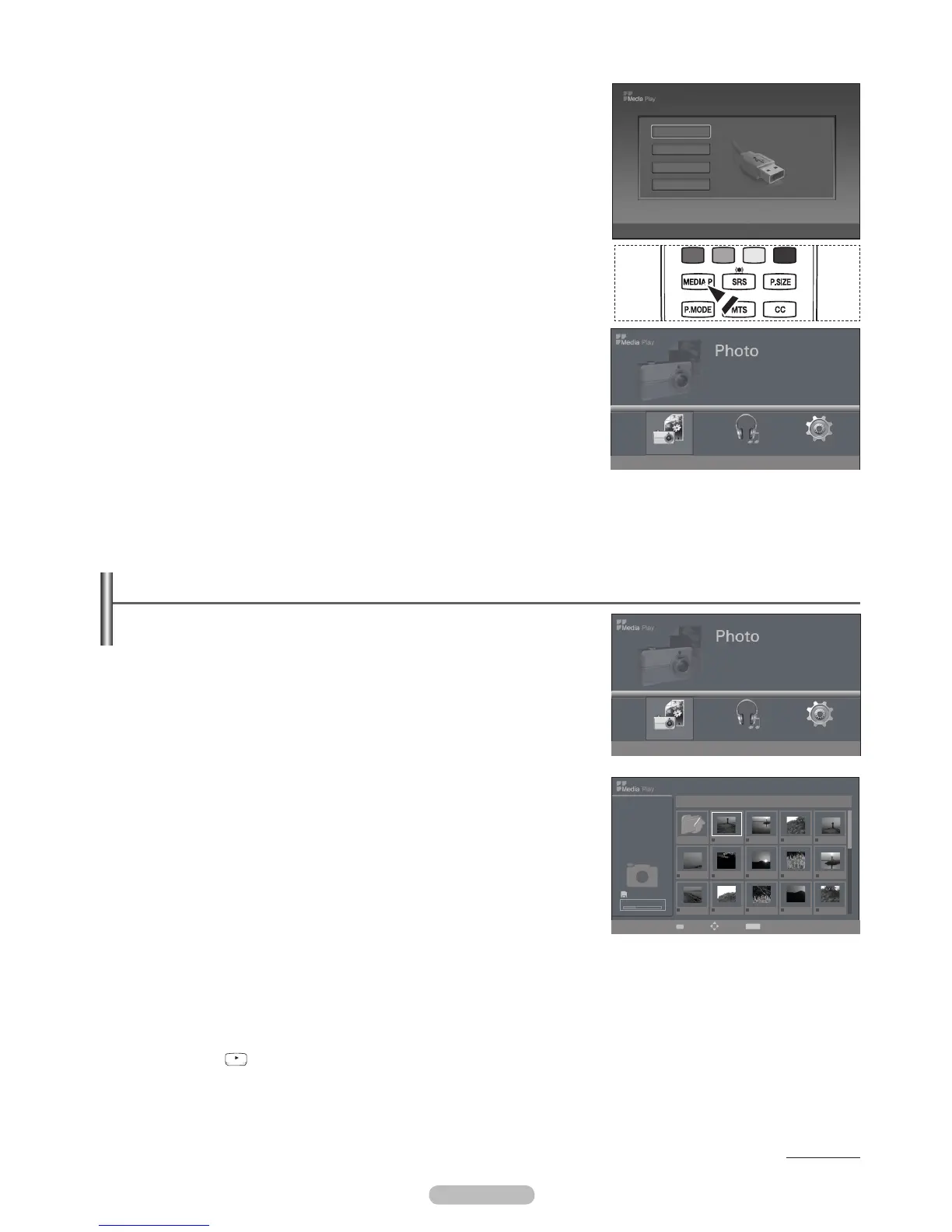
1. Complete Steps 1 to 2 of Using the Media Play Menu. (Refer to page 38)
2. Photo, then press the ENTER
E
button.
3.
Pressing the ENTERE button over a photo icon shows the currently selected
photo in full screen.
Pressing the ENTERE
included in the folder.
To exit Media Play mode, press the MEDIA.P button on the remote control.
icon will appear at the top left of the screen.
such as bmp or tiff will not be displayed.
The thumbnails are numbered from left to right and from top to bottom,
from 1 to 15.
Certain types of USB Digital camera and audio devices may not be compatible
with this TV.
If the photo is displayed in full screen, you can zoom in and out or rotate the photo on the screen.
Press the
button when a Photo icon is selected to start a Slide Show.
Photos without EXIT information may not be displayed as thumbnail images in the PHOTO LIST depending on the picture
quality and resolution.
Continued...
•
•
N
N
N
N
N
N
N
N
N
N
N
N
N
N
Using the Media Play Menu
1. Press the MENUApplication, then
press the ENTERE button.
2. Media Play (USB), then press the ENTERE
button.
The Media Play menu is displayed.
Press the MEDIA.P button on the remote control to display the Media Play
menu.
3.
press the ENTERE button.
The Media Play menu differs depending on the USB Memory Device
connected to TV.
Some devices may not be supported due to compatibility problems.
4. Photo, Music, Setup), then press
the ENTERE button.
To exit Media Play mode, press the MEDIA.P button on the remote control.
❑
N
O
N
N
N
English - 38
MemoRive
E Enter e
Exit
USB
Memorycard
315.0MB/495.0MB Free
MemoRive
Music Setup
Memorycard
315.0MB/495.0MB Free
Photo
L Move E Enter
R
Return
Music Setup
Memorycard
315.0MB/495.0MB Free
Photo
L Move E Enter
R
Return
315.0MB/495.0MB Free
1/3 Page
Memorycard
Select
Move
INFO
Option
E
Enter
R
Return
IMG_0550.JPG
Photo
400*340
53 KB
Jan 18, 2009
1 / 40
Upper Folder
IMG_0335.JPG IMG_0343.JPG IMG_0344.JPG
IMG_0557_JPG IMG_0563_JPG IMG_0566_JPG IMG_0572.JPGIMG_0556_JPG
IMG_0577.JPG IMG_0578.JPG IMG_0579.JPG IMG_0580.JPG
▶▶
▶▶
IMG_0550.JPG
IMG_0576.JPG
BN68-02221B.indb 38 2009-03-13 오후 6:46:04






 To Next Page