138 Section 2L. Synchronizing with ActiveSync
Setting Up and Configuring
ActiveSync
Your computer can assign a different profile to each
device that is connected to it via the ActiveSync
application.
1. Right-click the ActiveSync icon found in your
computer’s taskbar and select the
Connection
Settings... option.
2. Make sure the following options are checked and
click
OK:
䡲 Allow USB Connections
䡲 Open ActiveSync when my device connects
3. Connect one end of the USB data cable (included
with your device) into the USB port on your
computer.
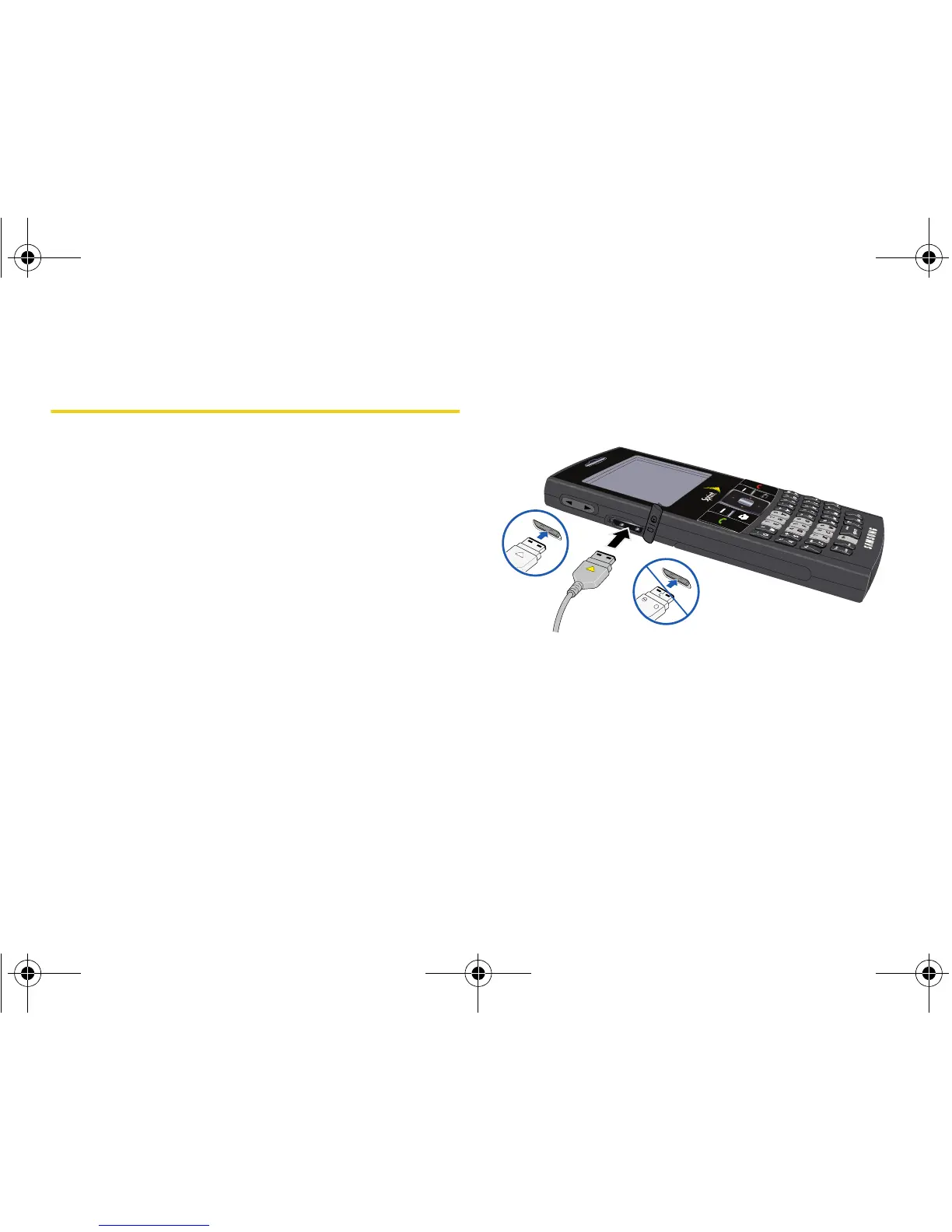
4. Connect the other end into the Power/Accessory
Interface Connector. (The Synchronization Setup
Wizard will launch on your computer and prompt
you to set up a sync partnership with the device.)





 To Next Page