Sprint Service
Section 3A. Sprint Service Features: The Basics 153
Accessing SMS Text Messages
To read an SMS Text message:
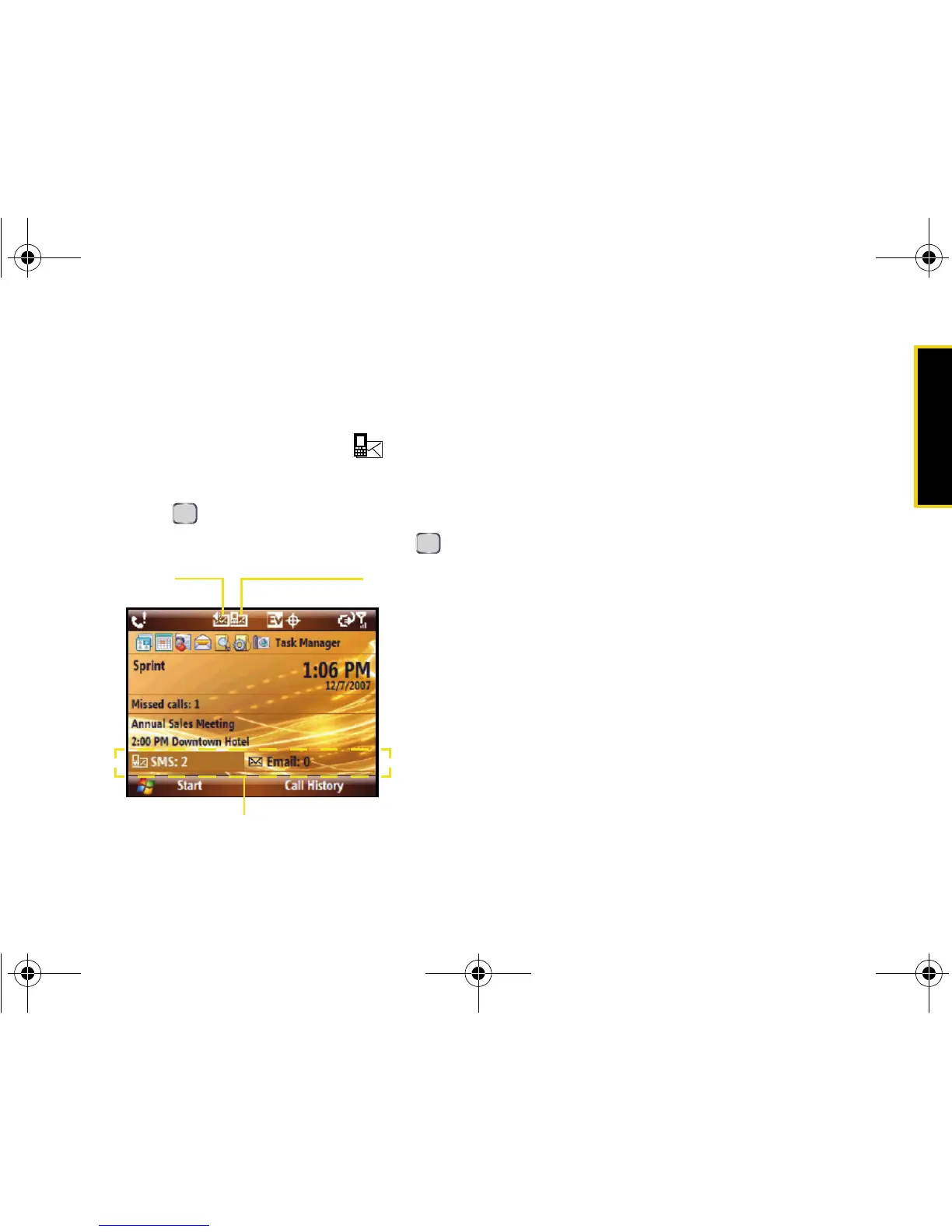
When you receive a text message, it will be displayed
automatically on your device’s screen ( ).
1. Use your navigation key or thumbwheel to select
the
SMS option from the Message Access section,
and press .
2. Select the message from the list and press .
To reply to an SMS Text message:
1. While the message is open, press Reply (left
softkey)
.
2. Compose your reply or use the preset messages.
䡲 To type a message, use the keypad to enter your
message.
䡲 To use a preset message, press Menu (right
softkey)
> My Text, highlight a message, and press
Insert.
3. Review your reply and press Send. (Review your
message and select additional messaging options
by pressing
Menu [right softkey] > Message Options.)
Using Preset Messages
Preset messages make sending text messages to your
friends, family, and co-workers easier than ever.
My Text
messages let you quickly insert commonly used
phrases into the body of a new message or a reply to a
message.





 To Next Page