Settings
Section 2B. Your Device’s Settings 57
4. Press Done (left softkey)
when you have finished
assigning hot keys.
Using Speed Dial
Assigning an Application to a Speed
Dial Location
Start menu applications can be set to launch when
activated by a speed dial keypress in the same way
that phone numbers can be assigned to a speed dial
key.
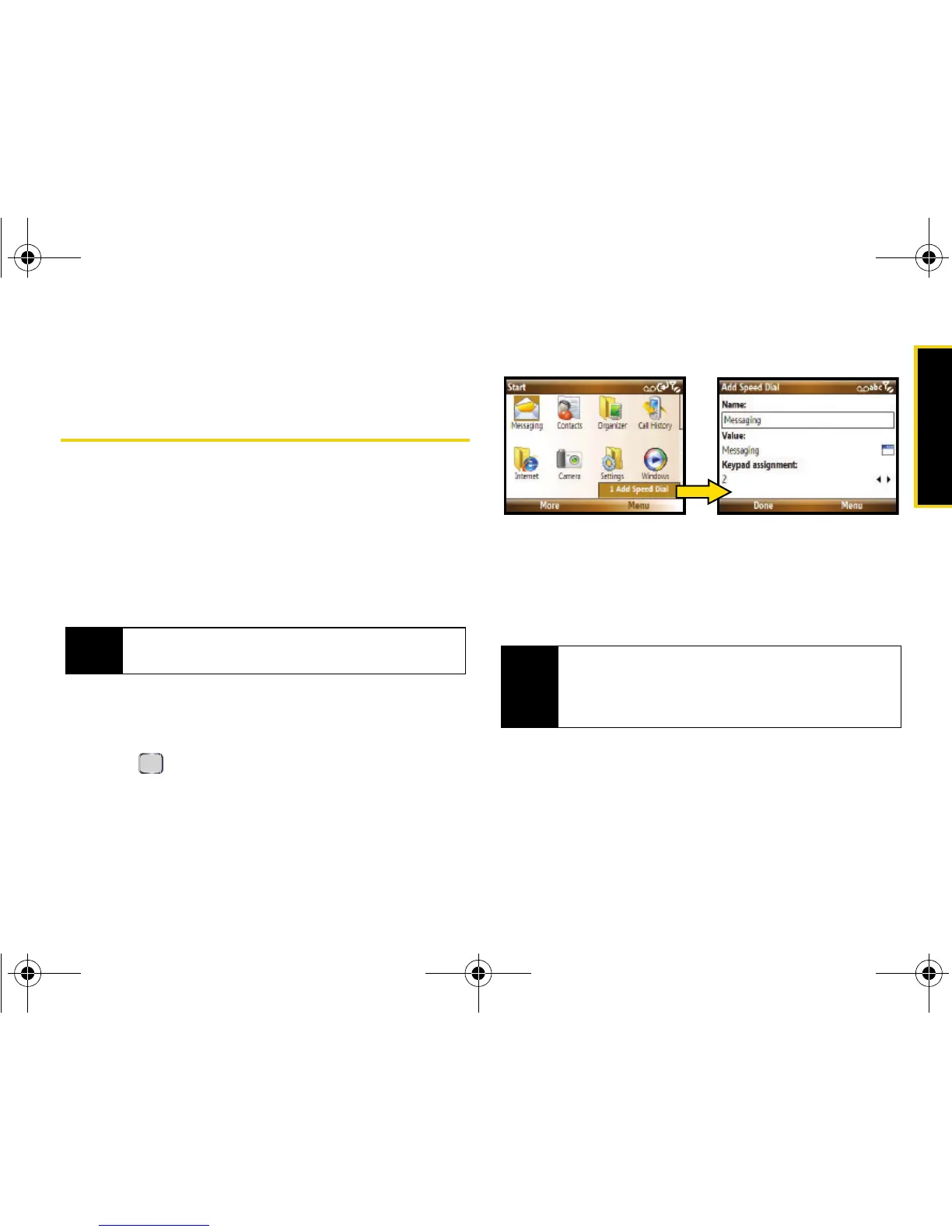
1. From the Home screen, press Start.
2. Select a desired application from the Start menu
screen (or from available submenus), but don’t
press .
3. Press Menu (right softkey) > Add Speed Dial.
4. Use the keypad to assign a descriptive name
within the Name field (or accept the default).
5. In the Keypad assignment field, select an available
speed dial location for the application.
6. Press Done (left softkey) to finish assigning the
speed dial.
Tip
You can also assign email addresses or Web pages to
the number keys as speed dial entries.
Note
Keypad numbers 0, 1, and all digits ending in 0 (10, 20,
30, etc..) are reserved and cannot be overwritten.
Speed dial 1 is reserved for quick access to Voicemail
services.
I325.book Page 57 Tuesday, December 11, 2007 11:23 AM





 To Next Page