11
SmartThings app
Downloading the SmartThings app and registering your Samsung account
1 Downloading the SmartThings app
• Search for "SmartThings" on Play Store or App Store, and download the SmartThings app to your
smartphone.
• If the SmartThings app is already installed on your smartphone, update it to the latest version.
NOTE
• The supporting software version of the SmartThings app is subject to change according to the OS
supporting policy the manufacturer provides.
In addition, as for the SmartThings app or the functions that the app supports, the new application update
policy on the existing OS version can be suspended due to usability or security reasons.
• The SmartThings app is subject to change without notice to improve usability or performance. As the
mobile phone OS version is updated every year, the SmartThings is also updated continually according to
the latest OS.
• If you have enquiries regarding the items mentioned above, please contact us on st.service@samsung.com.
2 Registering your Samsung account
• A Samsung account is required to use the SmartThings app. To create your Samsung account and log in
to your account, follow the instructions displayed on the SmartThings app. You do not need to install an
additional app.
NOTE
• If you already have a Samsung account, log in to the account. When your smartphone is a Samsung device
and you have a Samsung account, your smartphone is automatically logged in to your account.
• If you log in from a smartphone produced for a different country, you need to log in with its country code
when you create your Samsung account, and the SmartThings app may not be used on some smartphones.
Connecting the SmartThings app to your product
1 Selecting the product to connect to
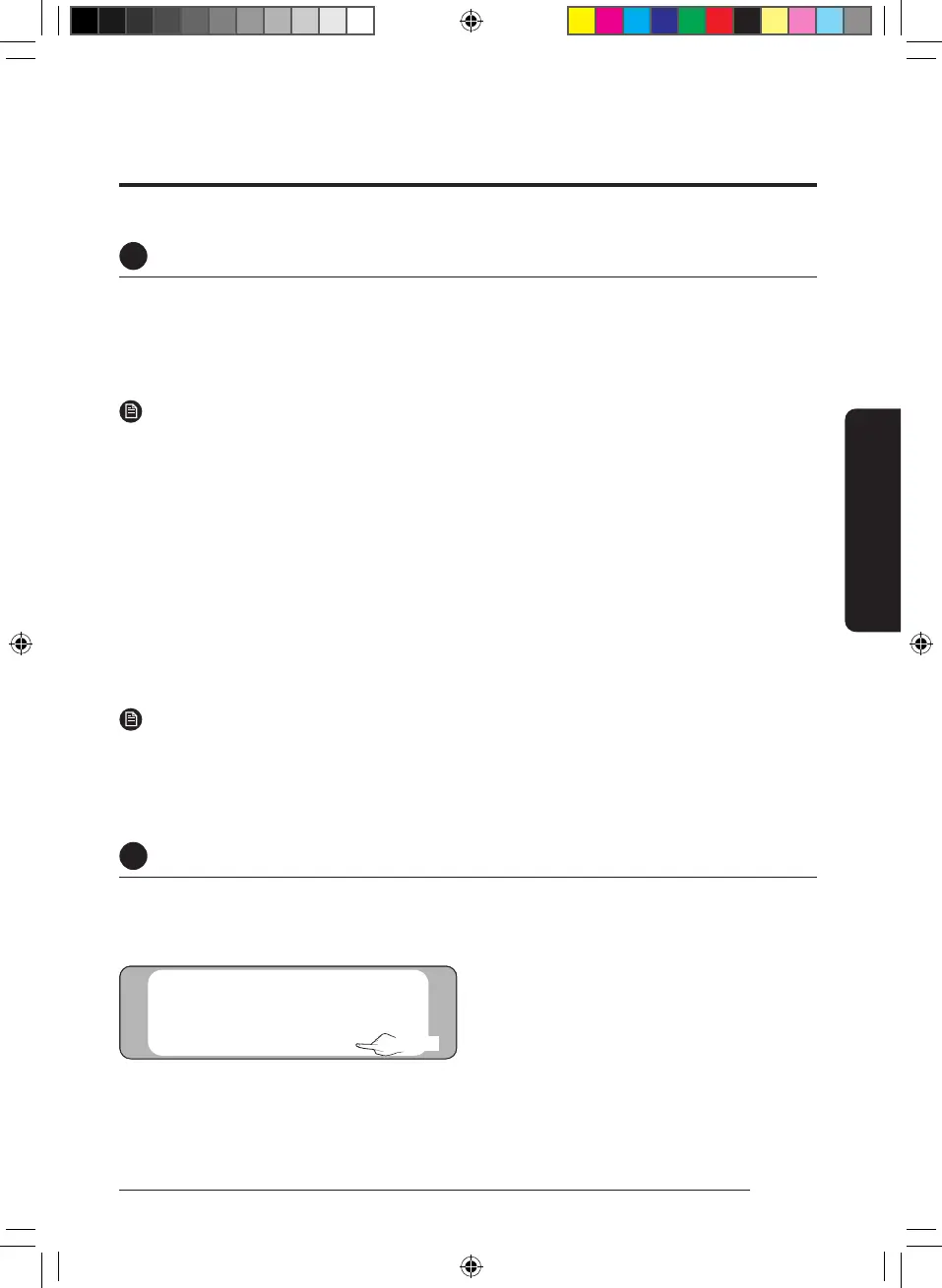
1) After the SmartThings app is started, select "ADD NOW" when a pop-up window saying that a product to
connect to is found appears.
A new device has been found.
Add this device to
SmartThings?
Never Later
Add now
Select
DB68-12922A-02_IB_24Y EHS AE7000D_EU_EN_.indd 11DB68-12922A-02_IB_24Y EHS AE7000D_EU_EN_.indd 11 2024-12-11 오전 10:04:382024-12-11 오전 10:04:38



 To Next Page